
How to make an instant drayage booking
Once you have an instant drayage quote in Portmate, you can turn it into a live booking in seconds — directly in the chat. No extra forms, no spreadsheets, no copy-pasting into email.
Before you begin
To make a booking, you’ll need:
- A valid quote number (7-character ID from your quote, e.g.
ABC1234) The facility details:
- Facility name
- Street address
- City
- State
- ZIP
- Primary facility email (receiving / shipping contact)
The container details:
- Container number (e.g.
MSCU1234567)
- Container number (e.g.
Note: Cargo details such as commodity and weight are captured during the quote stage.
They are automatically carried over to the booking to preserve pricing accuracy.
Step 1: Open the chat
- Visit portmate.ai in your browser.
- Click the chat icon on the left navigation bar to begin.
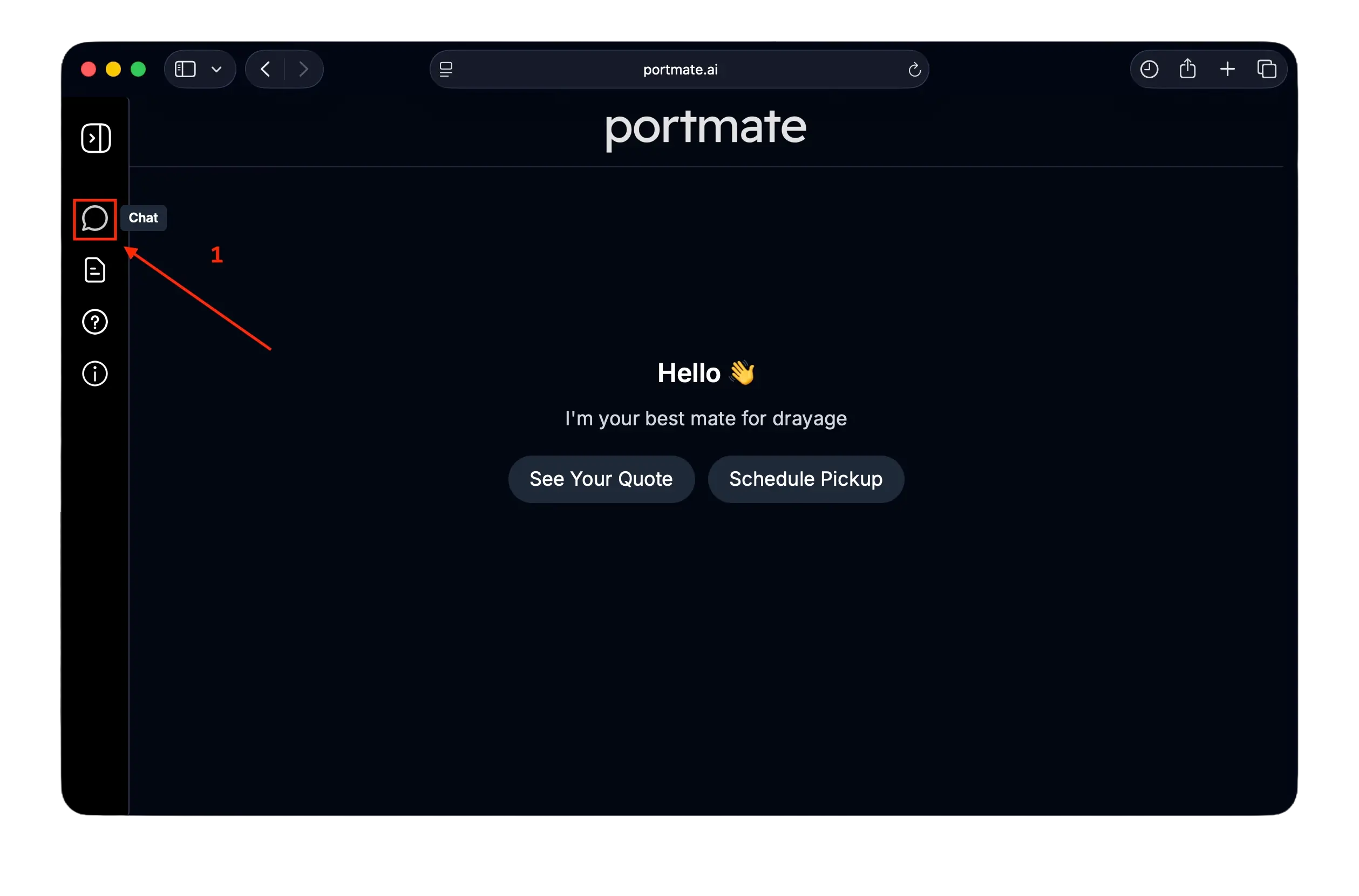
You’ll need to be signed in to create bookings. You can learn more about how to sign in here, or if you don’t have an account yet, see how to create your Portmate account here.
Step 2: Select the quote you want to book
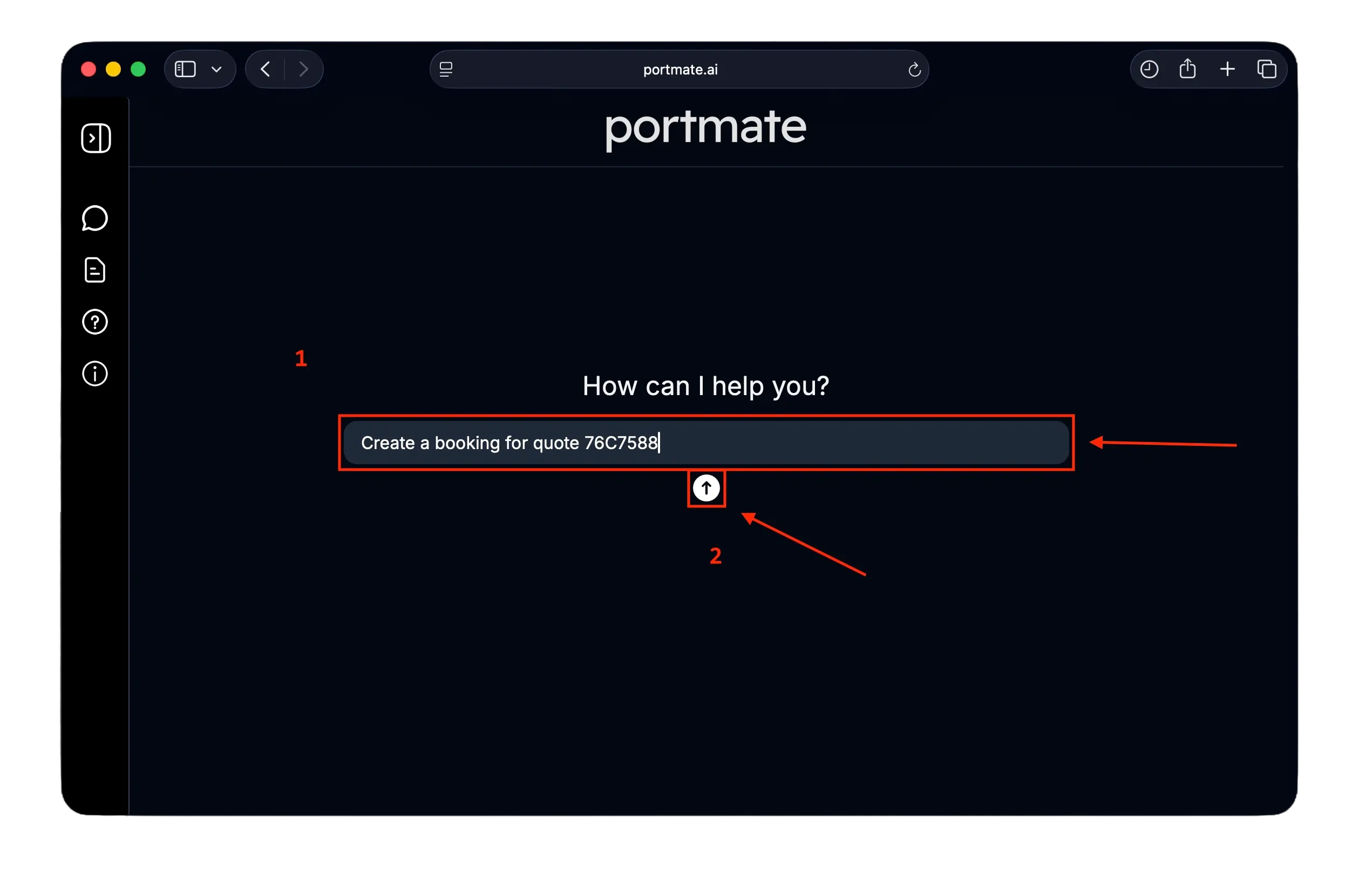
Start by referencing the quote you want to turn into a shipment. For example:
- “Create a booking for quote 76C7588”
- “Book this shipment based on quote XYZ7890”
- “Turn quote ABC1234 into a booking”
Step 3: Provide facility and container details
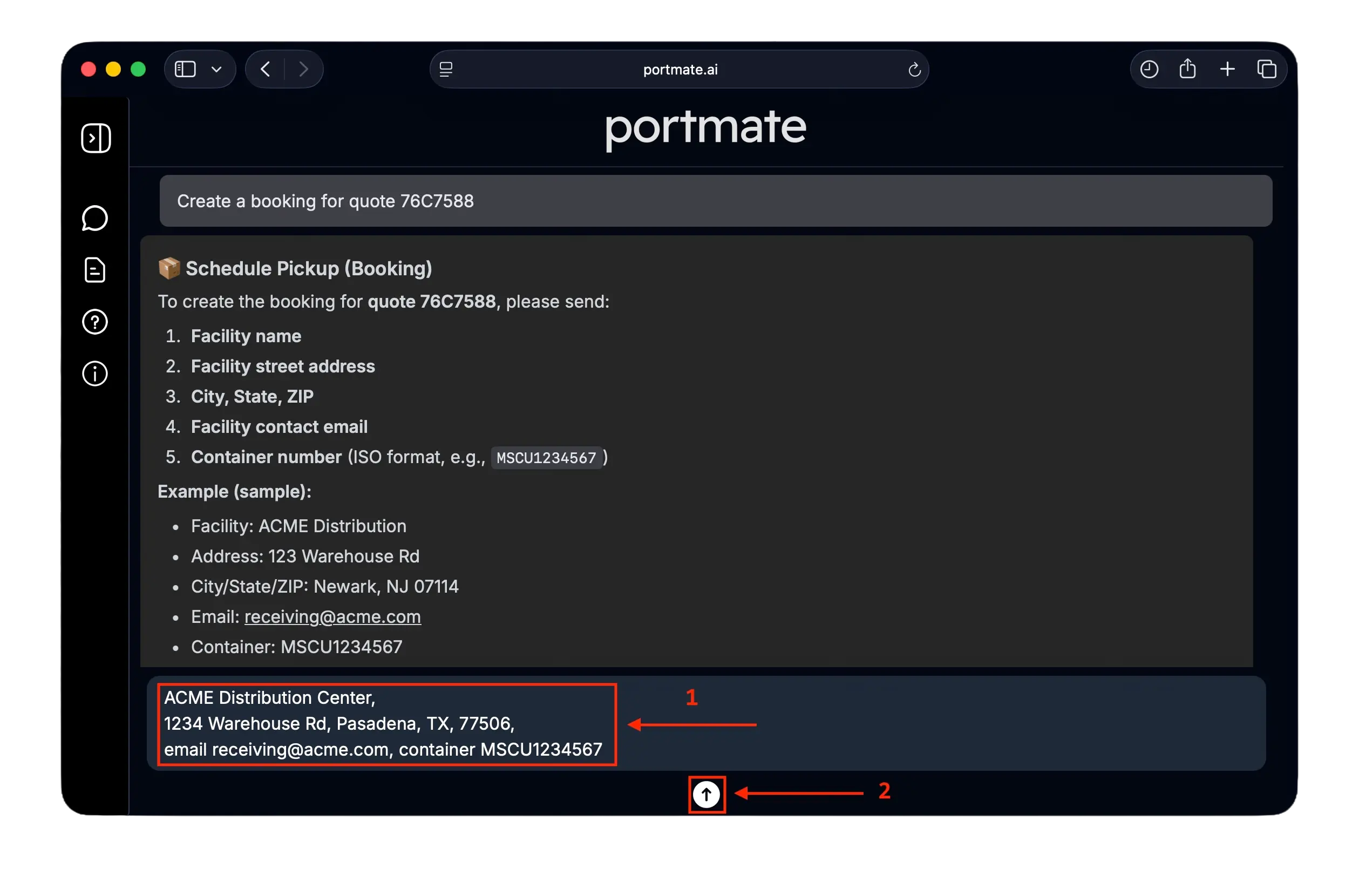
Portmate will ask for the facility where the container will be delivered (imports) or picked up (exports), and container number.
Example (all in one message)
“ACME Distribution Center,
1234 Warehouse Rd, Pasadena, TX, 77506,
email receiving@acme.com, container MSCU1234567”
Required info is as follows:
| Field | Description | Example |
|---|---|---|
| Facility name | Name of the delivery (imports) / pickup facility (exports) | ACME Distribution Center |
| Facility address | Street address of the facility | 1234 Warehouse Rd |
| Facility city | City where the facility is located | St. Charles |
| Facility state | State where the facility is located | IL |
| Facility zip | ZIP code of the facility | 60174 |
| Facility email | Primary email for the warehouse/receiving/shipping team | receiving@acme.com |
| Container number | ISO 6346 container number | MSCU1234567 |
Reminder: Commodity and cargo net weight depended on the quote and cannot be changed at booking.
To update cargo details, simply request a new quote before booking.
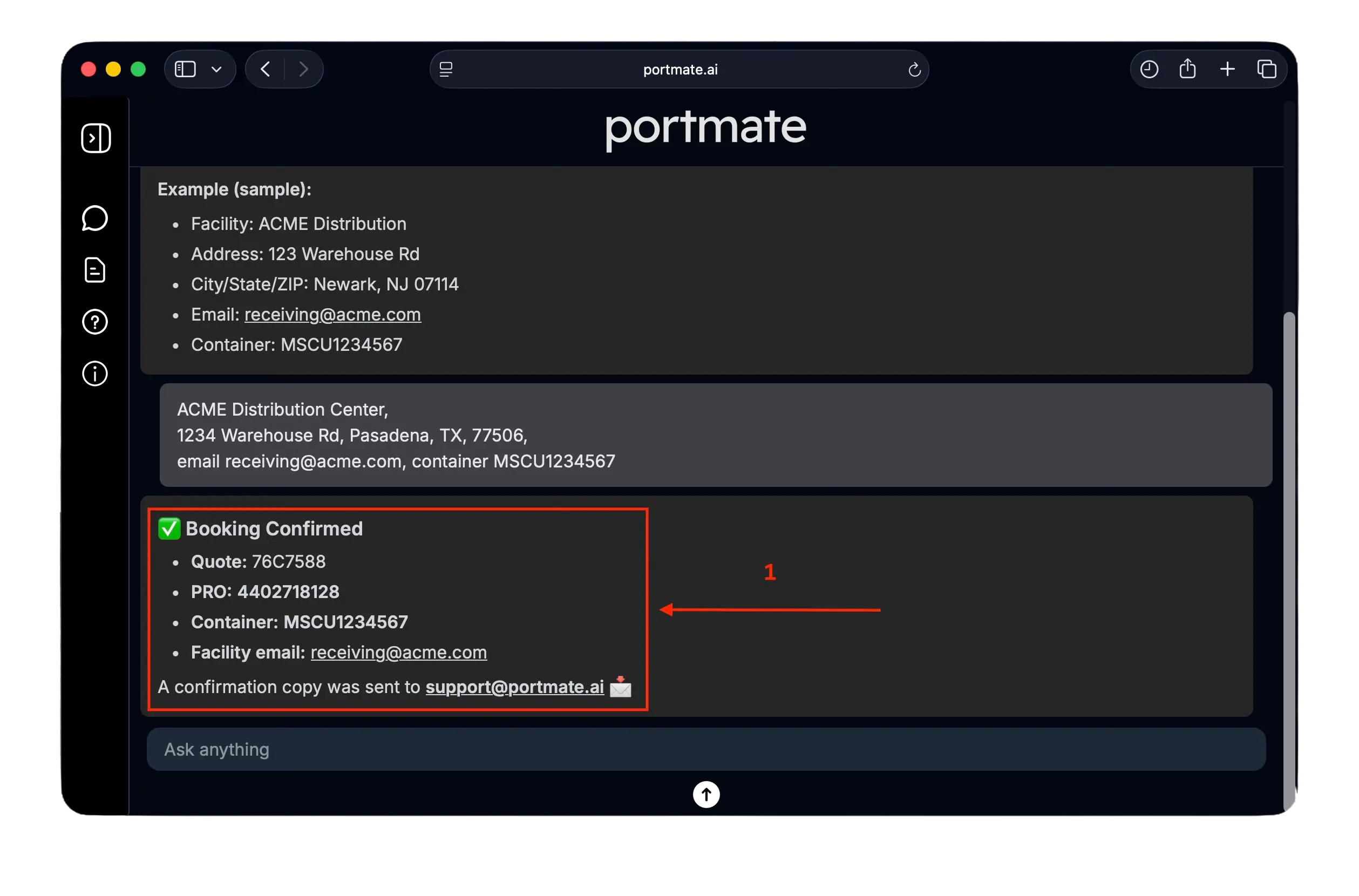
Step 4: Receive your booking confirmation
After the booking is created, Portmate instantly returns your booking summary, and emails the copy to you, with details such as:
- Shipment Pro
- Reference to the quote number
- Facility and container information
What you can do next
After creating a booking, you can:
- Email booking details to your team or warehouse
- Book instantly additional containers with similar lanes
- Keep all quote → booking history in one place instead of scattered emails
Portmate lets importers, forwarders, and trucking teams go from instant drayage quote to confirmed booking in no time — with structured facility and container data captured automatically.