
How to sign in to your Portmate account
Signing in to your Portmate account is fast and secure — with no passwords to save and remember. After you sign up, we'll store your session on the device for up to 30 days, meaning you don’t have to sign in every time. If you're inactive for more than 30 days or want to sign in from a new device, Portmate sends a one-time passcode to your email so you can easily verify your session.
Before you begin
You’ll need:
- The business email you previously used to sign up
Note: No phone number is required to sign in — only your email.
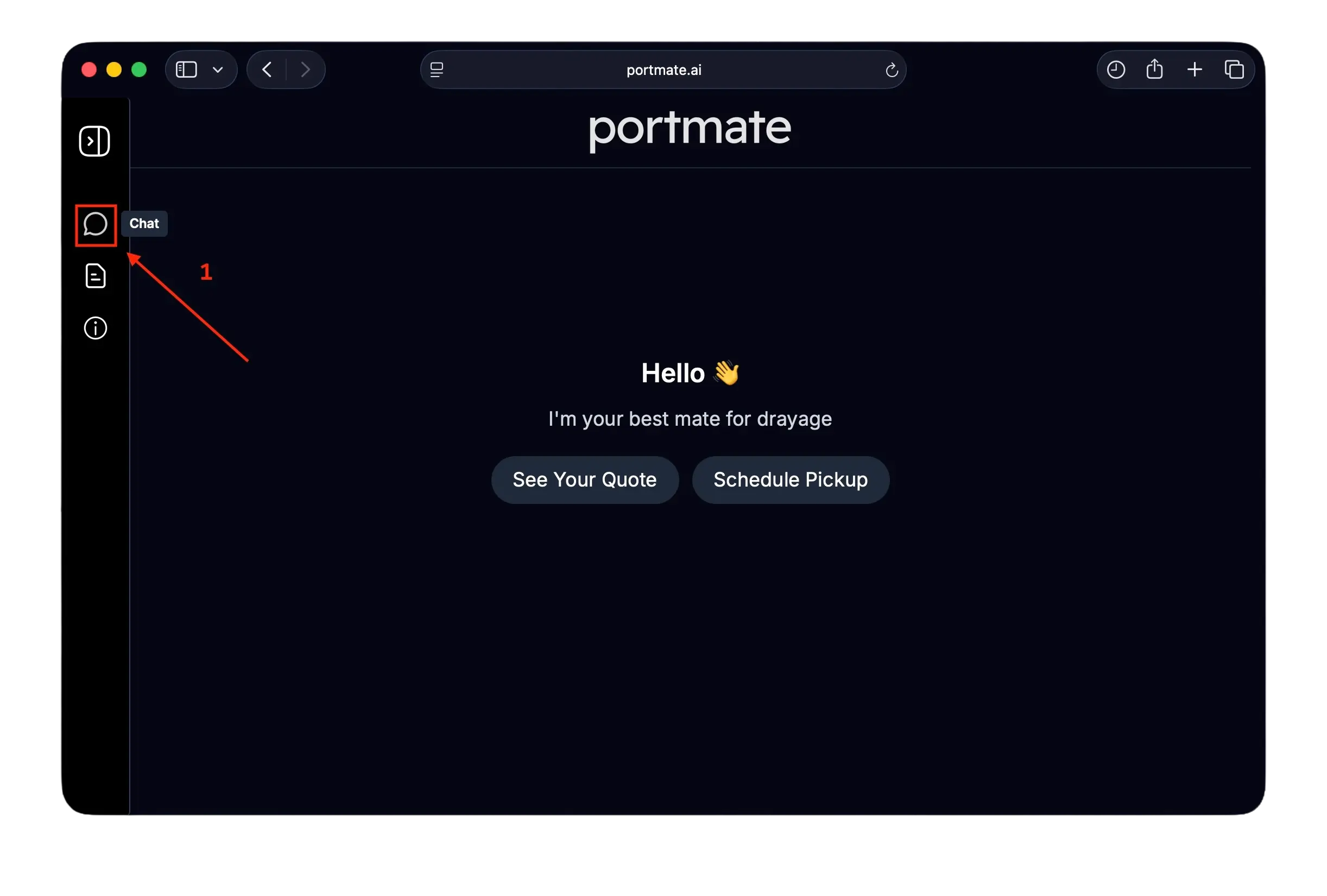
Step 1: Open the chat
- Visit portmate.ai in your browser.
- Click the chat icon on the left navigation bar.
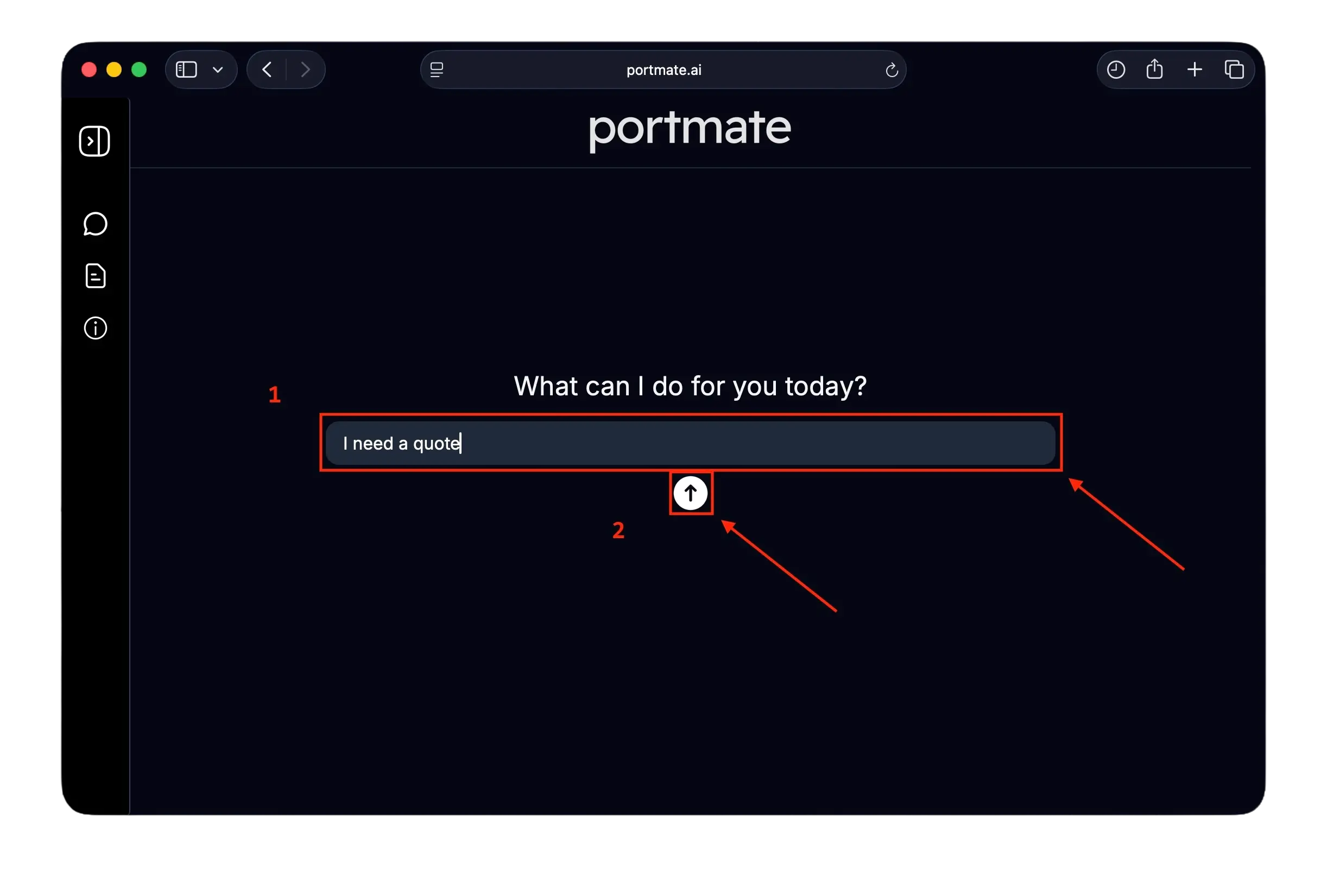
Step 2: Make the request you need
We don't have a specific and traditional sign-in form to save your time, so you can directly start by asking Portmate to:
- “Get a drayage quote”
- “Show my previous quotes”
- “Help me book a container”
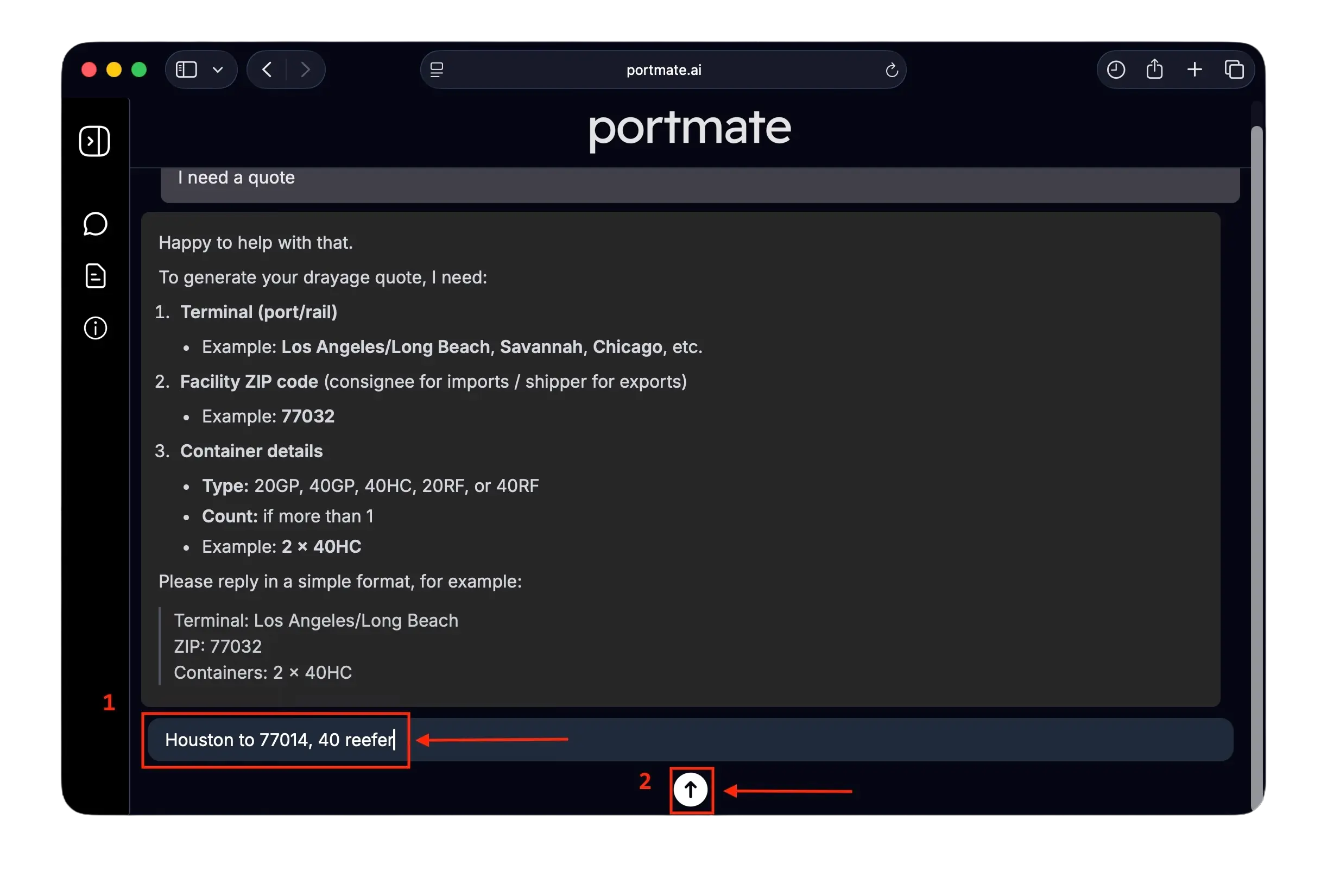
Step 3: Enter the necessary task details
Portmate will request the information needed to complete your task. For example, to generate quotes:
| Required info | Example |
|---|---|
| Terminal (Port or Rail Ramp where container is being discharged at) | Houston |
| Facility ZIP (Consignee for Imports, Shipper for Exports) | 77014 |
| Container size and type (Standard, High Cube, or Reefer) | 40RF |
| Container count | 1 |
Type in the required information to proceed.
Step 4: We check your session
If you already have a valid session, and it's still valid, you will be signed in instantly — no extra steps needed. If the session is expired or invalid, Portmate will ask for your email.
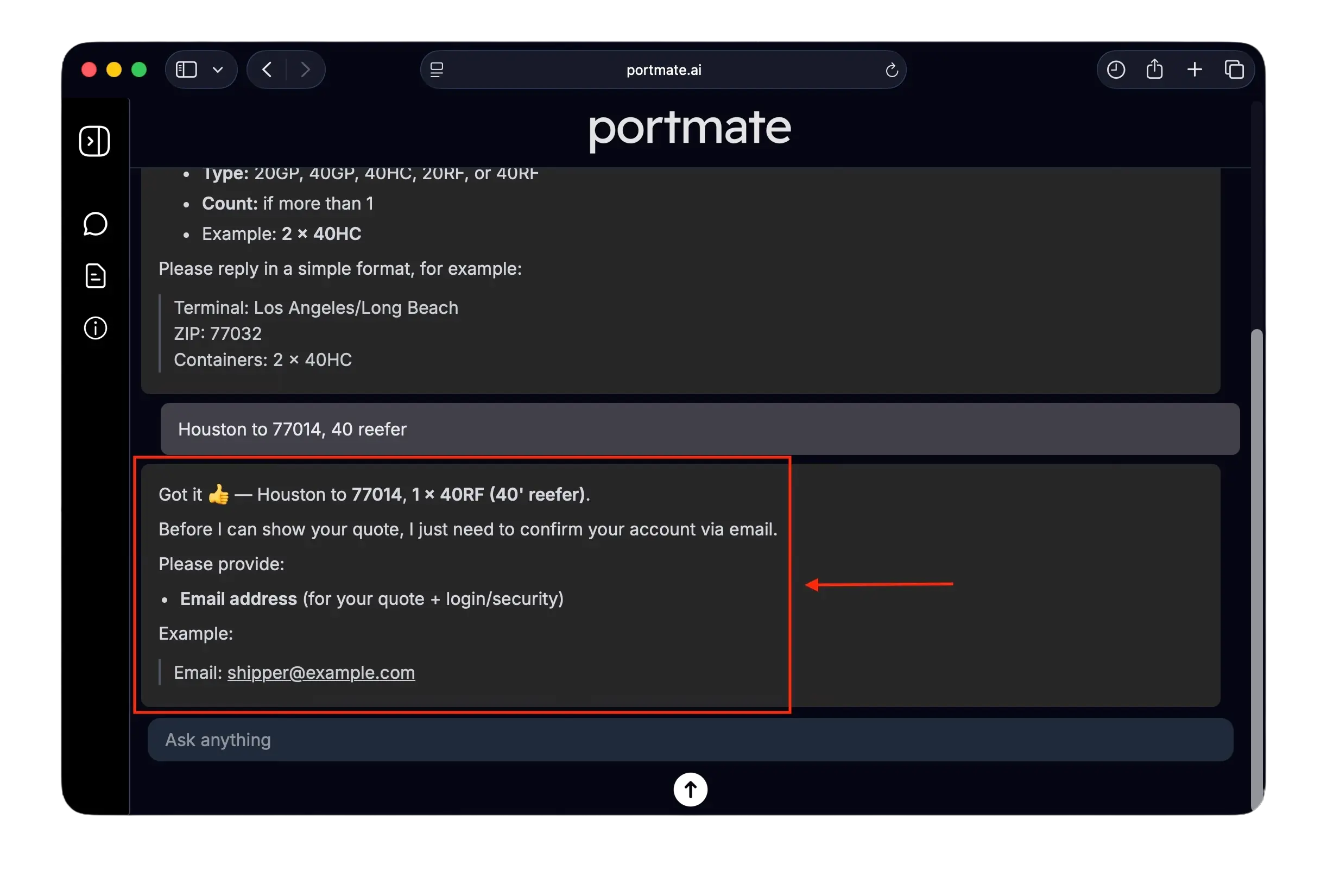
Step 5: Enter your email
Enter the business email you used when signing up:
- If the email exists → a new sign-in session is created
- If it does not → Portmate will guide you to create a new account instead
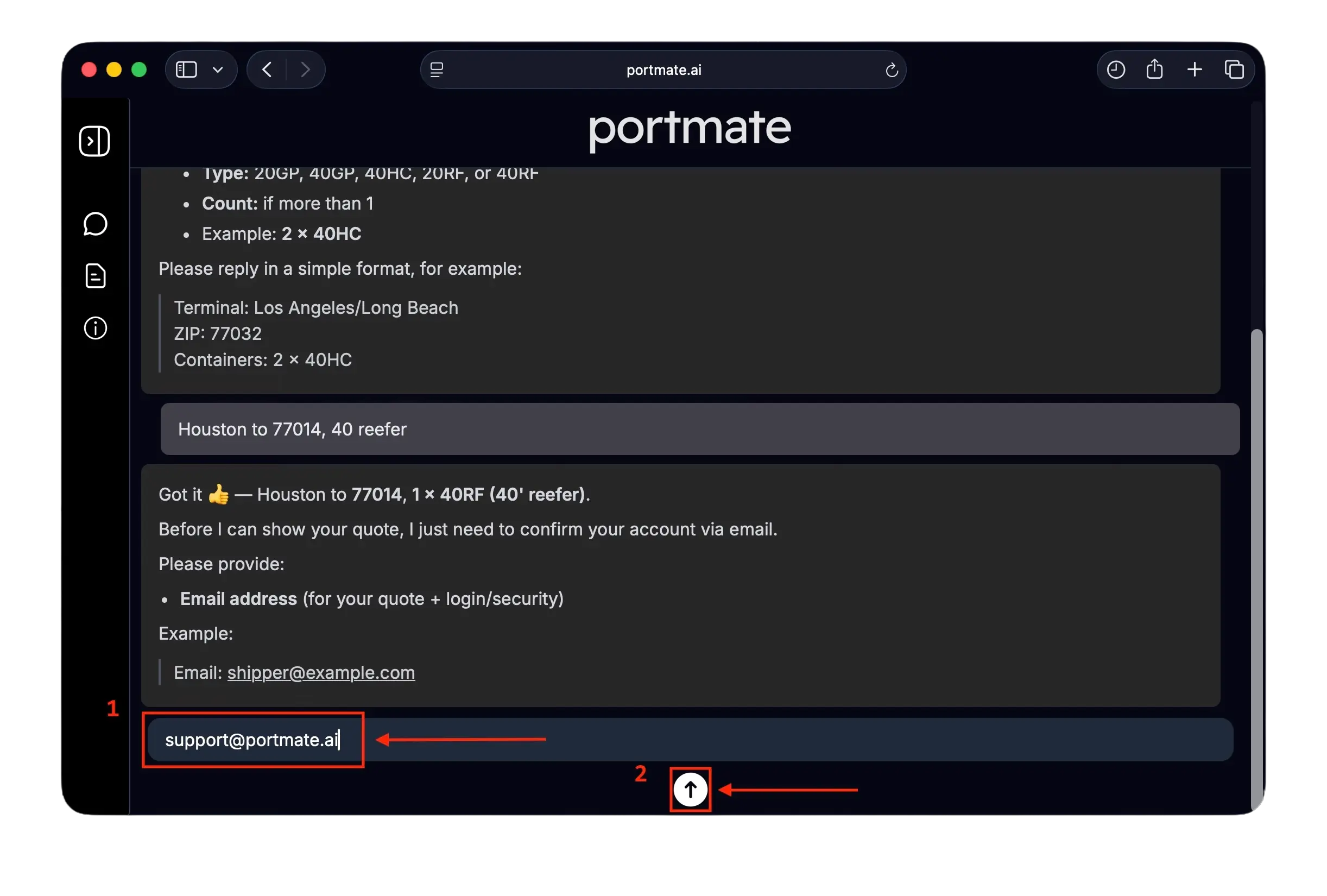
Step 6: We send a new OTP to your email
Once your email is confirmed, Portmate sends a new one-time passcode (OTP) to your inbox. You'll see a message in the chat letting you know it was sent.
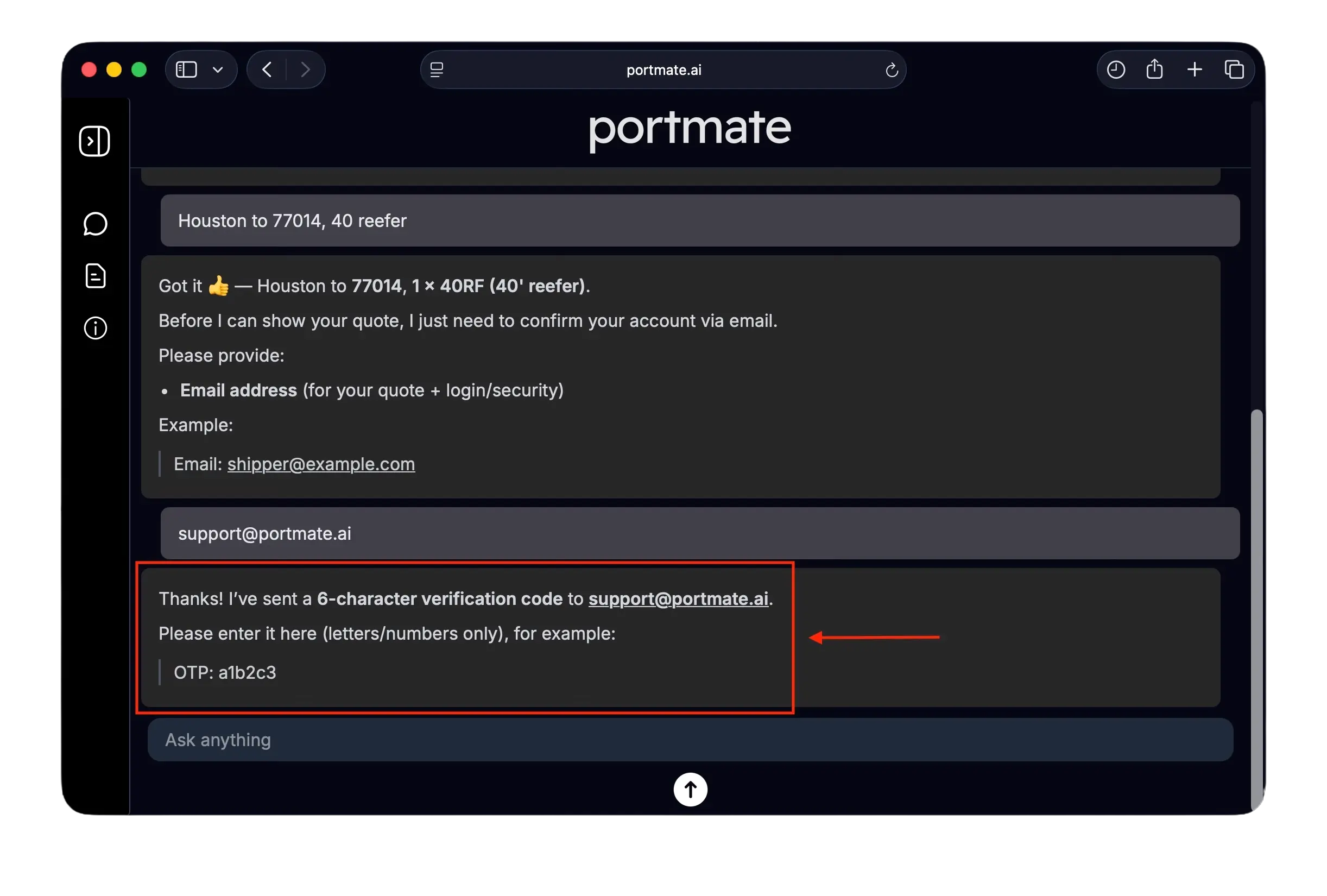
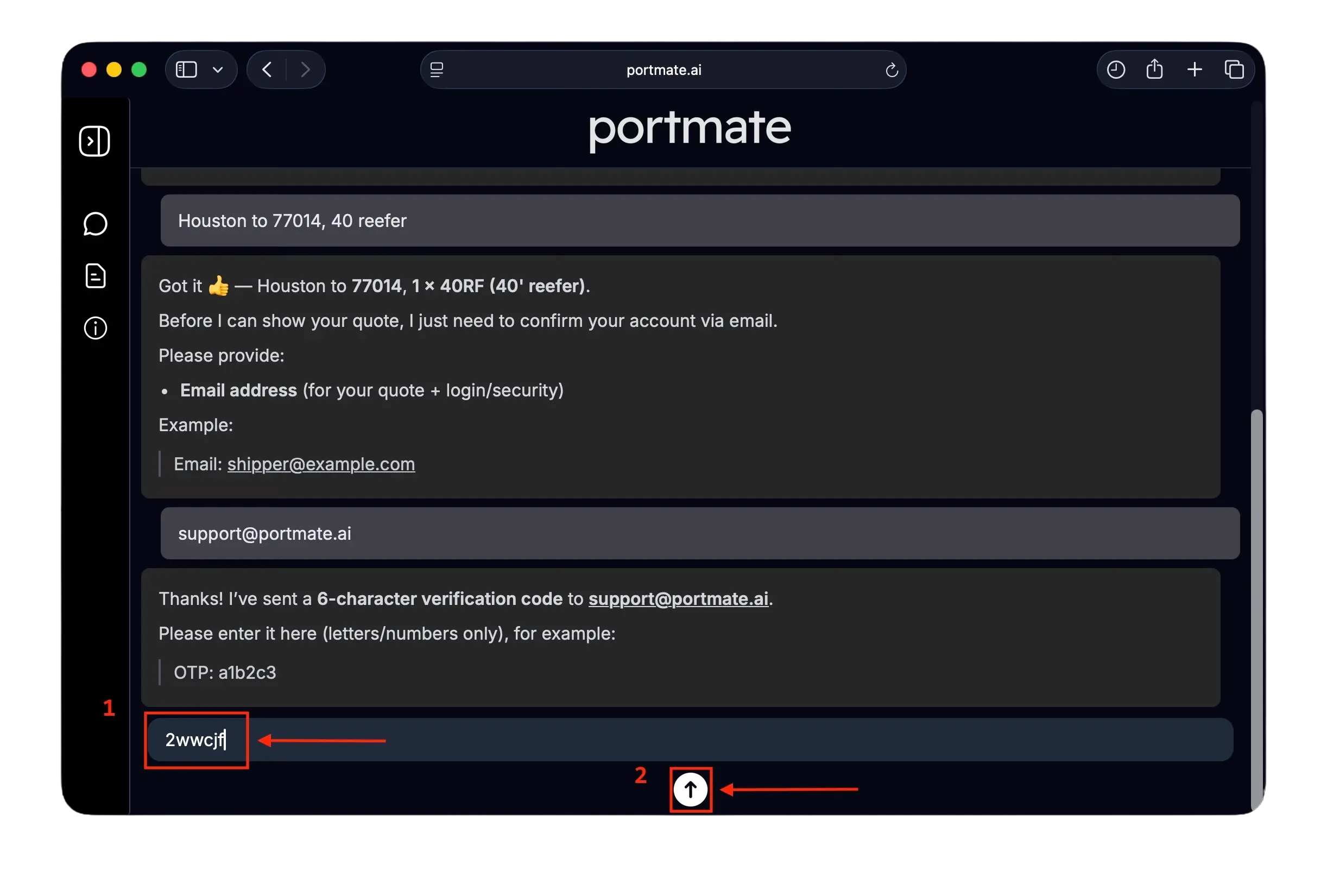
Step 7: Enter your OTP to complete sign-in
- Open your email inbox
- Look for a message from Portmate containing your 6-character OTP, e.g.
a9f2c3 - Type the OTP into the chat
If the OTP is correct, your session is verified instantly. If you don’t see the email:
Check Spam or Promotions folder
If not received within 1 minute, type:
“Resend code”
Step 8: You're signed in! 🎉
Once your OTP is validated:
- Your session is verified
- You are signed in instantly
- Portmate resumes your original request automatically (quote, booking, etc.)
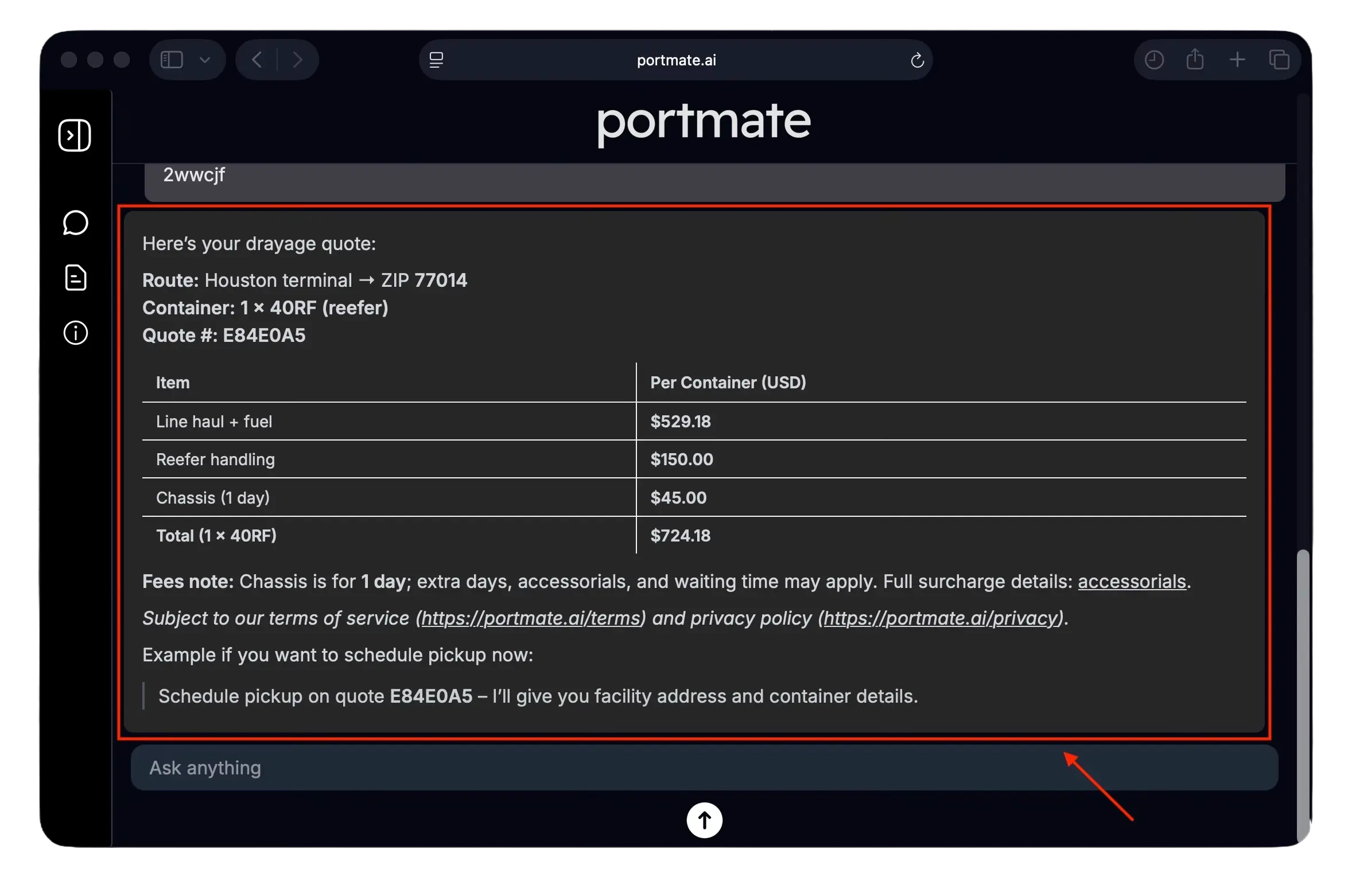
After you sign in
You can now:
- Generate instant drayage quotes
- Review previously saved quotes
- Convert quotes into bookings
- Handle end‑to‑end drayage workflows in one place
Portmate provides a fast, automated logistics experience — without manual time‑wasters like passwords, delays, or back‑and‑forth emails.