

How to track your shipment in chat
To get shipment tracking information in Portmate, open Chat and ask a question such as What's the latest status of container MAEU1234567? You can use a container number, shipment PRO, or Portmate quote number. Continue in the same conversation to ask about the next stop, clarify a milestone, or turn the answer into a short customer update.
You can also start with Can you help me track my container? and provide the reference when asked. There is no special command or required sentence structure, and you do not need to anticipate every question before sending your first message.
This walkthrough uses the demonstration container MAEU1234567. Its shipment details and recorded events illustrate the process; use your own reference to check your move.
Why ask tracking questions in chat
A tracking record can contain the answer you need without making it easy to find. A customer asks whether a container has been collected, while the record includes equipment assignments, several stops, appointment times, operational notes, and charges. You still have to connect those details before replying.
The information may also come from several organizations. The describes milestones arriving in different formats, through different channels, and on different timelines. That can leave teams reconciling the same event across multiple sources.
Chat lets you begin with your question about the available shipment record. Ask whether pickup is recorded, which stop comes next, or what a particular charge refers to. If the first answer is broader than you need, narrow it with a follow-up such as Just tell me the last completed event and the next planned step.
You can still open the tracking workspace when a map or supporting file will help. For a straightforward status question, the conversation gives you a place to ask, clarify, and prepare the explanation you need.
Start with the reference you have
Portmate needs a reference that identifies the associated shipment. The wording around it can be conversational.
| Reference | Example from the demonstration shipment |
|---|---|
| Container number | MAEU1234567 |
| Shipment PRO | 244-1601837 |
| Portmate quote number | 061F072 |
These references identify the same example move. You only need to start with one. A quote reference finds an associated shipment when one exists; having a quote alone does not establish that the move has been booked or started.
For a freight container, the identification number normally contains four letters followed by seven digits. The , including the owner prefix, equipment category, serial number, and check digit. Copy the complete reference carefully, especially when reading it from a scan or photograph.
If you have not provided a usable reference, Chat can ask for it. Reply with the missing detail in the next message; you do not have to rebuild the original request. If the reference is already clear in the conversation, you can usually continue with Has it been picked up? rather than repeating the number each time.
When the reference is inside a PDF or customer email screenshot, you can attach the relevant file and ask for a shipment lookup. Follow the for supported files and upload steps. If a document contains several references, specify which container or move you mean.
Get tracking information in chat
The six screenshots below show the path from the home page to a tracking answer. Use the example to learn the flow, then substitute your own shipment reference and question.
Open the conversation
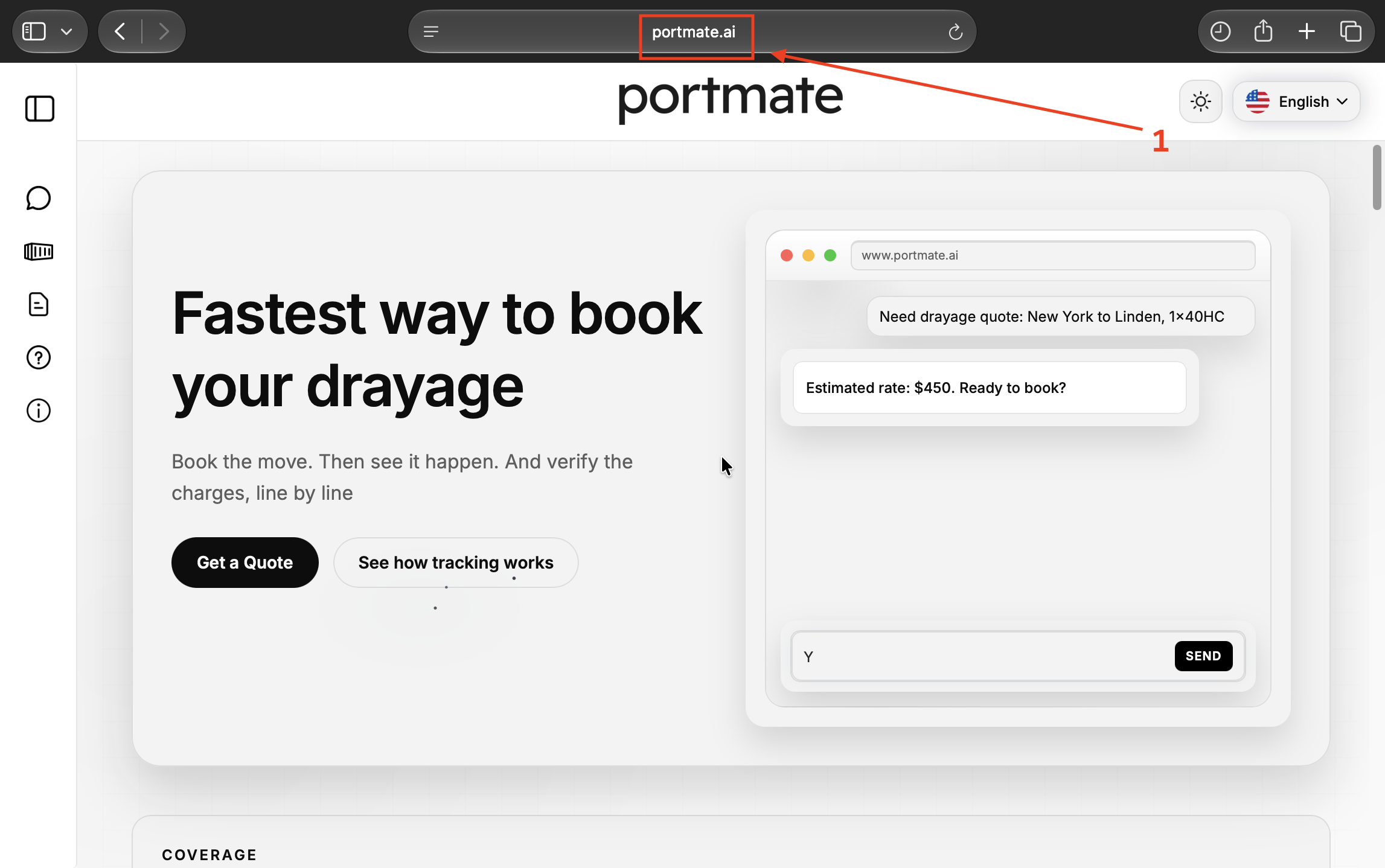
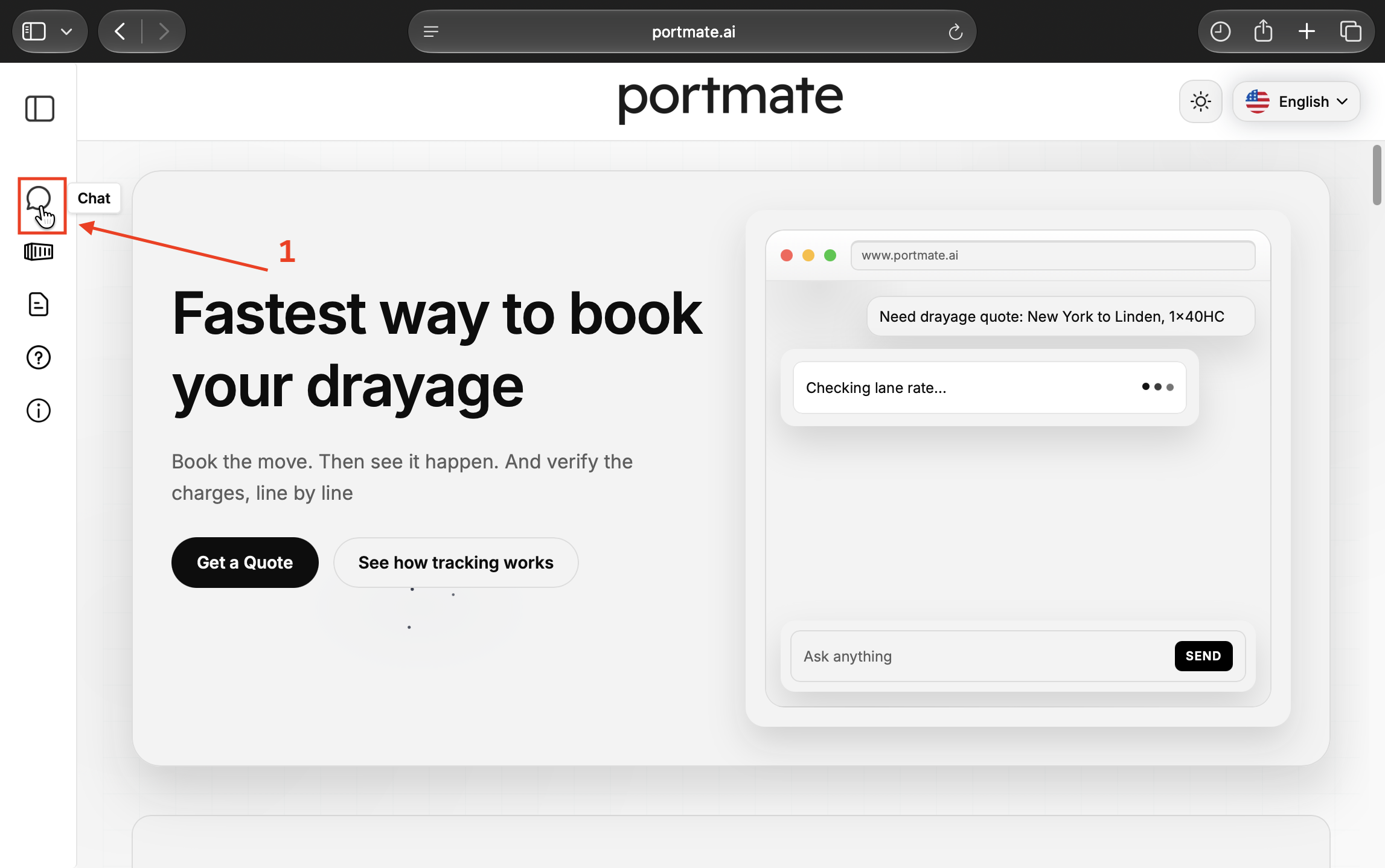
Begin at the website and select the chat entry in the left navigation.
Step 1 — Open Portmate. Go to .
Step 2 — Select Chat. Select the speech-bubble Chat icon in the left navigation. The conversation page opens with a message composer.
Ask the question you need answered
You can request a general status update or name the specific detail you want to check.
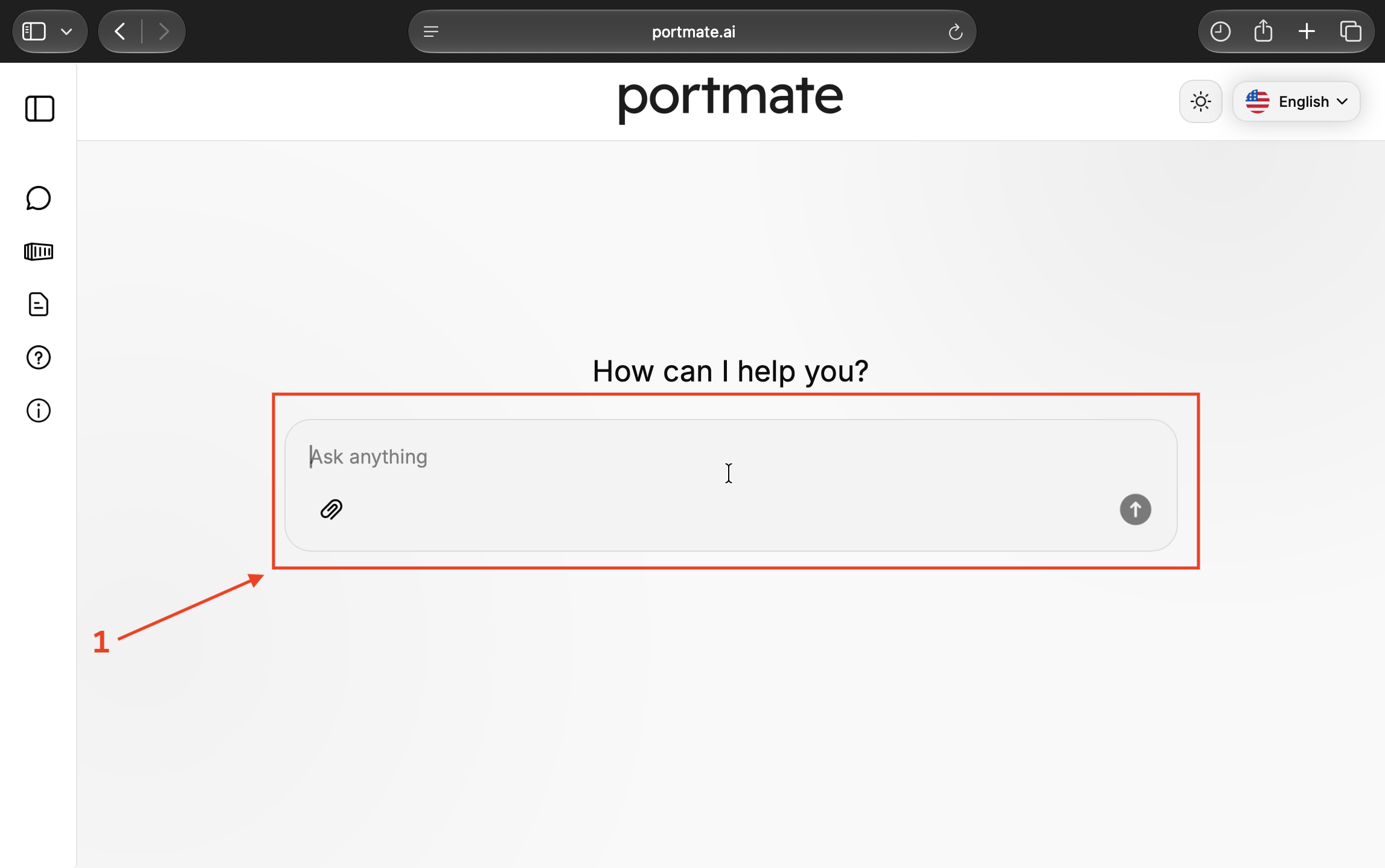
Step 3 — Select the message field. Select Ask anything in the composer. Write normally, as you would when asking a colleague for an update.
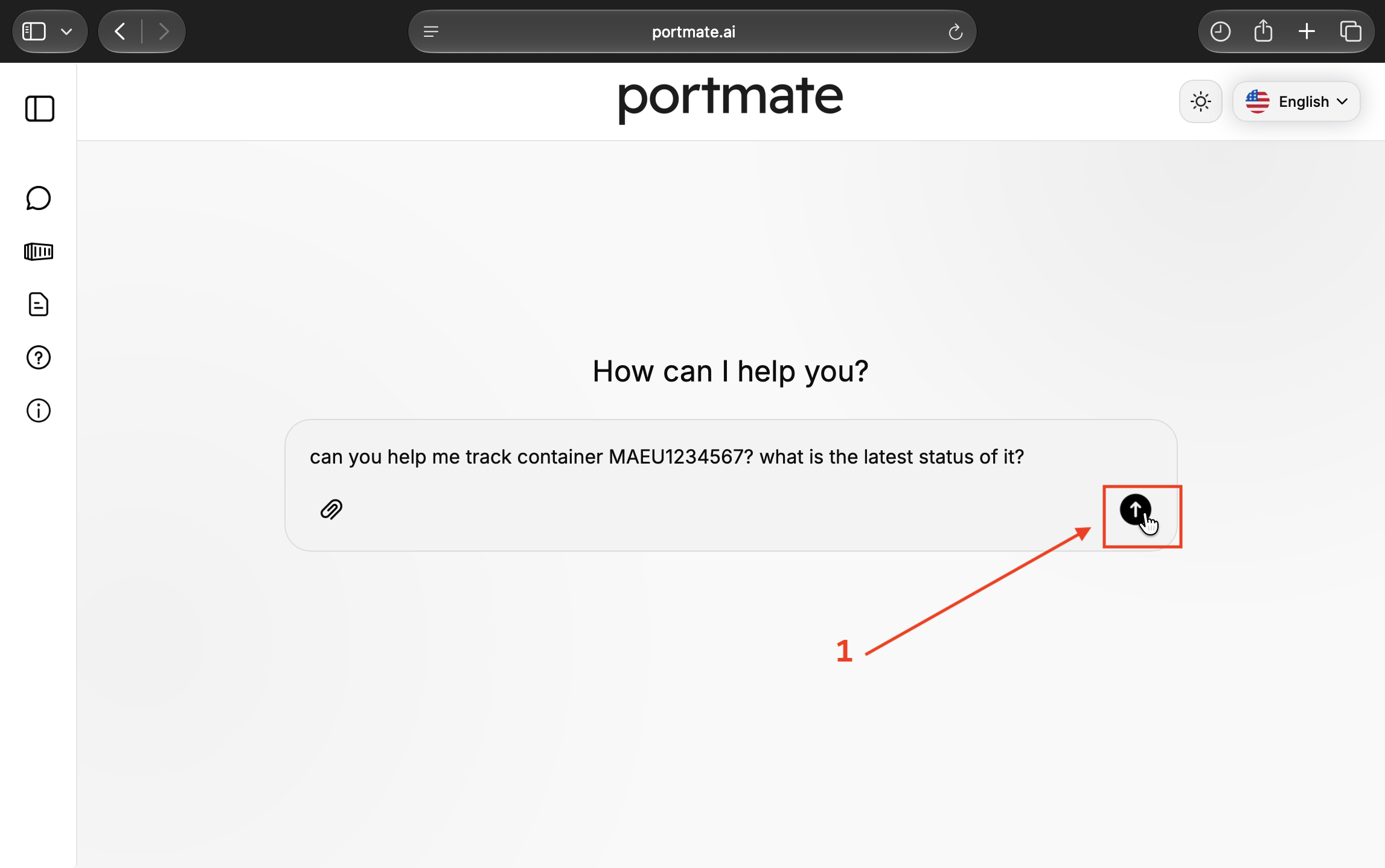
Step 4 — Send your request. The screenshot uses can you help me track container MAEU1234567? what is the latest status of it? Select the upward-arrow Send button to submit it.
Shorter wording such as Track MAEU1234567 also gives the conversation a clear task. For a specific need, try Has container MAEU1234567 been picked up yet? The wording is your choice; the shipment reference and intended question are the useful parts.
Wait for the lookup and read the result
Portmate retrieves the available shipment information and prepares an answer. If it needs another detail, respond in the same conversation.
Step 5 — Let the tracking lookup finish. You may see a progress label while the request is being processed. The screenshot also shows an expanded Activity panel. Opening that panel is optional; you can wait for the answer in the main conversation.
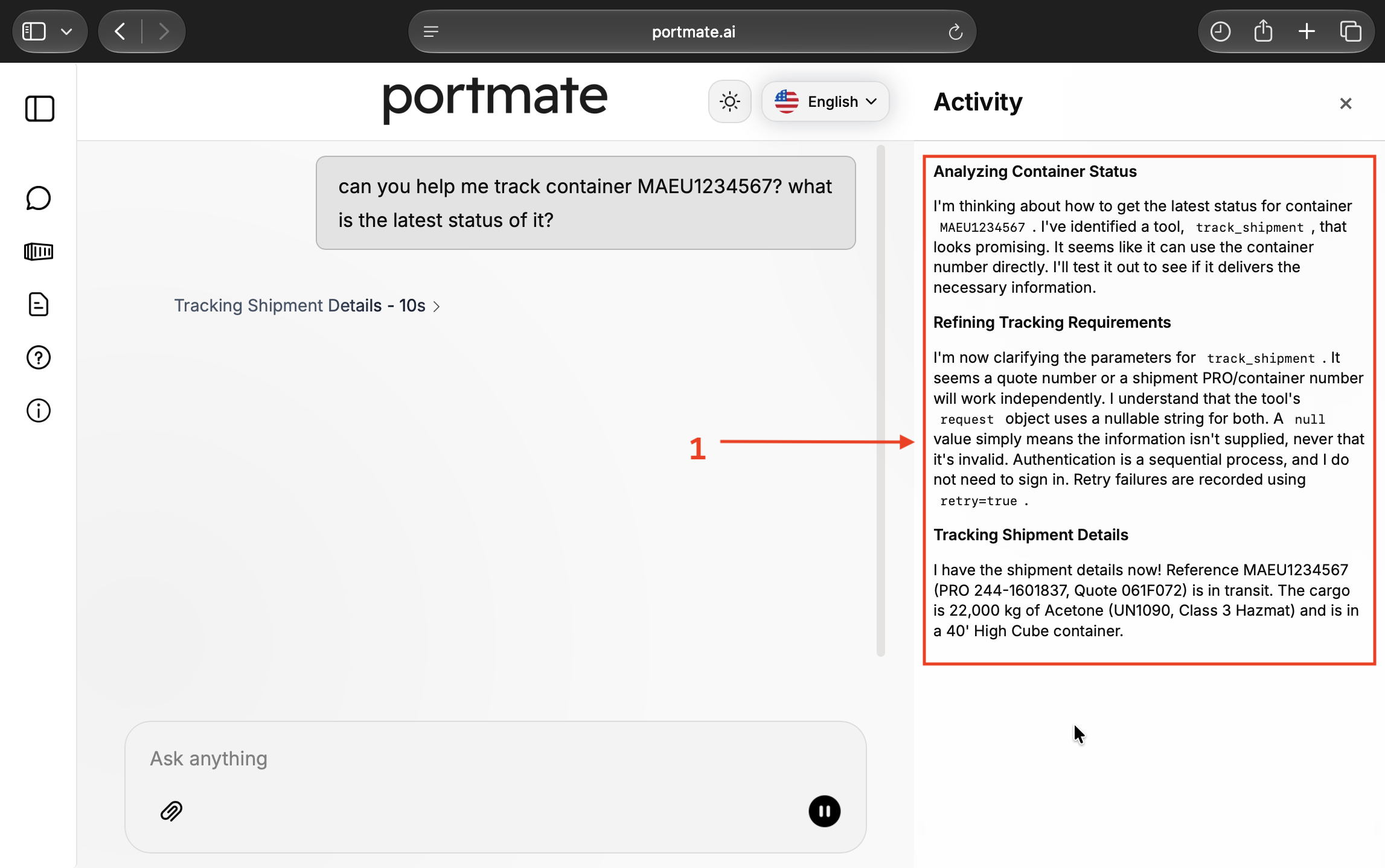
The processing time shown belongs to this example. Wait for the completed response before sending a follow-up about its contents.
Step 6 — Review the tracking answer. Confirm the shipment reference, then read the status and the details relevant to your question. The example shows In Transit, the shipment PRO and quote number, ocean line, equipment, cargo, and driver information. Scroll through the rest of a longer response when needed.
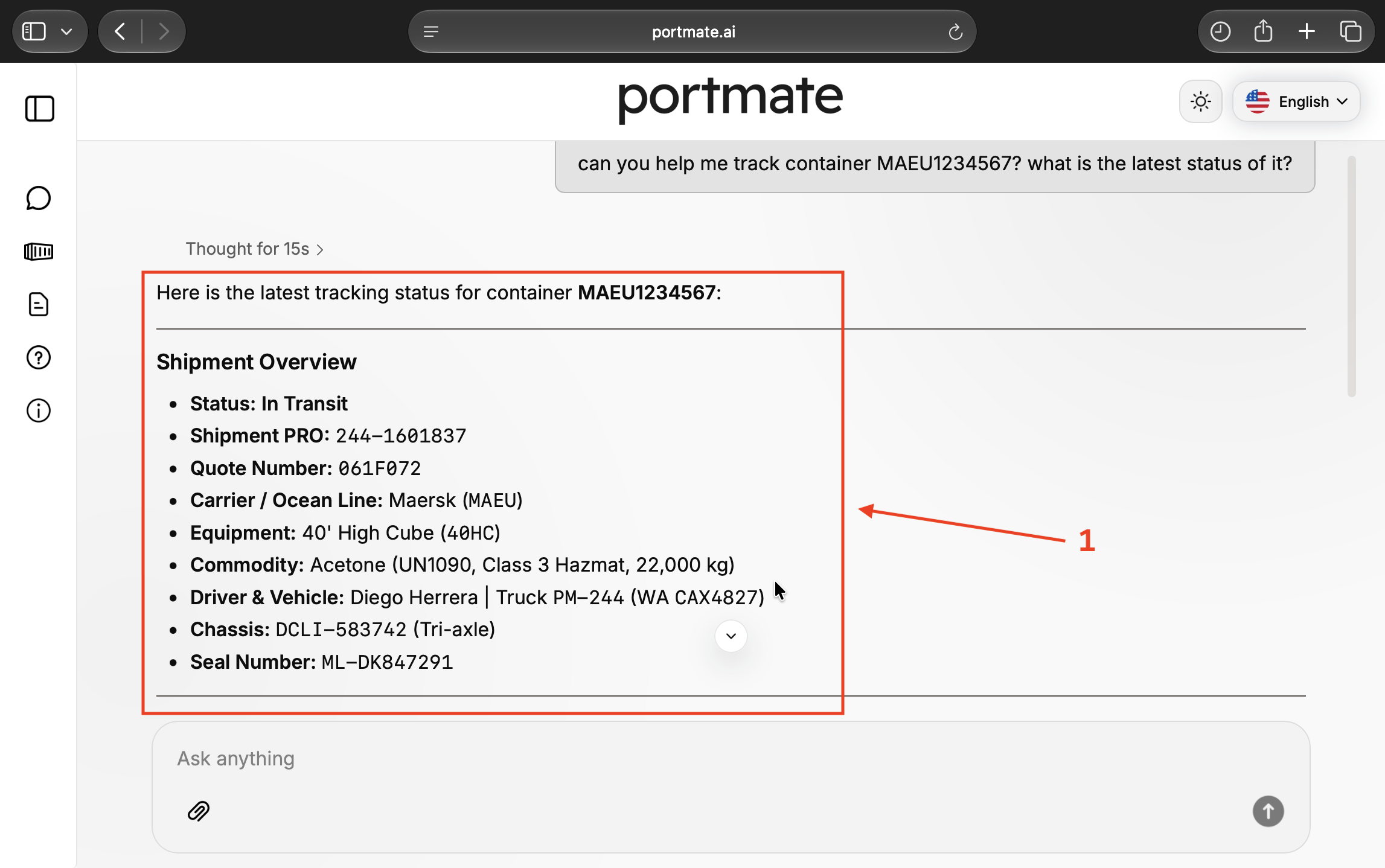
The answer's wording, sections, and length can vary with your question and the available record. You can immediately narrow the discussion with What is the next stop? or Which pickup milestone is complete?
Continue from a status to a useful explanation
A broad label such as In Transit is a starting point. Follow-up questions help establish what has happened and what still needs attention. The conversation can retain the shipment context, so you can focus each message on the next question.
Establish what has happened
After the initial result, ask:
Has it already been picked up? Which recorded event confirms that?
For the demonstration shipment, the loaded-container pickup milestone records pickup from Terminal 18 on August 24, 2026, at 3:33 p.m. PDT. An operational note explains that the container was pre-pulled to the Kent yard for overnight staging. Those details explain the completed pickup more precisely than the overall status alone.
Next, ask:
Has delivery been confirmed, or is it still planned?
The demonstration record has no actual consignee arrival or departure time. That leaves delivery unconfirmed in the recorded snapshot. An appointment or an estimated arrival can describe the plan without establishing that delivery occurred.
If a term is unfamiliar, keep the same conversation going:
What does pre-pull mean here?
In this example, the container was collected from the terminal before its scheduled delivery and staged at a yard. For related terms such as chassis, last free day, and empty return, use the .
Prepare the update someone else needs
Once the progress is clear, ask for an answer suited to the recipient:
Give me a two-sentence customer update using confirmed progress, and say what still needs confirmation. Keep the shipment reference and leave out driver and cargo details.
A concise update based on the demonstration record would be:
Container MAEU1234567 was picked up from Terminal 18 and staged at the Kent yard. Delivery at United Warehouse in Renton and the subsequent empty return remain unconfirmed in this recorded snapshot.
The customer gets the relevant progress and the outstanding confirmation without every equipment identifier. For an operations colleague, you might instead ask Include the next stop, appointment, assigned equipment, and any recorded requirements relevant to delivery.
Review the resulting text before sharing it, particularly the shipment identity, dates, and any statement that an event is complete. Drafting an update in chat prepares the wording; you still choose how to send it to the recipient.
Useful follow-up questions for daily tracking
Ask about the part of the move you are working on. The following examples show how to request detail without turning the conversation into a form. A field or explanation can only be supplied when the underlying information is available.
Check milestones and the next step
Use questions that distinguish the completed work from the remaining plan:
What is the last completed milestone?What happens next for this shipment?Is unloading recorded, or only arrival?Has the empty container been returned yet?
A pickup, consignee arrival, unloading, and empty return describe different events. Ask which one the status refers to before giving someone an update about the whole move. If an event needs explanation, try Explain the note beside that milestone in plain language.
Clarify arrival times
Start with the destination and the kind of time you need:
What is the next stop and its available ETA?Is that the appointment time or the estimated arrival?Which timezone applies to those times?What information is missing if an ETA cannot be calculated?
Make sure the answer concerns the destination you mean. For example, describe an ETA at the port of discharge. An inland shipment's next-stop ETA answers a different arrival question. Naming the stop avoids treating a port arrival estimate as a warehouse delivery commitment.
Portmate can provide an available estimate for the next stop. Position freshness, destination information, and the shipment's recorded progress affect whether that estimate can be produced.
Ask about holds and deadlines
When pickup or return timing matters, ask for the recorded restrictions and dates:
Are there any active holds in this shipment record?What does that hold mean, and is a release recorded?Which free-time deadlines are listed, with their dates and timezones?
Read the hold status with its release information. If a deadline is missing, ask which detail still needs confirmation rather than assuming there is no deadline. A record of released holds also needs to be read alongside the appointment, availability, and other requirements for the move.
Explain equipment and recorded charges
You can ask for a specific part of the assignment or cost record:
What container and chassis are assigned?Which additional charges are recorded, and what reason is given for each?Which amounts are confirmed and which are at cost?Does the record list supporting proof for that charge?
A listed charge, its reason, and the existence of an attachment answer different questions. If you need to inspect the proof or reconcile the amount against agreed terms, follow the . Chat can explain the available charge facts; the supporting document needs its own review.
Read times and missing information carefully
Useful tracking answers identify both the event and the evidence behind it. Before relying on an update for receiving plans or a customer commitment, check what the time describes and how recent the observation is.
Separate appointments, estimates, and actual events
An appointment describes an arranged time. An ETA estimates arrival. An actual event time records an event that occurred. DCSA's distinguishes estimated, planned, and actual times in shipping operations; the same distinction helps when reading an inland tracking answer.
Suppose a delivery appointment says 8:00 a.m. and the actual arrival time is blank. The record establishes the appointment and leaves arrival unconfirmed. Passing 8:00 a.m. does not fill in the missing event, and an ETA should not be described as proof of delivery.
Ask Which actual event supports that conclusion? if an answer sounds more definite than the details you can see. Where two times appear to conflict, ask which event, stop, and timezone each belongs to.
Check the observation time
A newly written answer may describe observations recorded earlier. Ask When was the latest position recorded? or What is the date and time of the last completed milestone? when freshness matters to your decision.
The position time, milestone time, and ETA calculation time can describe separate things. For a location check, use the position's recorded date and time. For completed delivery, use the applicable delivery event. If the record is older than expected, request an updated lookup or ask the operations team to investigate the missing update.
Keep the demonstration dates separate from your shipment's dates. Reusing the example prompt starts a lookup of the example shipment; it does not substitute your own move or establish a current delivery outcome.
Open Tracking for maps and supporting files
Chat is useful for questions and explanations. The tracking workspace gives you the visual and supporting detail needed for a closer inspection:
- Truck position and route context: Follow to open the map, center the latest reported position, and read its timestamp.
- Road-view images: Use the to inspect available milestone images and their capture times.
- Charge evidence: Open the charge record through the accessorial panel when you need to read an attached supporting document.
If you prefer a written overview alongside the map, the explains Current shipment update. The chat conversation is useful when you want to choose the question and refine the answer through follow-ups.
Check again or move to another shipment
If you need a fresh lookup later, say Check this shipment again for the latest available tracking information. Asking Make that shorter changes the presentation of the answer; it does not itself request a new observation. Check the returned dates before using the revised update.
When changing shipments, provide the new reference explicitly, for example Now check shipment PRO 244-1601837. Confirm the reference in the response before continuing with shorter questions such as What happens next? This is especially helpful when several shipments have been discussed.
A question about current status is a lookup request. If you need future notifications or someone to follow up on an exception, arrange that explicitly with the appropriate operations or support contact rather than assuming the chat question created ongoing monitoring.
If Chat cannot answer your tracking question
Use the response to identify the next check. Adding one missing fact is often enough to continue the conversation.
| What happens | What to do next |
|---|---|
| Chat asks for a reference | Reply with the container number, shipment PRO, or Portmate quote number for the move. |
| No matching shipment is found | Check the full reference and try another known reference for the same Portmate shipment. A correctly formatted container number alone does not establish that an associated shipment is available. |
| The shipment is ambiguous or the result concerns the wrong move | Clarify which shipment you mean and supply its PRO or quote number. Confirm the returned identity before discussing further details. |
| An ETA or milestone is missing | Ask what is available and what still needs confirmation. Use the recorded status and event times without filling in the missing information. |
| The answer is too broad | Ask for the specific event, stop, charge, or short explanation you need. |
| A temporary error prevents the lookup | Follow the displayed message and retry when appropriate. Contact support if the problem continues. |
For an unresolved issue, use . Include the shipment reference, the question you asked, any error message, and the relevant timestamp. That gives the team a concrete starting point for checking a missing record or update.