
How to upload shipment documents
Upload a shipment PDF or image in Portmate chat to use the information you already have. Open Chat, select the paperclip, choose your file, wait for Ready, and send it with a short explanation of what you need. You can start from a booking confirmation, delivery order, or customer email screenshot without copying shipment details into another request.
A customer might send the delivery location in an email while the container details sit in a carrier's PDF. Instead of rebuilding the shipment description for the next step, attach the relevant files and ask for a quote, help preparing a booking, a shipment lookup, or an explanation of the instructions. Add only the context the documents do not provide.
The same upload process works across these tasks. What happens afterward depends on your request, the information in the files, and the services available for the shipment.
Why shipment information keeps getting retyped
Freight forwarders and logistics teams receive information in the formats their customers and vendors use: carrier booking confirmations, delivery orders, arrival notices, packing lists, scanned pages, and email threads. The next provider may need many of the same details, arranged differently.
That creates work before the actual work can begin. Someone opens the attachments, finds the relevant locations and references, copies the equipment and cargo details, checks a newer email for changes, and writes another request. Each handoff can introduce an omitted instruction, an outdated address, or a number taken from the wrong shipment.
The describes this fragmentation and the repeated entry of information from PDFs into other systems. Its analysis identifies 189 recurring core data elements across 33 trade documents. Those figures concern global trade documentation; they illustrate how much information is shared between documents, rather than how many files a particular shipment needs.
Uploading lets you bring those existing documents into the conversation. Your message can focus on the next task: Please quote the import drayage move in these files or Explain the delivery requirements in this email.
Choose the document you already have
Start with the clearest, most current document relevant to your request. You do not need to create a new shipment summary before uploading it.
| What you have | How it can help the conversation |
|---|---|
| Booking confirmation | Supplies the booking context and any equipment, routing, or timing details shown. Useful when preparing the trucking leg of an export shipment. |
| Delivery order | Supplies the pickup, delivery, container, and handling instructions it contains. Useful when arranging or discussing the local move. |
| Arrival notice | Adds the shipment references, arrival information, and carrier or terminal details shown. Check whether it identifies the actual trucking pickup location. |
| Bill of lading or packing list | Adds cargo descriptions, references, quantities, and weights. These documents may need a separate delivery instruction or facility address. |
| Customer email screenshot | Preserves the customer's request, lane, and operating notes without rewriting the email. |
| Scan or photograph of paperwork | Provides the visible information when a readable digital original is unavailable. |
Document names do not guarantee identical contents. A forwarder's delivery order for a truck move and an ocean carrier's cargo-release document can serve different purposes. The explains the roles of bills of lading, packing lists, and carrier delivery orders. Use the contents of your file to establish what it tells you about the requested task.
If the relevant information is spread across a PDF and an email, attach both. A short message such as These two files concern the same shipment; the email contains the revised delivery instructions gives the conversation useful context without requiring you to merge the documents manually.
Before you upload
Portmate accepts the following file formats and sizes:
| Limit | Supported upload |
|---|---|
| File formats | PDF, PNG, JPEG (.jpg or .jpeg), and WebP |
| Size per file | Up to 10 MiB |
| Files per message | Up to four |
| Files per conversation | Up to ten, totaling no more than 50 MiB |
| PDF pages processed together | Up to 24 across the PDF attachments being read |
For a customer email, upload a screenshot in a supported image format or save the relevant email as a PDF. Native email files such as .eml and .msg, Word documents, spreadsheets, and HEIC images are outside the accepted upload formats. Export the relevant content to PDF or a supported image rather than changing the filename extension.
For the clearest result:
- Use the original PDF when available. It avoids the extra compression or small text introduced by a screenshot of a document.
- Keep the necessary context visible. Include the shipment reference, relevant headings, units, and instructions. A cropped number without its label can be ambiguous.
- Use readable screenshots. If an email is long, capture successive readable sections with enough overlap to follow the instructions. Include the date when it helps establish which version is current.
- Choose the relevant pages. Keep attachments focused on the shipment and task. Page and image-processing limits can apply even when individual files are within the upload size limit.
- Check what you are sharing. Omit unrelated email threads, payment details, or personal information that the task does not need, while preserving the shipment information necessary to understand the request.
You can open chat before signing in. Creating quotes and bookings requires a verified account session; follow any authentication request in the conversation. The explains the email verification process.
Upload a file in chat
The following walkthrough uses a sample file named pdf-sample_0.pdf. It contains dummy text, so the final response demonstrates how the chat handles a document without shipment information.
Open the conversation
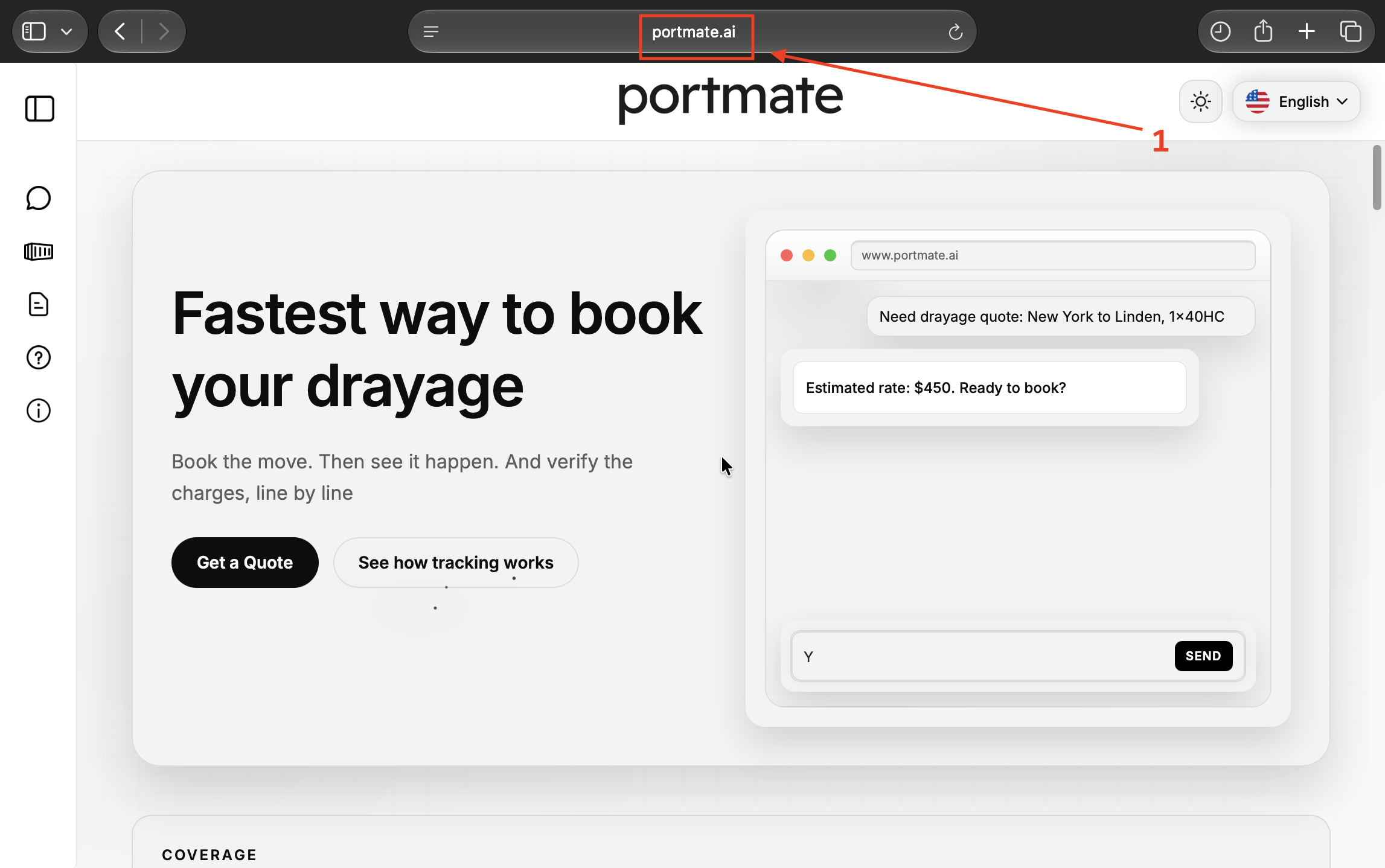
Start at the website, then open the chat where you want to use the document.
Step 1 — Visit Portmate. Open in your browser.
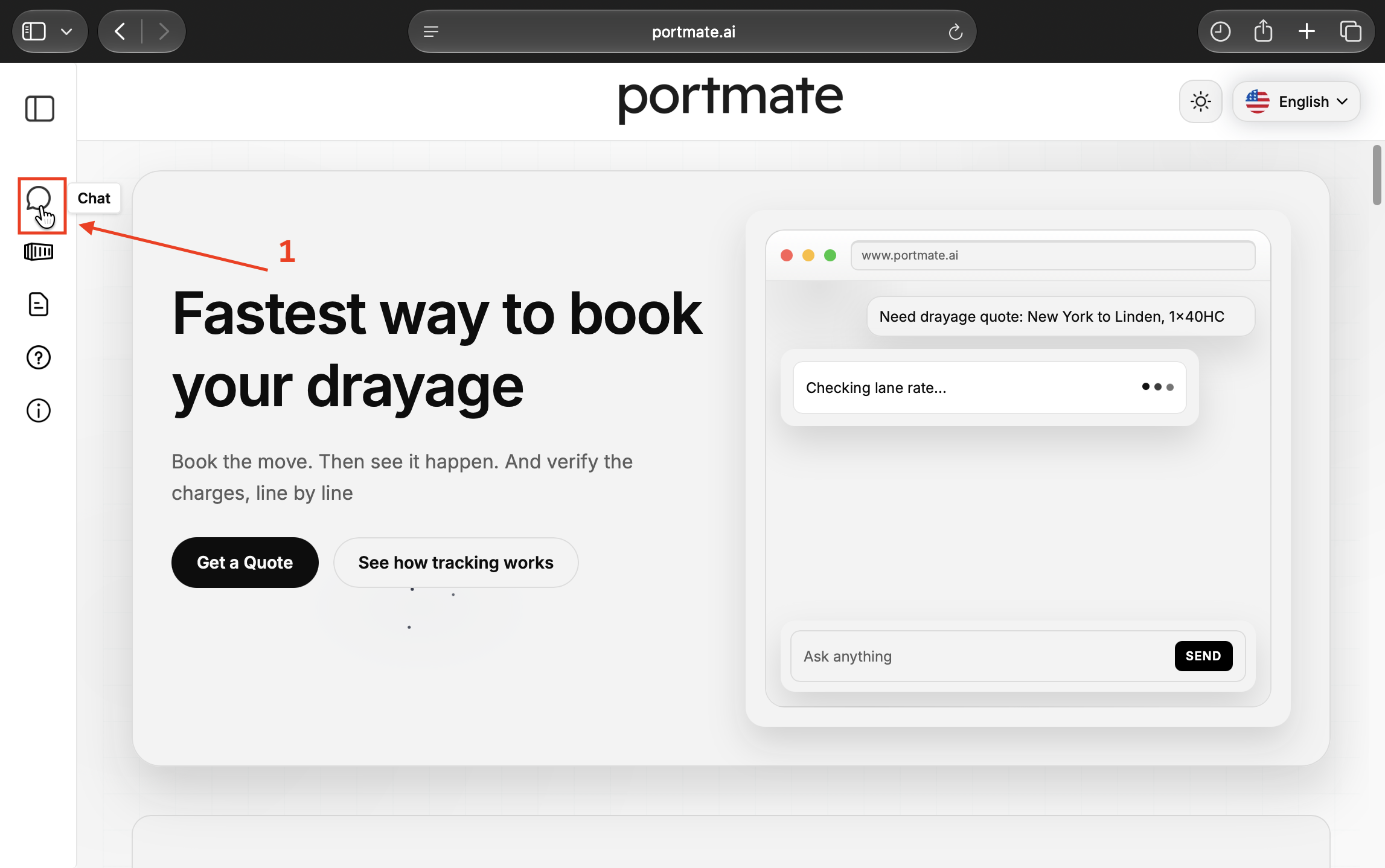
Step 2 — Select Chat. Use the speech-bubble Chat icon in the navigation. The screenshots show the desktop navigation on the left.
Attach and check the file
Choose the file and check its attachment card before sending your message.
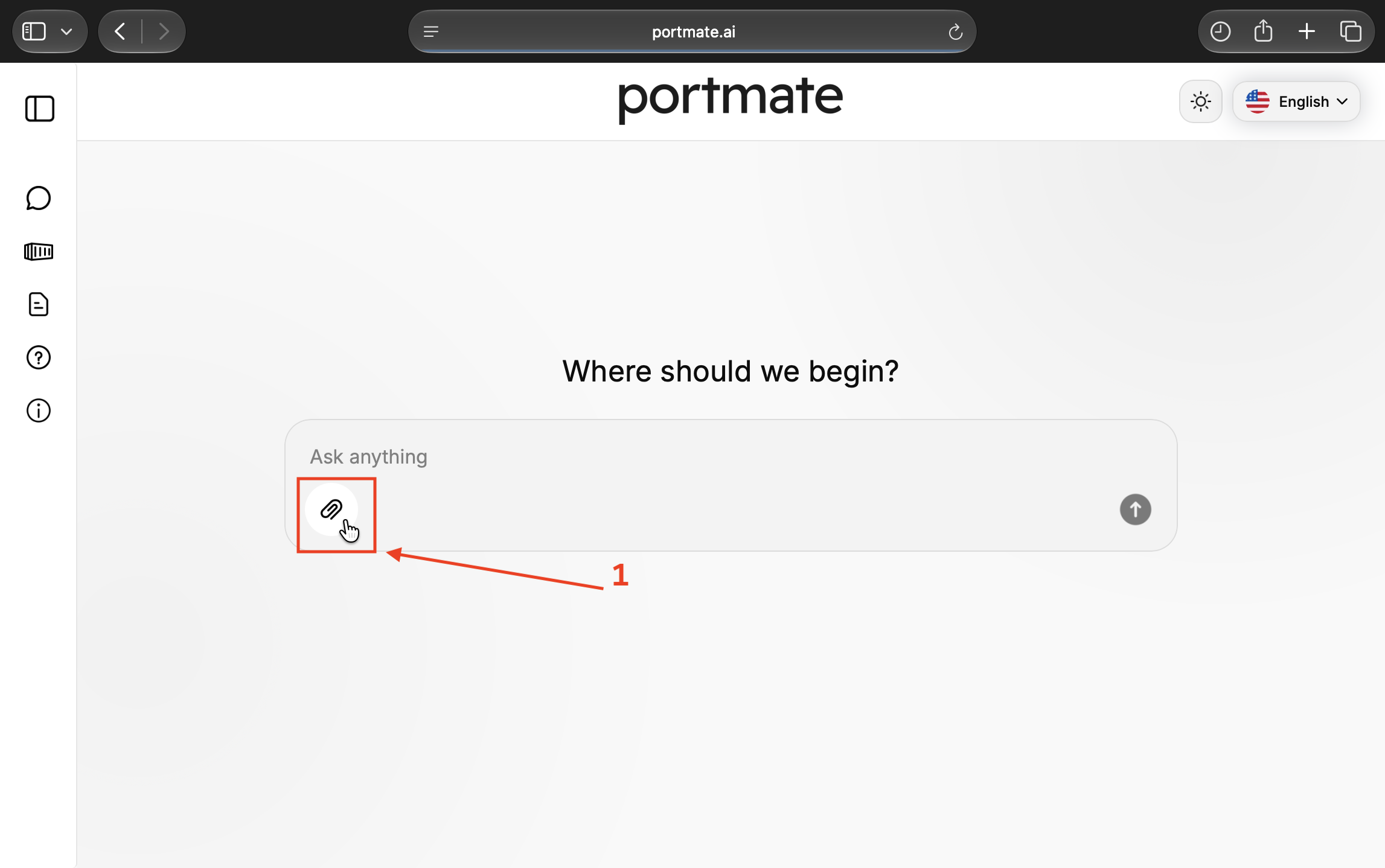
Step 3 — Select the paperclip. In the message composer, select Attach files, shown as a paperclip, and choose the PDF or supported image from your device.
Step 4 — Wait for Ready. An attachment card appears with the filename, file size, and upload status. In this example, the card shows pdf-sample_0.pdf, 13 KiB, and Ready.
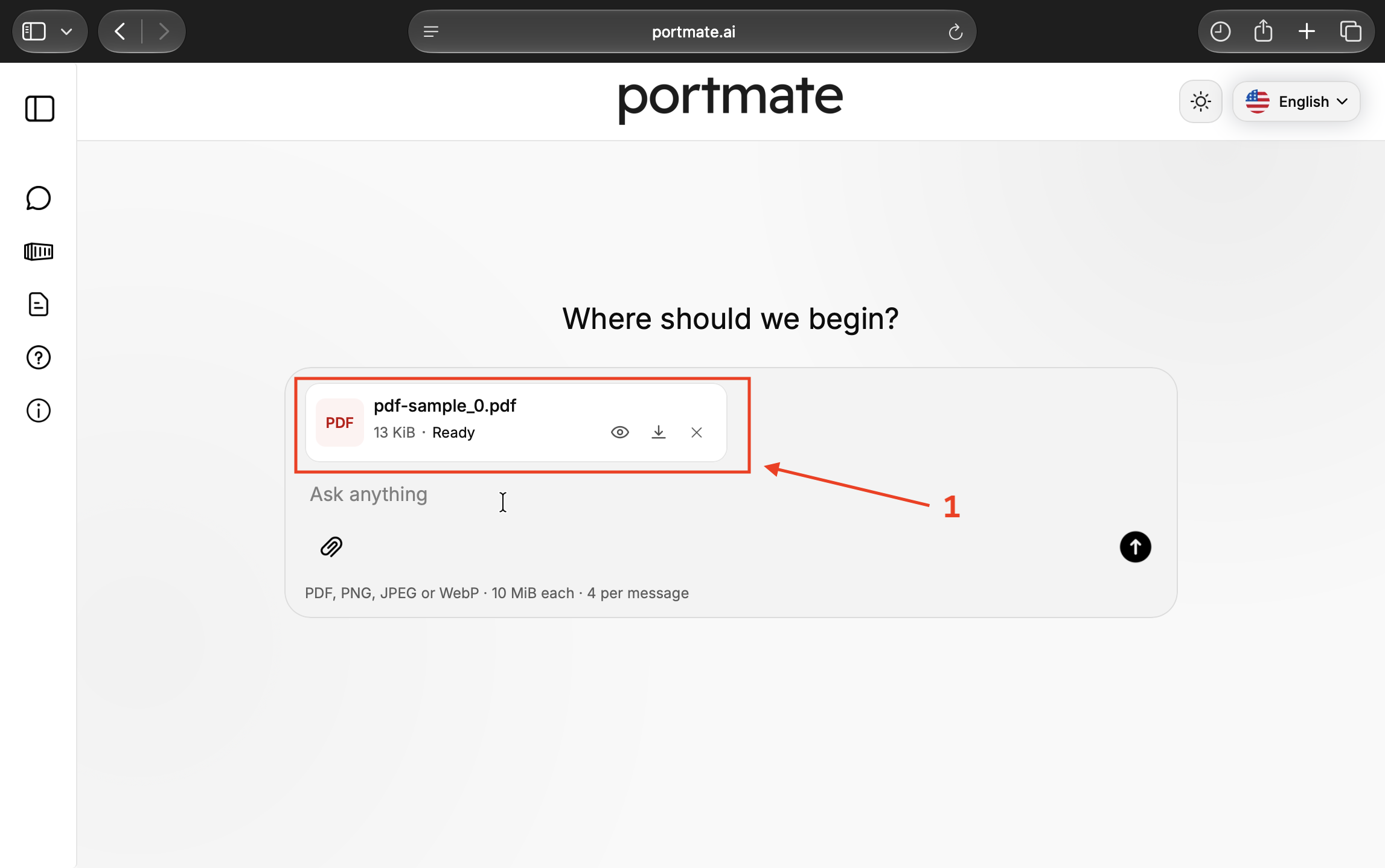
Ready means the uploaded file is ready to send with your message. The chat has not yet answered your request or confirmed the shipment details.
The card provides an eye icon to preview the file, a download control, and an X to remove it from the draft. Preview the attachment if you need to check that you selected the correct shipment or revision. If it is the wrong file, remove it before sending and select the right one.
Repeat the attachment action when the same request needs another document, staying within the per-message limit.
Send and continue
The document supplies information; your message explains what you want done with it.
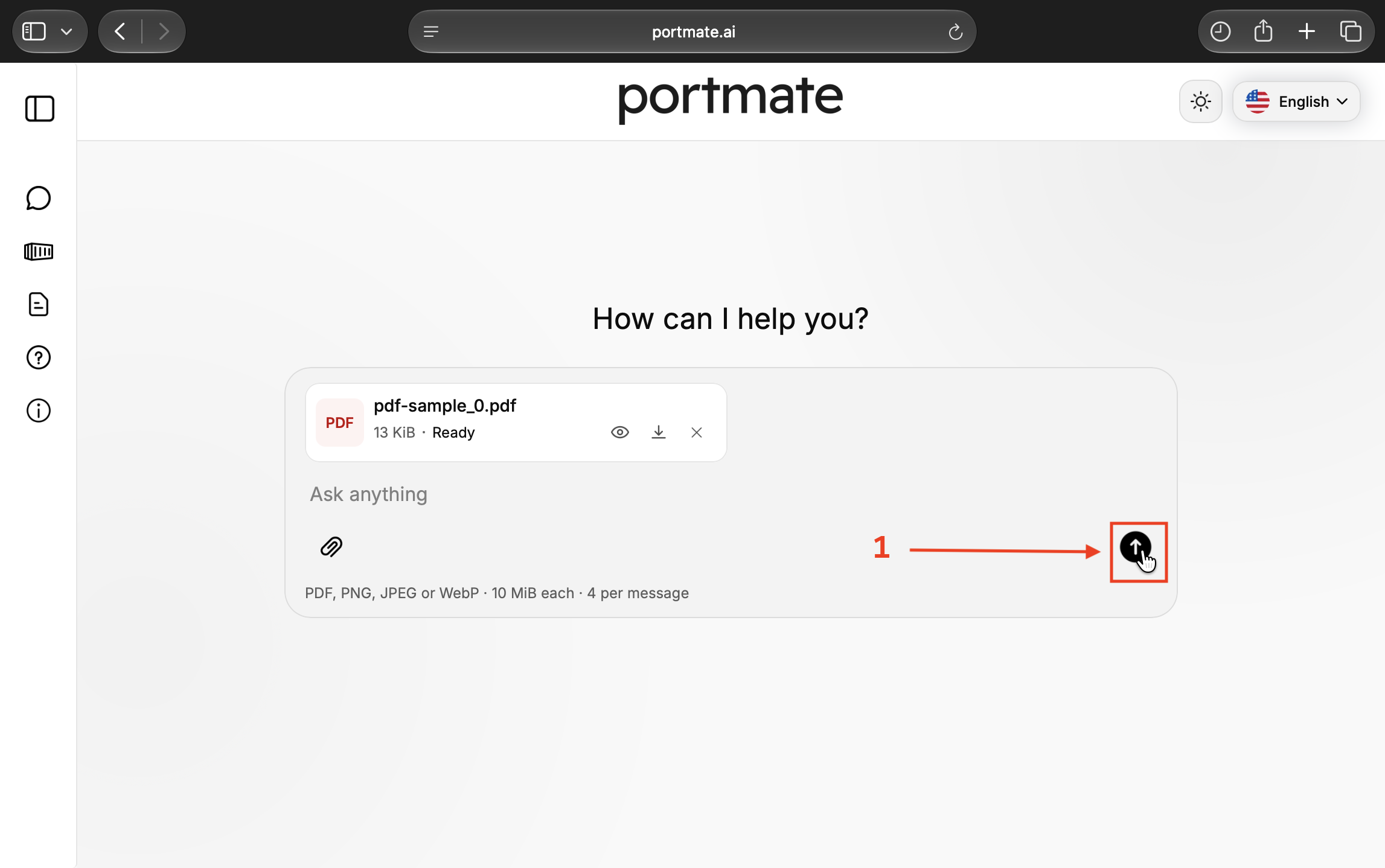
Step 5 — Add your request and select Send. A short instruction is enough to establish the task. For example: Explain the delivery instructions in this document.
Select the upward-arrow Send button once the attachments are ready. The screenshot below shows the sample PDF being sent without accompanying text; you can add your request in the same composer before sending your own file.
Step 6 — Read the response. The sent message contains the attachment, and Portmate responds using the available information and your request. It may answer a document question, continue the requested workflow, or ask for details it still needs.
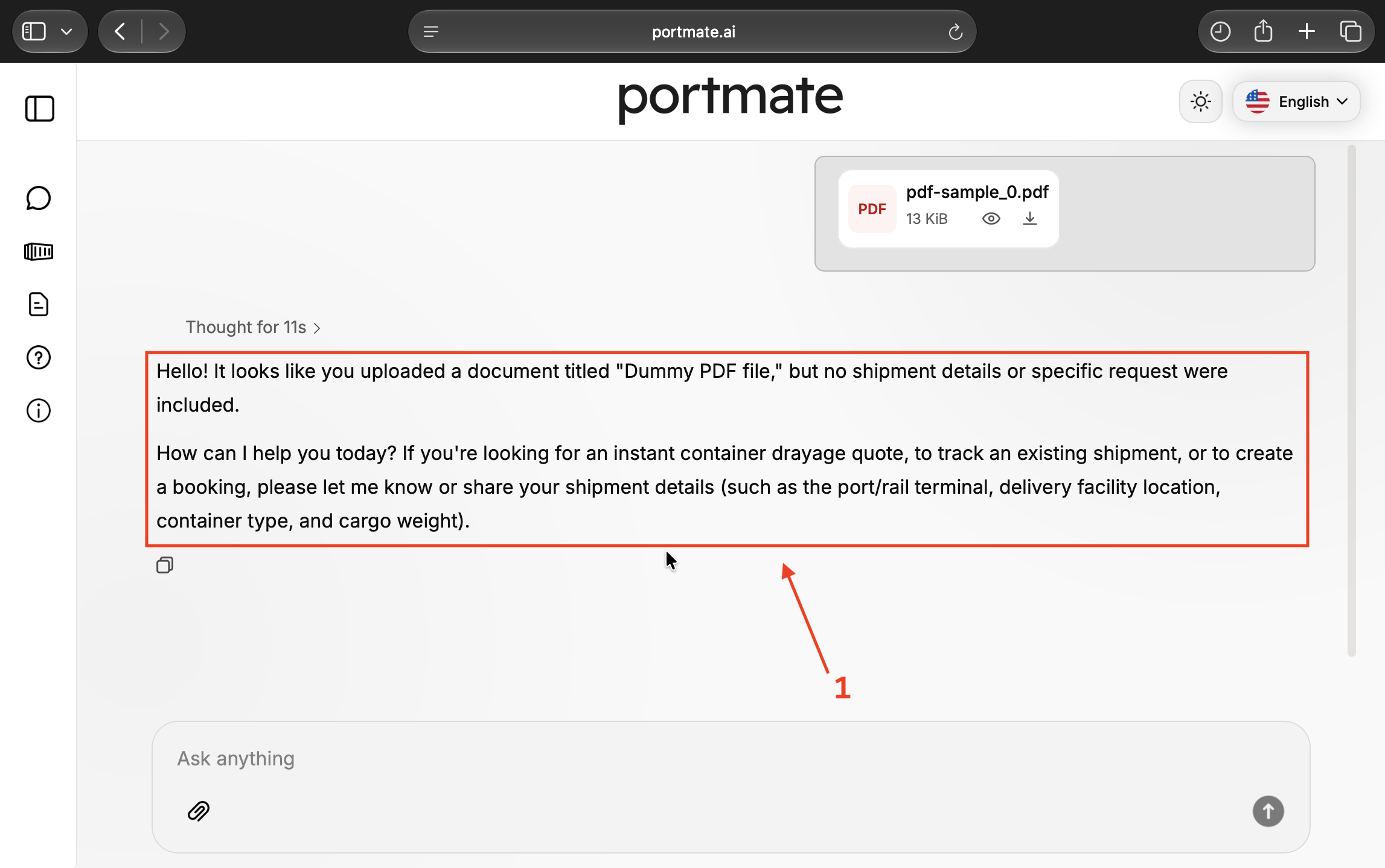
Here, the response identifies a document titled Dummy PDF file and explains that no shipment details or specific request were included. It then asks how it can help. The file was received and read; its contents do not describe a shipment to act on.
With your own document, answer any necessary follow-up in the same conversation. You can add a missing delivery ZIP, identify the correct container, or clarify which task you want without typing out everything already supplied.
Use the upload for your next task
The same attachment controls support several ways of working. The following messages are examples of what to ask, rather than screenshots of completed transactions. Use the request that matches your actual shipment and goal.
Get a quote from a customer email or delivery order. Upload the source file and ask: Please quote the U.S. import drayage move described in this delivery order.
If a customer has already described the request in an email, upload a readable screenshot and use: Please quote the drayage request in this customer email.
The file can supply the lane, equipment, cargo, and service instructions it contains. For a supported move, the conversation can proceed to quoting using that information and any necessary clarification. Some unspecified pricing details may use disclosed assumptions; review those alongside the resulting rate. The covers the quote result and follow-on options.
Prepare the next step from an export booking. Upload the carrier's booking confirmation and ask: Use this booking confirmation to help prepare the U.S. export drayage move. What else do you need?
The booking may provide the carrier and terminal context while the shipper's pickup address or loading instructions are elsewhere. Add the missing information directly or attach the relevant instruction. A carrier's ocean booking and a Portmate drayage booking are separate arrangements. When you are ready to request the truck booking, follow the , which uses a quote and the required facility and container details.
Find an existing shipment using a document reference. If the file contains the reference for a move already recorded in Portmate, ask: Check the current status of the Portmate shipment using the container number in this document.
If the document lists several containers, identify the one you mean. A reference can help locate an existing record; uploading paperwork does not create tracking data for an unrelated shipment. For the shipment map and position timestamps, see .
Understand a requirement before acting. Upload the relevant page or email screenshot and ask: Explain the delivery requirements in this email and identify anything I still need to confirm.
This is useful when a document mentions a container drop, pre-pull, appointment, or another unfamiliar instruction. You can then ask a narrower question about the requirement. The guide to explains how to add context and follow the supporting sources. For charge terminology and current rate-sheet lookups, see .
Uploading a document supplies context for these requests. A quote or booking is complete when the conversation returns the corresponding result and reference. Instructions printed inside a document do not replace your request for the next action.
Work with information spread across files
Attach the relevant documents together when they describe the same shipment. For example, the delivery order might identify the container and pickup terminal, while the customer's email specifies a revised delivery address and asks for a container drop.
You can write: These files concern the same shipment. Use the revised delivery address in the customer email and include the requested drop service in the quote.
That establishes which instruction you want used without requiring a new combined document. Keep the attachment filenames and shipment references distinct enough to discuss them if a question arises.
If the documents disagree and you do not know which is correct, ask for the discrepancy first: Compare these documents and identify any conflicting shipment references, delivery locations, equipment, or weights before we proceed.
A comparison can surface an apparent difference, but the responsible customer, carrier, or operations team may still need to confirm the current instruction. A later timestamp alone does not establish that a document supersedes every detail in an earlier one. DCSA's explains how different fields originate in different documents and follow different amendment processes.
When an email or PDF includes several shipments, identify the relevant booking, container, or section. Start with one clearly identified move, or explicitly describe the separate moves you want considered. A file containing multiple containers should not be treated as one undifferentiated load.
Review the details that affect the next step
A document can be readable and still need interpretation. Check the response against the source where a difference would change the move, price, or instructions.
Locations and direction. Confirm the actual port or rail ramp, the shipper or receiver's operating facility, and whether the loaded container is moving toward or away from the terminal. A bill-to address, registered office, or notify-party address may differ from the physical pickup or delivery site. Preserve any customer-specified empty pickup or return instructions.
For a quote based on a broad metro, check the terminal assumption. The guide to explains why confirming the exact location can affect pricing.
References and equipment. Check the container or booking reference used to identify the shipment, as well as container size and type. FCL alone does not tell you whether the equipment is a 20-foot dry container, a 40-foot high cube, or a reefer. Keep quantities associated with the correct equipment and shipment.
Weight and units. For Portmate quoting, cargo payload includes cargo packaging and excludes the tare weight of the container, chassis, and tractor. A document's gross cargo weight may therefore be useful payload information, while VGM, or verified gross mass, includes the container itself. The describes weighing the packed container or adding its tare to the cargo and packing materials.
Keep labels and units visible. If a value could mean a shipment total or a per-container weight, clarify it. If only VGM is available, obtain the appropriate cargo-weight detail rather than subtracting an assumed container tare. For heavy cargo, the explains the next check.
Dates and service requirements. Distinguish an estimated arrival from container availability, an appointment, or a delivery deadline. Check that requested handling, reefer operation, hazardous-cargo information, drop service, and other operating instructions remain part of the task. If the chat needs a hazardous-cargo declaration or another customer fact, supply the confirmed information.
Current status. A document records information at a particular time. It does not by itself establish today's customs release, terminal acceptance, appointment availability, or truck position. DCSA's distinguishes arrival notices, release checks, and release execution. Use the current operational confirmation for the step you are taking.
Corrections can be brief: The delivery location is the warehouse in the email, not the billing address on the PDF. Make the correction in the same conversation and check that the next response uses it.
Troubleshoot an upload or follow-up question
Use the visible status and response to decide what to do next.
| What happens | What to do |
|---|---|
| Unsupported file type | Export to PDF, PNG, JPEG, or WebP. Renaming an unsupported extension does not convert the file. |
| File too large or empty | Check the 10 MiB limit and that the file contains data. Export only the relevant pages or use readable image sections. |
| Upload failed | Use Retry on the attachment card. If the file service is temporarily unavailable, try again when it is available. |
| Too many attachments | Keep each message within four files and the conversation within ten files and 50 MiB. Remove unnecessary unsent attachments. |
| An unsent upload expired | Retry the upload. Unsent attachments expire for sending after one day. |
| PDF cannot be read | Check that it opens correctly and does not require a password. Export an accessible copy or upload readable images of the relevant pages. |
| Text is unclear or a table is incomplete | Use the original PDF or a clearer capture. Keep headings, units, and the relevant rows together. |
| The response asks for shipment details | Check whether those details are in the file. Supply the missing information or a document that contains it. The dummy PDF in this walkthrough illustrates this situation. |
| The chat asks what you want to do | State the task, such as explaining the instructions, preparing a move, obtaining a quote, or checking an existing shipment. |
| The response uses the wrong detail | Identify the incorrect value and the correct instruction or source. Resolve material conflicts before proceeding. |
If sending the message fails, check the composer and attachment status before retrying. If your message already appears in the conversation, continue from that sent message rather than uploading the same documents again automatically.
Keep the shipment context in the conversation as the work progresses. The useful follow-up is often just the missing detail or next instruction: Use the revised delivery address, Explain the drop charge, or Help me prepare the booking from this quote.