
How to get driver road-view snapshots
To see the road view recorded during your shipment, open Tracking, enter your Portmate quote, booking, or container number, and select Track shipment. Scroll to Milestones and select Open driver snapshots on a milestone with available images. Each snapshot shows its capture time, record creation time, and coordinates when available.
The images come from a road-facing camera connected to the truck's ELD/telematics setup. They are captured automatically at key drayage milestones, giving the people coordinating the move visual context without asking the driver to take and send a phone photo.
This guide explains how to find those images, read their details, and use them alongside the shipment record. The walkthrough uses demonstration container MAEU1234567; its August 2026 dates describe that example's recorded journey.
How automatic road-view snapshots work
A road-view snapshot is a still image of the scene visible from the truck's road-facing camera. Depending on where the truck is and what falls within the camera's view, an image may show a terminal approach, surrounding traffic, a yard, or the entrance to a receiving facility.
The installed camera works with the truck's connected equipment. An electronic logging device, or ELD, records vehicle and driver information through its connection to the truck. The lists automatically recorded information including time, location, engine hours, vehicle miles, and identification information. Road-facing imagery is an additional capability of a camera-equipped setup; ELD compliance alone does not establish camera availability.
In Portmate, automatic capture at key drayage milestones supplies images that can be reviewed within the associated milestone record. The example in this guide has snapshots under Chassis pickup and Loaded container pickup. Check the actual timeline for your move to see which milestones have images.
Once the equipment is installed and connected, routine capture happens in the background. The driver does not need to stop, handle a phone, open a separate photo-taking workflow, or send a picture for each capture. Shippers, forwarders, dispatchers, and receiving teams can inspect the available record without a separate photo request to the driver.
Road-view snapshots are available on most trucks used for Portmate moves. For a particular shipment, availability depends on the connected road-facing camera and the images recorded for that move. A truck's location appearing on the tracking map does not, by itself, establish that camera images are available.
Open the snapshots in Tracking
Have a Portmate quote number, booking number, or container number ready. All three reference types use the same lookup field.
Go to Tracking and find the shipment
Start from the home page, then load the tracking record associated with your reference.
Step 1 — Open Portmate. Go to .
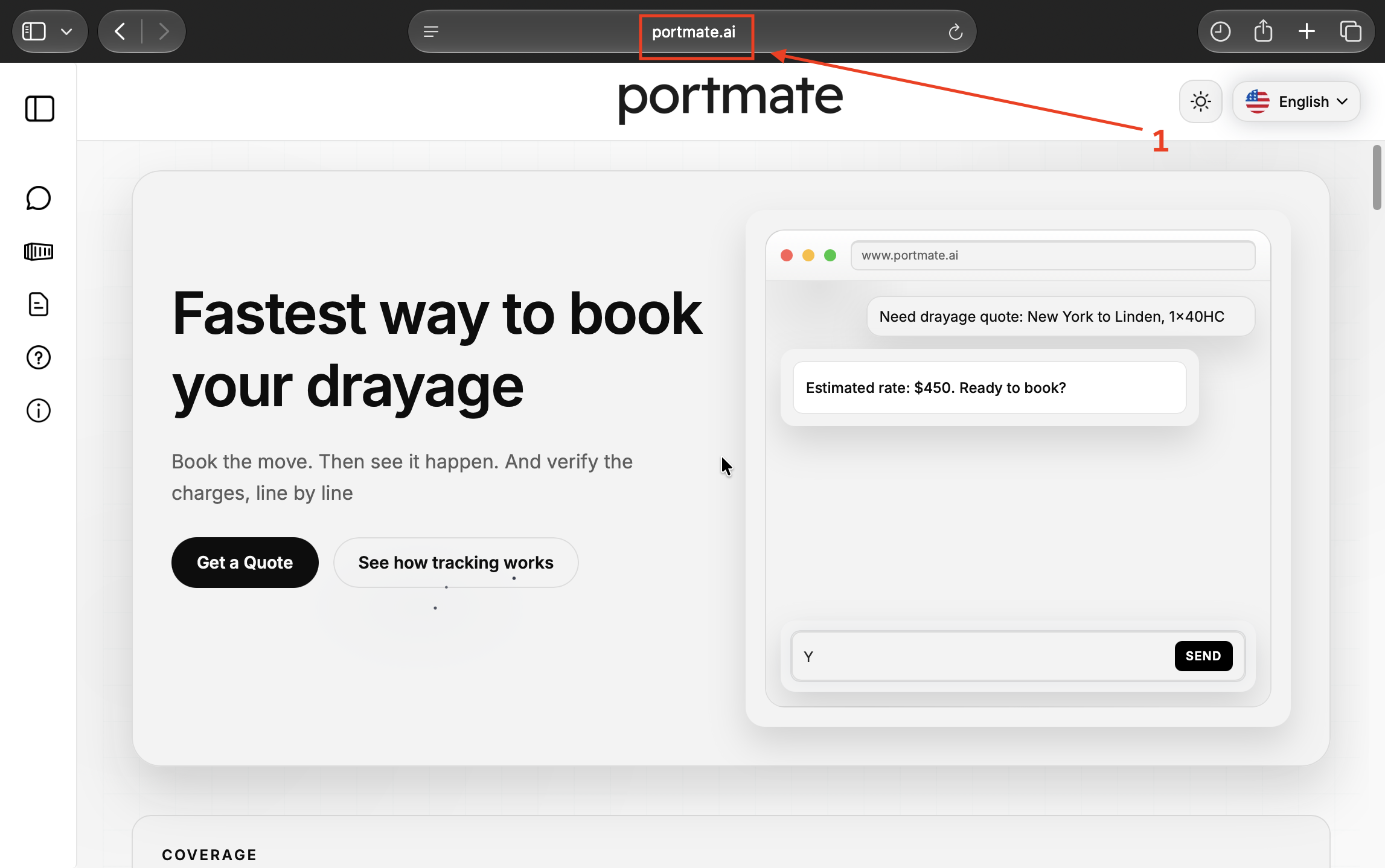
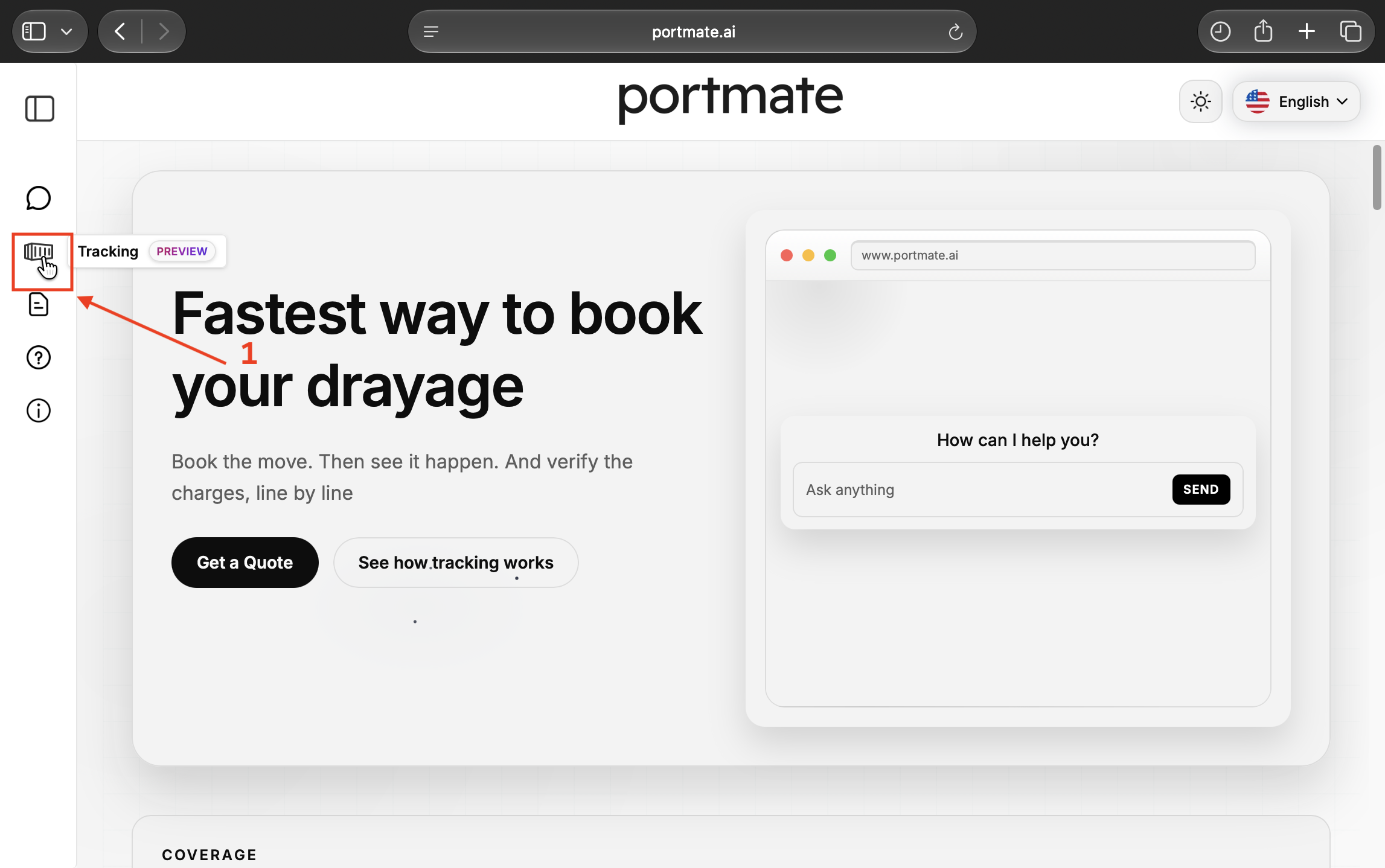
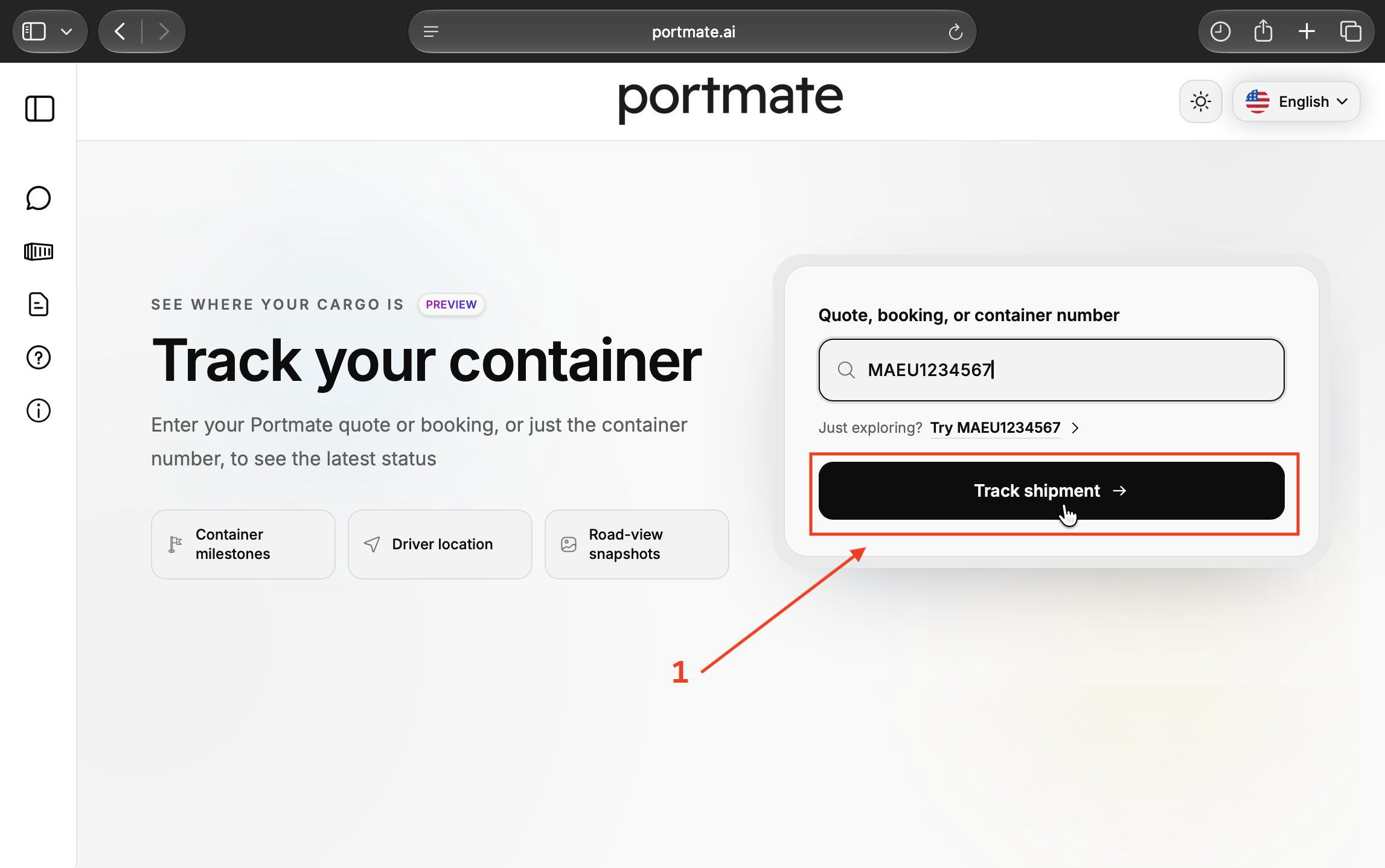
Step 2 — Select Tracking. Select the container-shaped Tracking icon in the left navigation. It is labeled Preview in the screenshots. The Track your container page opens.
Step 3 — Enter your reference. Select Quote, booking, or container number and enter the reference for your move. To explore the demonstration shipment, enter MAEU1234567 or select Try MAEU1234567.
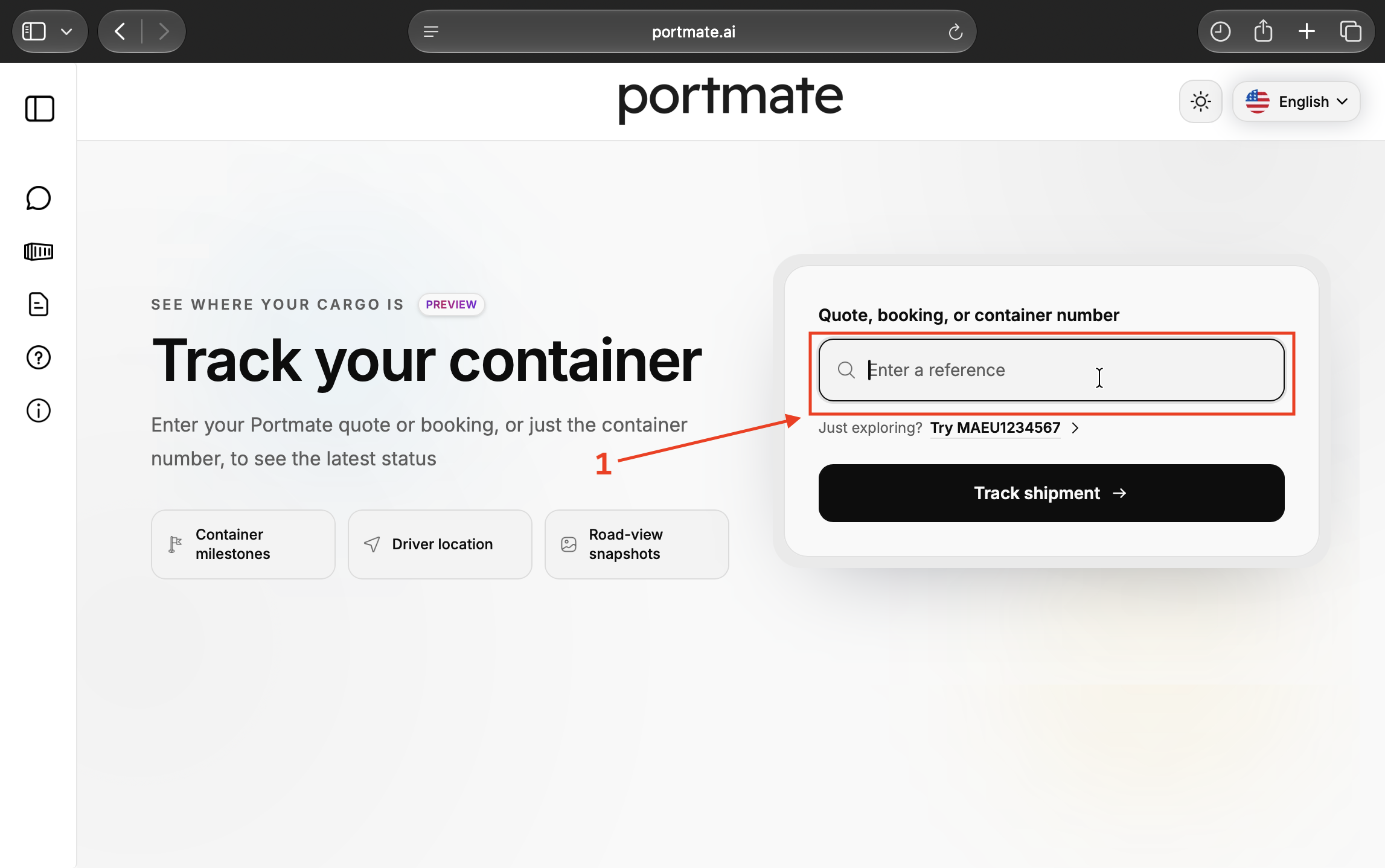
Step 4 — Select Track shipment. Check the reference and select Track shipment. When the result appears, continue down the page to its milestone timeline.
The result also includes the map and other shipment information. If you need the truck's reported position and its timestamp, follow .
Find the milestone and open its images
Snapshots belong to individual milestones. Choose the event relevant to the question you are investigating.
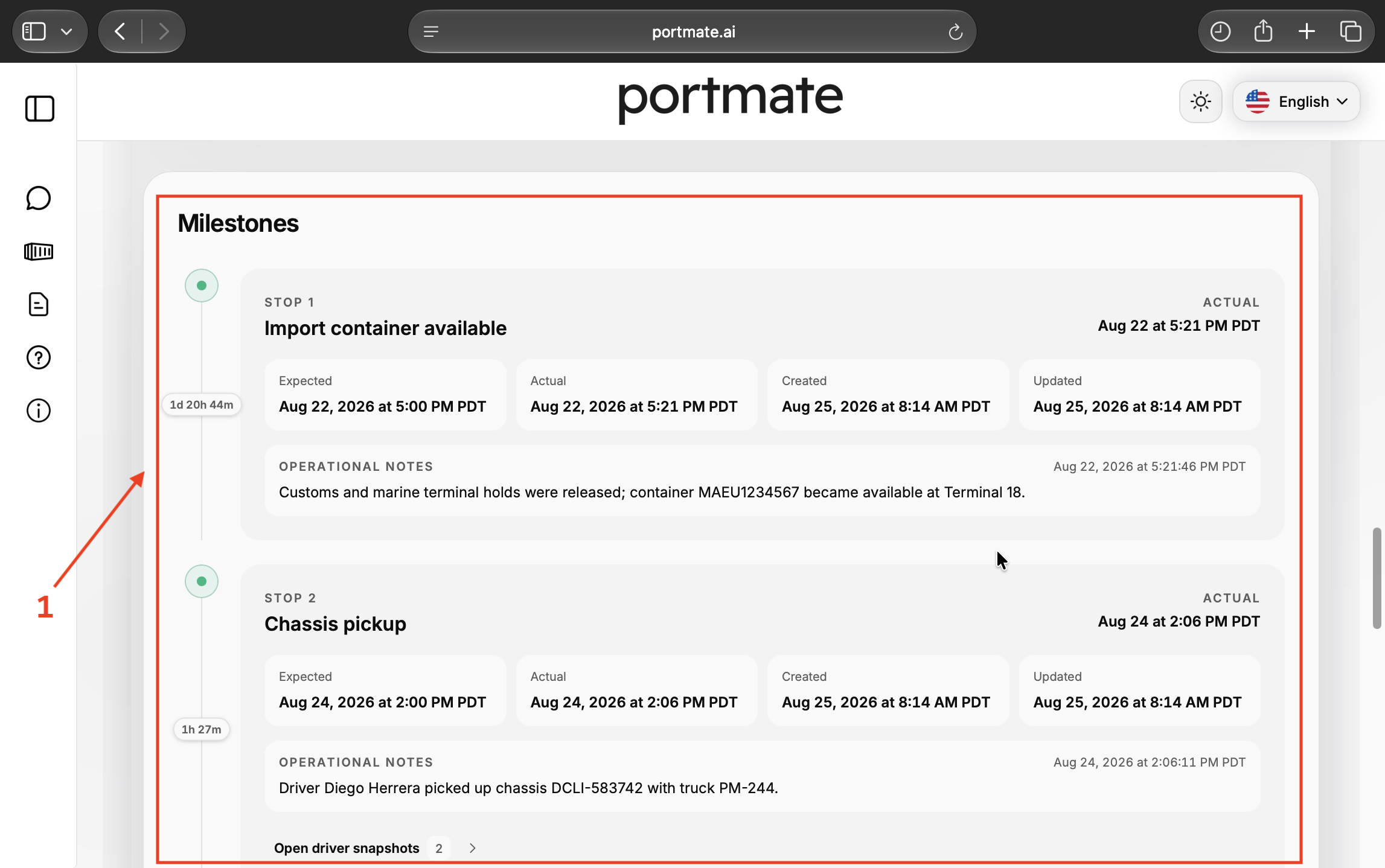
Step 5 — Find Milestones. Scroll to Milestones. Each card identifies a step in the move and shows expected and actual times, record creation and update times, and available operational notes. In this example, Chassis pickup is Stop 2.
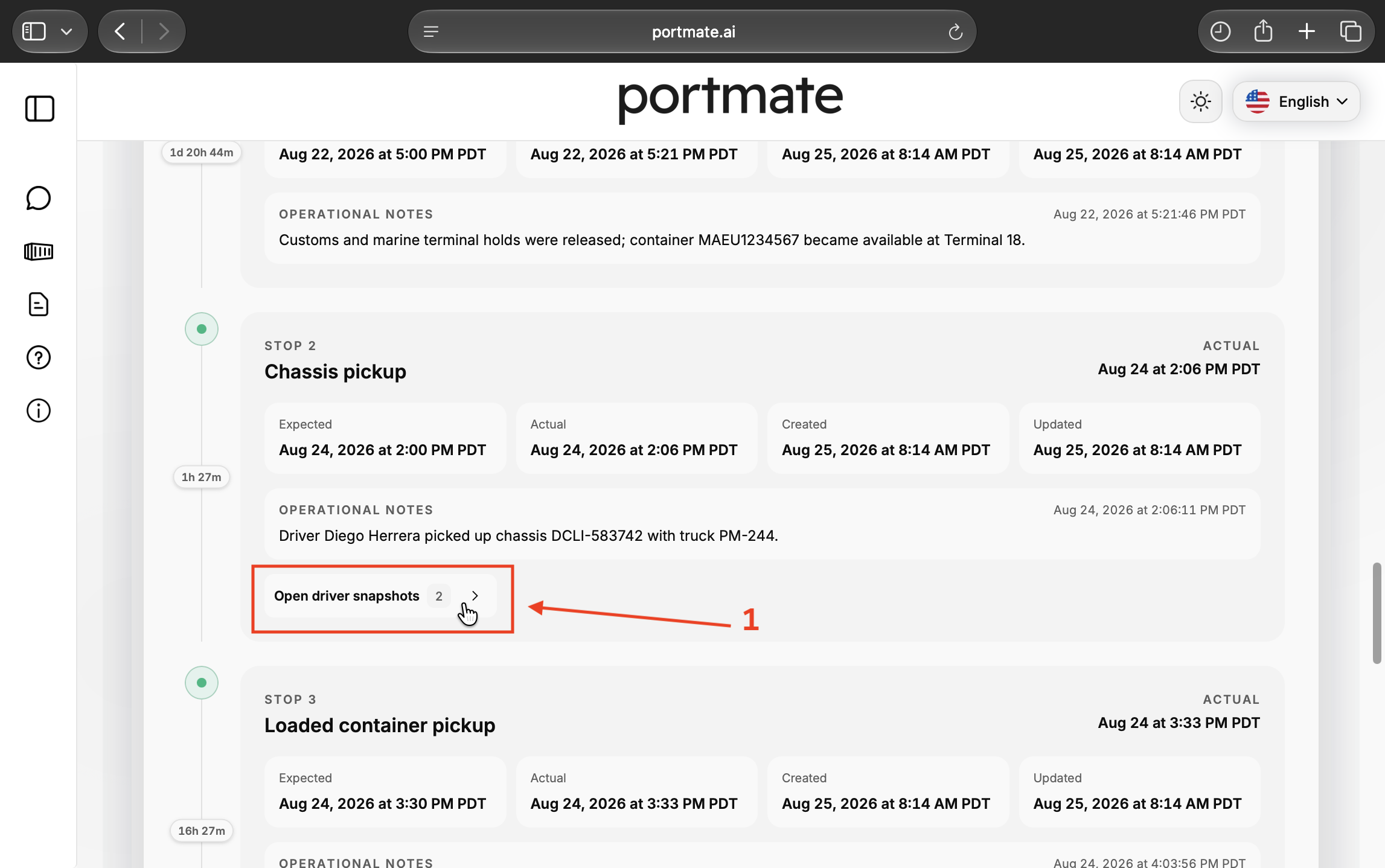
Step 6 — Select Open driver snapshots. On a milestone with images, select Open driver snapshots. The number beside the label indicates how many snapshots are available for that milestone. Here, Chassis pickup has two.
Review the images and their details
The dialog keeps the images together with the information needed to place them in the shipment's timeline.
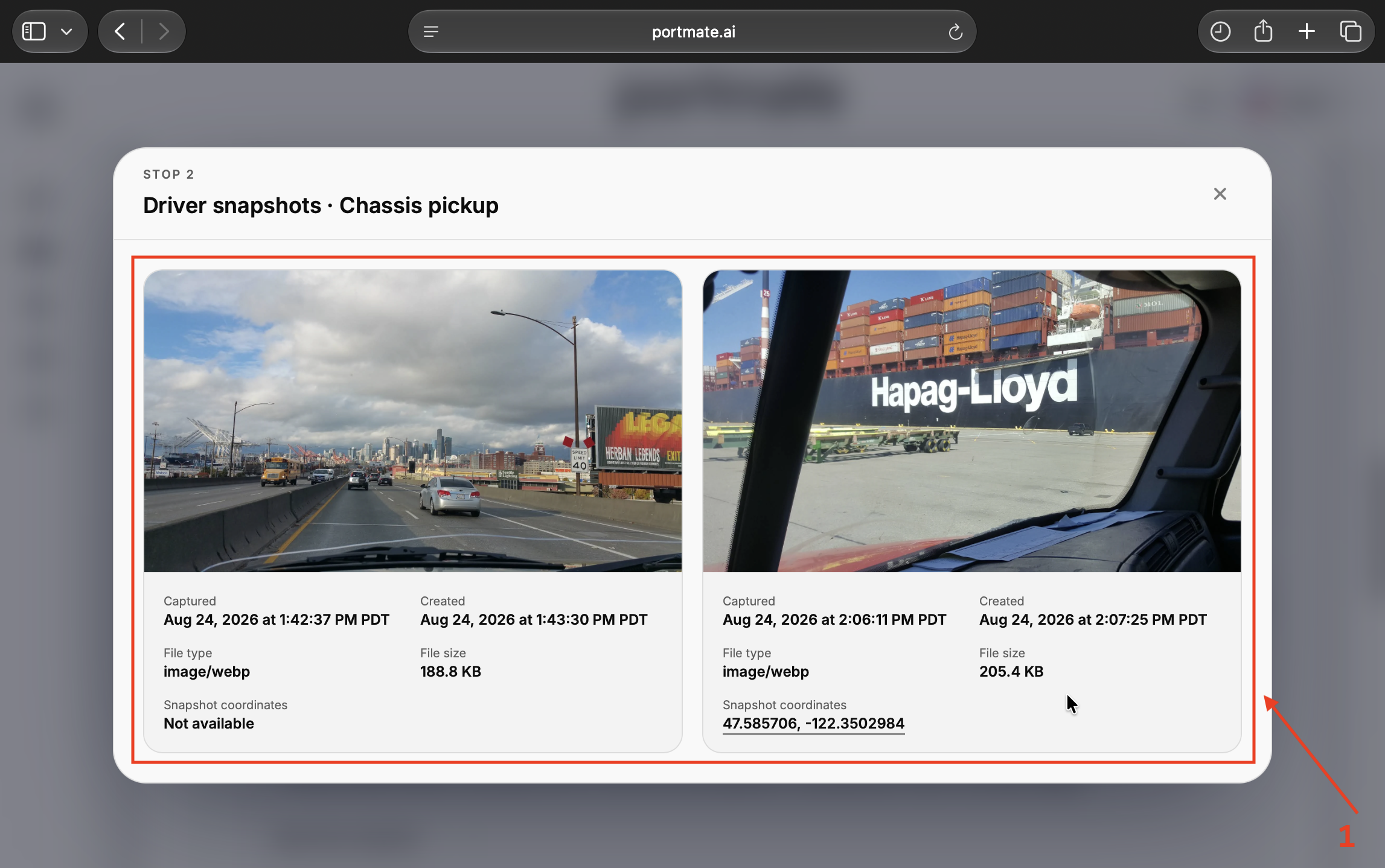
Step 7 — Read the snapshot information. Check the dialog heading to confirm the milestone. This example opens Driver snapshots · Chassis pickup. Review each image's Captured, Created, and Snapshot coordinates fields. When coordinates are available, select the coordinate link to open that location in Google Maps. Close the dialog to return to the timeline and inspect another milestone.
Read the capture time, location, and milestone together
An image answers a more useful question when you can identify when it was captured, where it was captured if coordinates are available, and which shipment event it accompanies. Read those details before using the picture in an update.
| Snapshot detail | How to use it |
|---|---|
| Milestone heading | Identify the shipment step under which the images are organized. |
| Captured | Establish when the image was taken, including the date and timezone. |
| Created | Identify when the snapshot record was created in the system. |
| Snapshot coordinates | Check the recorded location when available; the link opens Google Maps. |
| File type and size | Identify the media format and file size. These do not establish what happened in the scene. |
The distinction between an observation and its record is common in shipment visibility. separates an event's occurrence time from the time it was recorded in a repository. The same reading habit is useful here: use Captured to date the view, and Created to understand the record's timing.
Compare the two images in the example
Both images in the final screenshot appear under Chassis pickup, but their details differ:
- The first was captured on August 24, 2026, at 1:42:37 p.m. PDT and its record was created at 1:43:30 p.m. Its coordinates are Not available.
- The second was captured at 2:06:11 p.m. PDT and its record was created at 2:07:25 p.m. It includes coordinates 47.585706, -122.3502984, with a Google Maps link.
The chassis-pickup card shows an actual time of 2:06 p.m., and its operational note is timestamped 2:06:11 p.m. The second image therefore aligns with that note's timestamp. The first image provides an earlier view associated with the same milestone.
Being grouped under one milestone does not mean every image was taken at the same instant. A later Created time also does not make an earlier image a view of the later moment. In the second image, the record was created 1 minute and 14 seconds after capture; that interval is specific to this example, not a promised upload time.
Check the location without filling in missing details
When a coordinate link is present, use it to compare the recorded location with the relevant terminal, yard, or facility. Match the capture time as well as the place. A snapshot location and the truck's latest map position can differ because they describe different moments.
If Snapshot coordinates says Not available, the image can still provide visual context, but the record does not supply coordinates for that capture. A recognizable sign or building may help orient you; keep that visual interpretation separate from a recorded location.
Use snapshots to make shipment updates clearer
The practical benefit is that people can examine the same recorded scene and ask a specific question. A shipper may need to understand progress, a dispatcher may need to investigate a delay, and a receiver may need to coordinate the next arrival. The image helps when it is connected to the facts relevant to that task.
Explain the context behind a pickup update
Start with the shipment reference, pickup milestone, actual time, and operational note. Then check whether the associated image supports the surrounding context.
For the demonstration shipment, a useful update would be:
The tracking record shows chassis pickup at 2:06 p.m. PDT on August 24. The associated camera image was captured at 2:06:11 p.m. and includes a location link. An earlier image under the same milestone was captured at 1:42 p.m.
That wording lets the recipient distinguish the recorded pickup event from the individual camera observations. If the equipment itself is the question, check the chassis identifier and interchange record as well. The explains the equipment types used in drayage.
Investigate a reported queue or difficult approach
A road-facing image may show a queue, restricted approach, poor visibility, or other conditions within its frame. Check when it was captured before describing those conditions as current, and compare it with the relevant milestone notes and position history.
A single still records one moment. To explain a longer wait, look for arrival and departure times and the operational record covering that interval. For a new routing or appointment decision, check current conditions using the and the applicable road or facility notices. The explains how those conditions can affect the rest of a drayage move.
Coordinate receiving or review a charge
For receiving, use a recent image alongside the latest vehicle position, arrival milestone, appointment, and available ETA. The scene may help explain the truck's approach; completed check-in or delivery acceptance should be confirmed in the corresponding record.
For an additional charge, connect the image to the service and interval under review. An image of a queue can support an explanation of conditions at capture time. Billable waiting time still needs its arrival and departure evidence, applicable allowance, and agreed terms. Follow to review those records together.
When preparing a customer handoff, include the shipment reference, relevant milestone, capture time and timezone, and the specific fact that needs attention. The explains how to turn the wider tracking record into a clear update.
On-demand requests are planned for authenticated users
Portmate plans to add on-demand road-view snapshot requests to the Tracking portal for authenticated users. The current walkthrough covers opening images already available under shipment milestones. The planned request control is not shown in these screenshots and does not yet form part of these steps.
For a current shipment question, contact Portmate with the reference, relevant milestone, and the time or situation you need clarified. A focused request could be:
For container MAEU1234567, please check the Chassis pickup images from August 24, 2026, around 2:06 p.m. PDT. We need to clarify the truck's recorded location at capture time.
Replace the demonstration reference and dates with your own shipment details. This gives the team a clear question to investigate using the available record. The lists the support channels.
If an image is missing, older, or unclear
Start with the part of the record that is available, then choose the next check:
- No matching shipment: Check the reference for typing errors and try another known quote, booking, or container reference for the same move. The demonstration number shows the example shipment.
- A milestone has no Open driver snapshots control: No snapshots are listed under that milestone in the loaded record. Check the relevant completed milestones and ask Portmate about camera coverage or a missing capture if the image matters to your task.
- The image does not load: Select Retry snapshot when shown. If the problem continues, provide the shipment reference, milestone, and capture time to support.
- The image is older than expected: Check Captured, including its date and timezone. Submit the shipment reference again to retrieve the record anew; reopening a saved image does not request a new camera capture.
- Coordinates are unavailable: Use the capture time, milestone, notes, and other available records. Ask for location clarification when it affects the decision.
- The view is dark, obstructed, or does not show the detail you need: Identify the unanswered question and seek the supporting record or clarification that can resolve it.
Camera and communications conditions can affect image availability. identifies the camera connection, gateway power, and cellular reception as checks for its equipment. Portmate can coordinate the appropriate investigation for the connected setup on your move; customers should report the issue through support.
An absent image leaves that visual observation unavailable. Check the actual milestone and operational records before drawing a conclusion about whether the shipment event occurred.
Common questions about road-view snapshots
These distinctions help you choose the right information for the question at hand.
Are these live video feeds? The feature shown here displays saved still images with capture times. Use each image's timestamp to understand when the scene was recorded.
Does the driver take the pictures manually? Automatic milestone capture uses the installed, connected road-facing camera. Routine capture does not require the driver to take or send a phone photo.
Will every milestone have an image? Capture is associated with key drayage milestones, and availability varies by the equipped truck and the recorded move. Look for Open driver snapshots under the relevant milestone rather than expecting an image on every card.
Does a road-view image show the condition of the cargo? A forward-facing camera shows the scene in its field of view. Cargo condition, container seals, loading, and unloading need the relevant inspection, handling, or delivery records unless the specific detail is actually visible and identifiable in the image.
Can I request a new image directly in Tracking today? Authenticated on-demand requests are planned functionality. The steps above explain how to inspect the automatic milestone images currently available in the tracking record.