
How to track your container and see the driver's location
To track your container, open Tracking, enter your Portmate quote or booking number, or your container number, and select Track shipment. On the map, use Center latest position, then select the truck marker to see the driver's reported position and its timestamp.
The walkthrough uses an example shipment near Seattle and Kent, Washington. Follow the same steps with your own reference to check an active move.
How ELD tracking works
Portmate's real-time road tracking receives telematics and geographic data through electronic logging devices (ELDs) connected to the truck. The that ELDs synchronize with a vehicle's engine and automatically record information such as motion status, miles driven, and engine hours.
Once connected, the tracking sync runs in the background without interrupting the driver. There is no separate Portmate tracking app to keep open, phone-location link to manage, or manual check-in for each position update. Shippers, forwarders, and dispatch teams can follow the move without repeatedly calling for the truck's whereabouts.
Portmate reports coverage across most of the drivers it works with and estimates tracking reliability at close to 99%, based on its operational experience. This is an operational estimate; the timestamp beside each position lets you judge the freshness of the information for your shipment.
Open your shipment
Have a Portmate quote number, booking number, or container number ready. The lookup uses it to find the associated shipment record.
Go to Tracking
Start from the home page's left navigation.
Step 1 — Open Portmate. Go to .
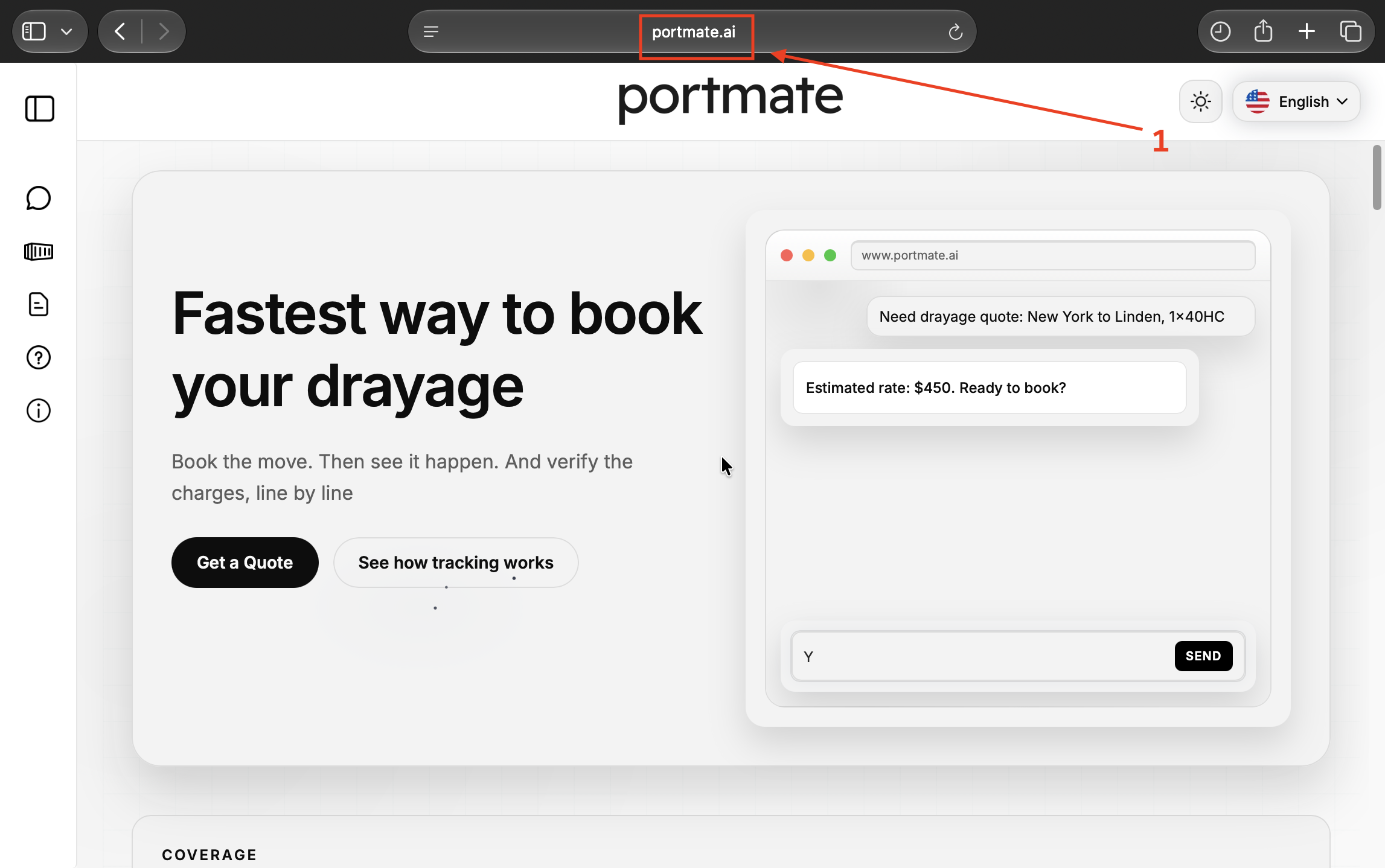
Step 2 — Select Tracking. Select the container-shaped Tracking icon, labeled Preview. This opens the Track your container page.
Enter a reference and load the result
Use the same search field for any of the three reference types.
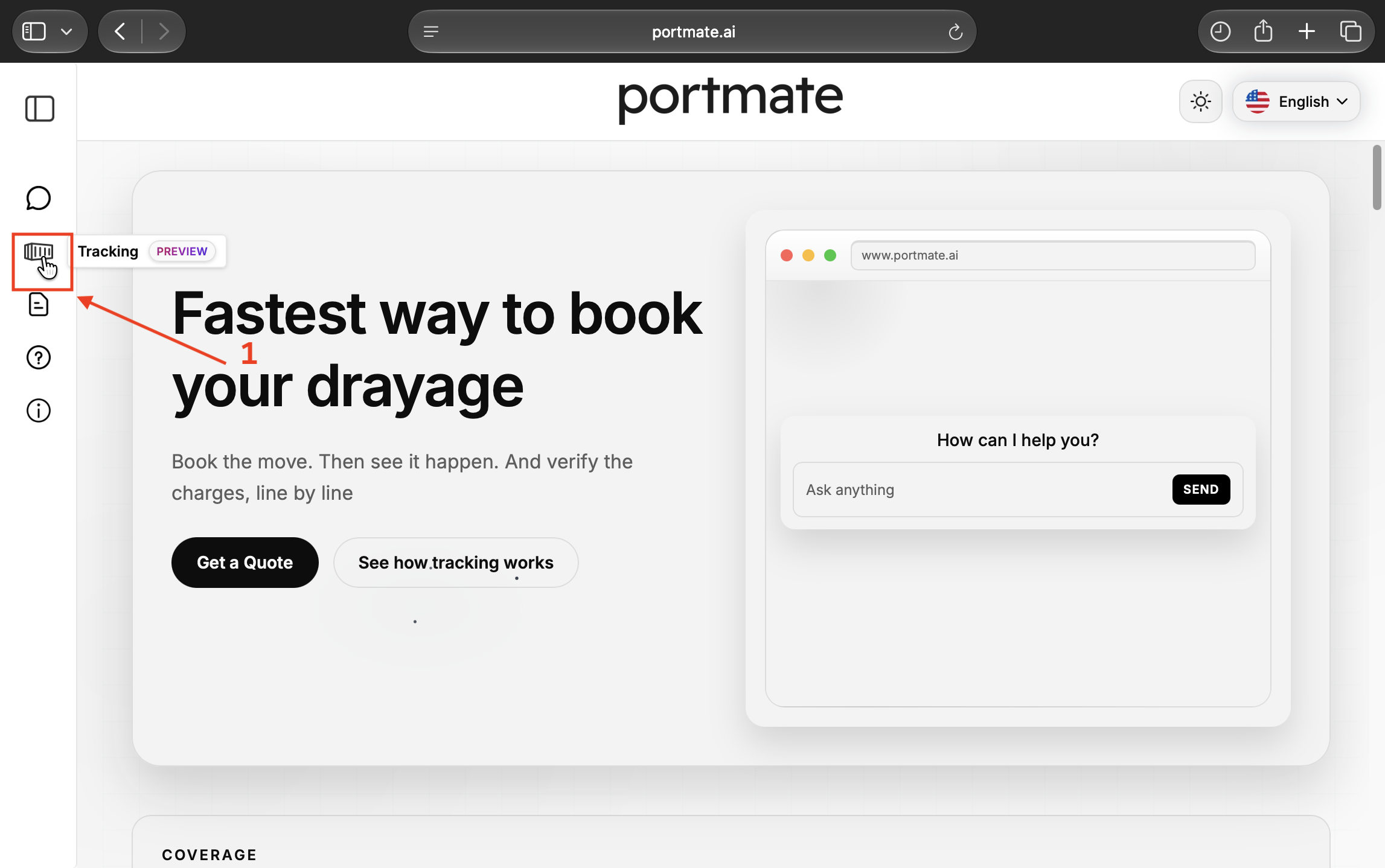
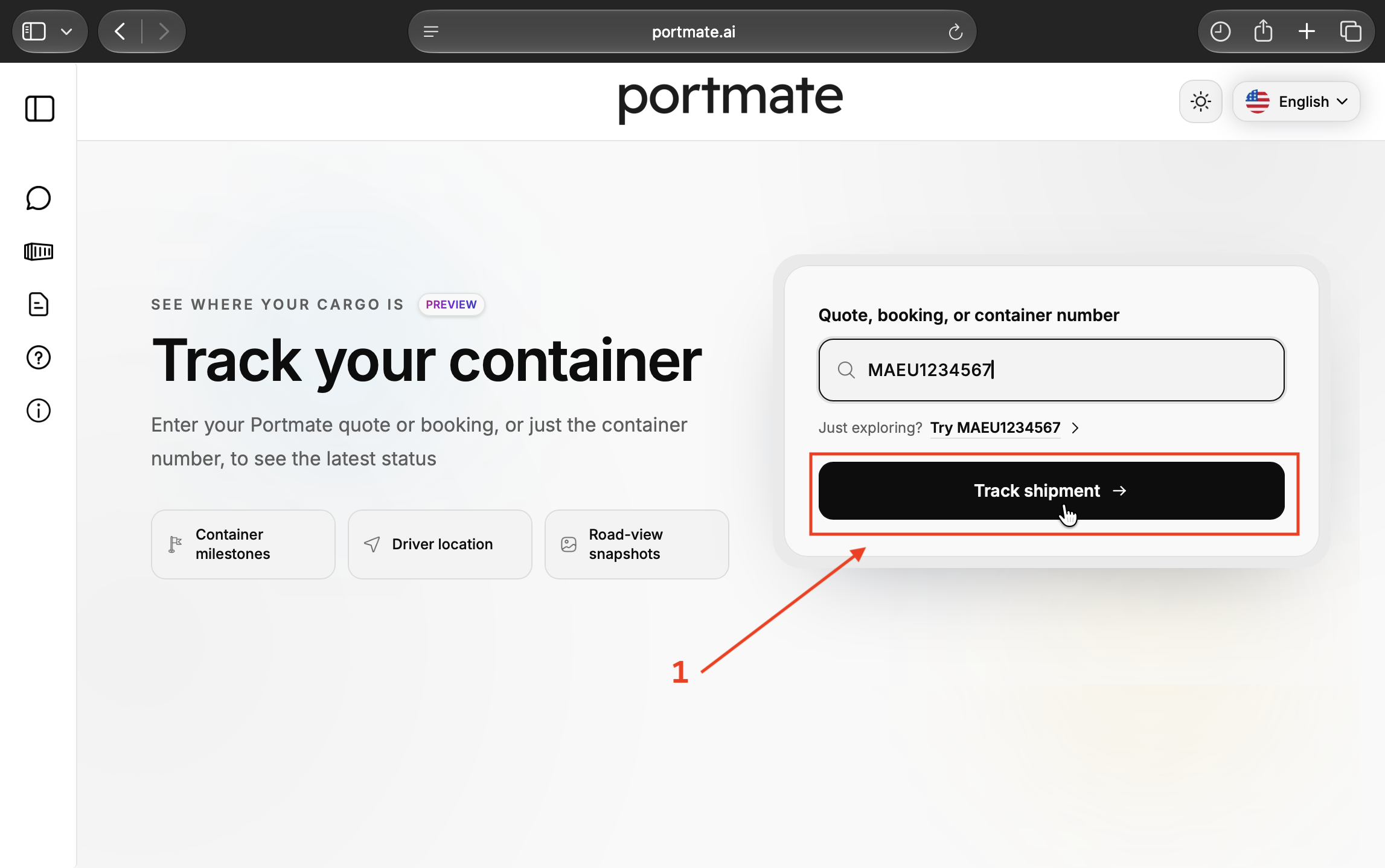
Step 3 — Enter your reference. Select Quote, booking, or container number and enter your shipment reference. To explore the example shown here, use MAEU1234567 or select Try MAEU1234567.
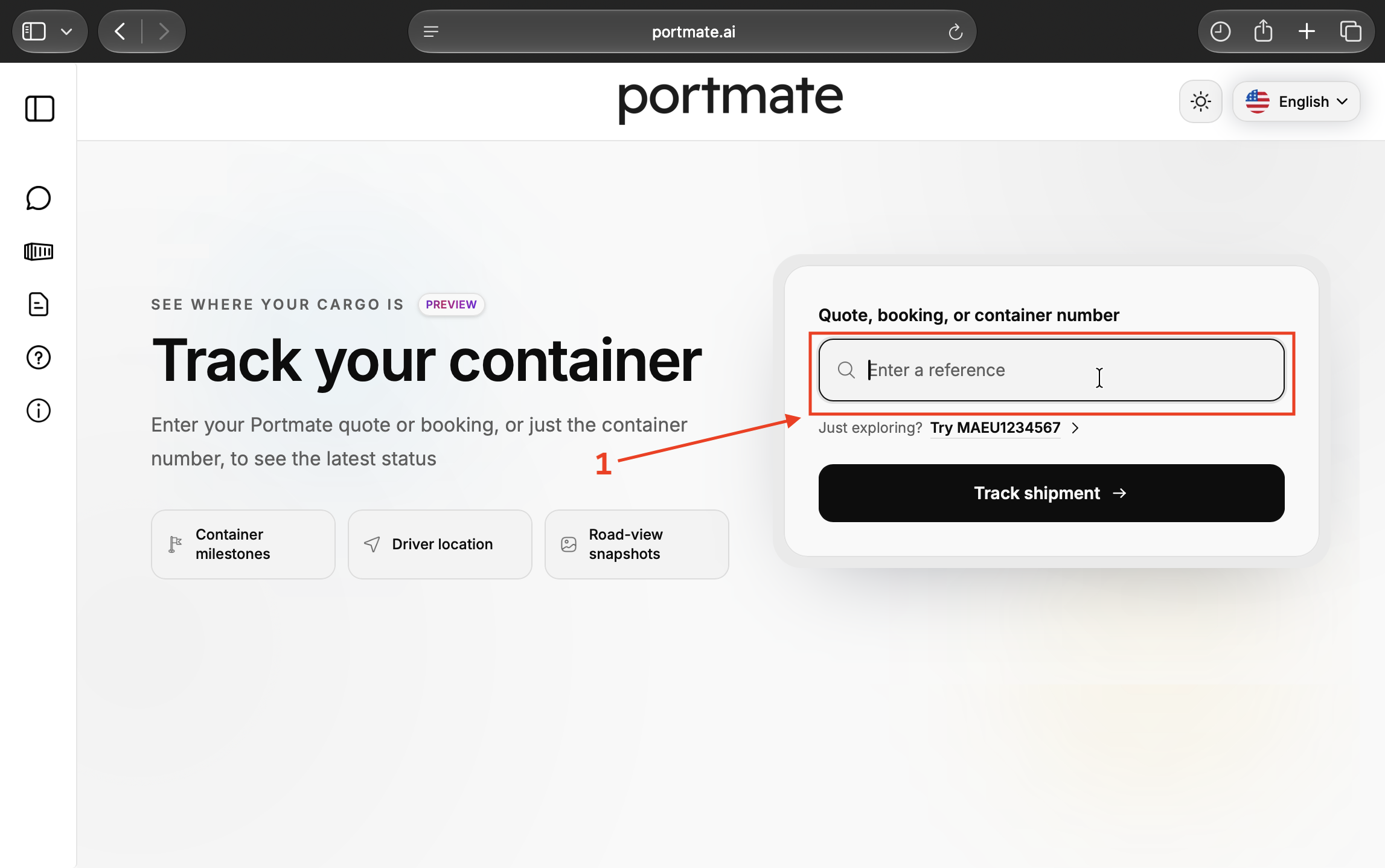
Step 4 — Select Track shipment. Check the reference and select Track shipment. When the result appears, scroll to its map.
If you are still arranging the move, see . A quote can help you find the associated record; vehicle positions depend on tracking data being available for that move.
Find the driver on the map
Start with the regional overview, then bring the truck into focus and open its details.
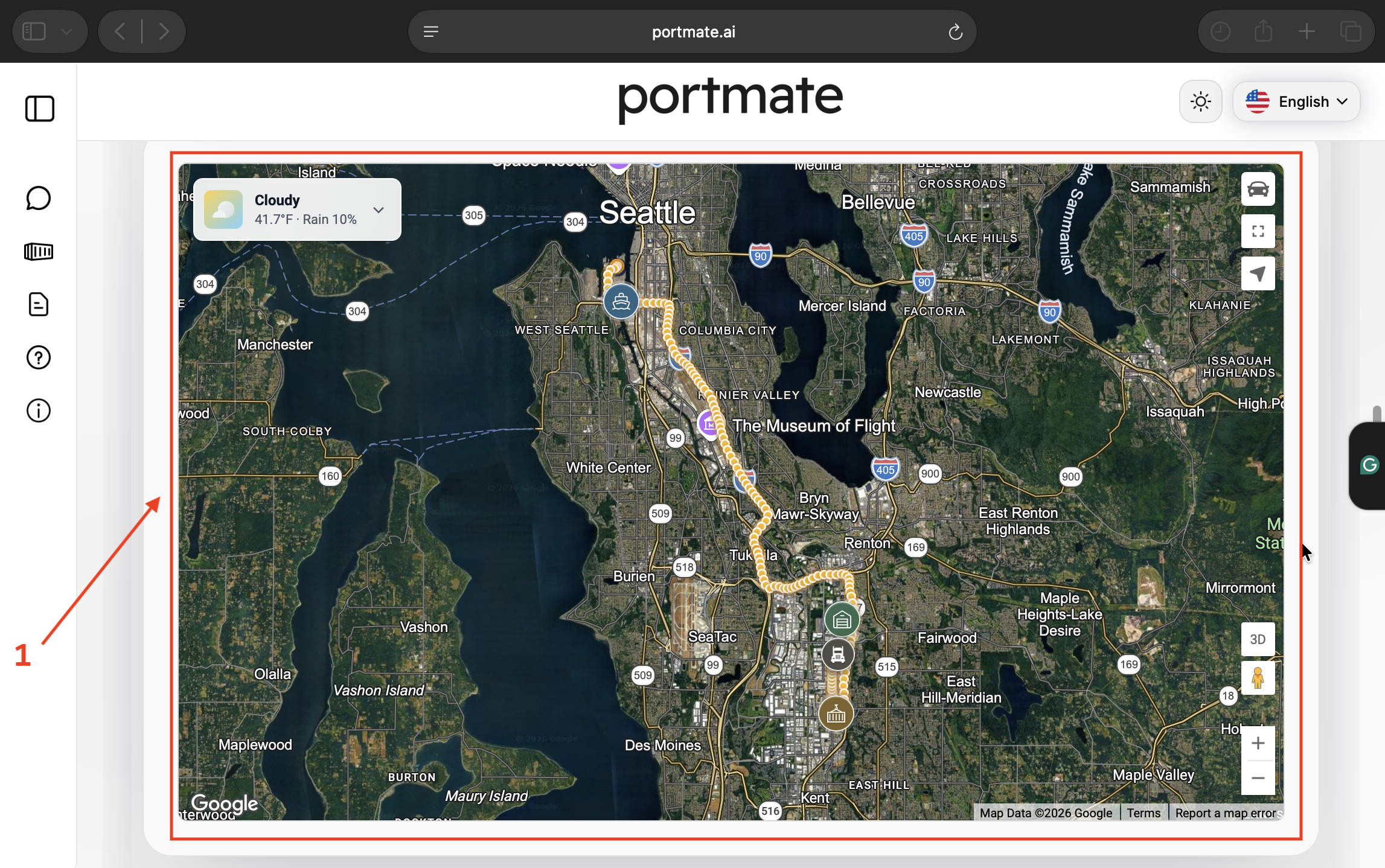
Step 5 — Review the map overview. The Seattle-area example shows shipment locations, a truck marker, and a trail of recorded positions. Facility markers identify the stops involved in the move; the points show the truck's position history.
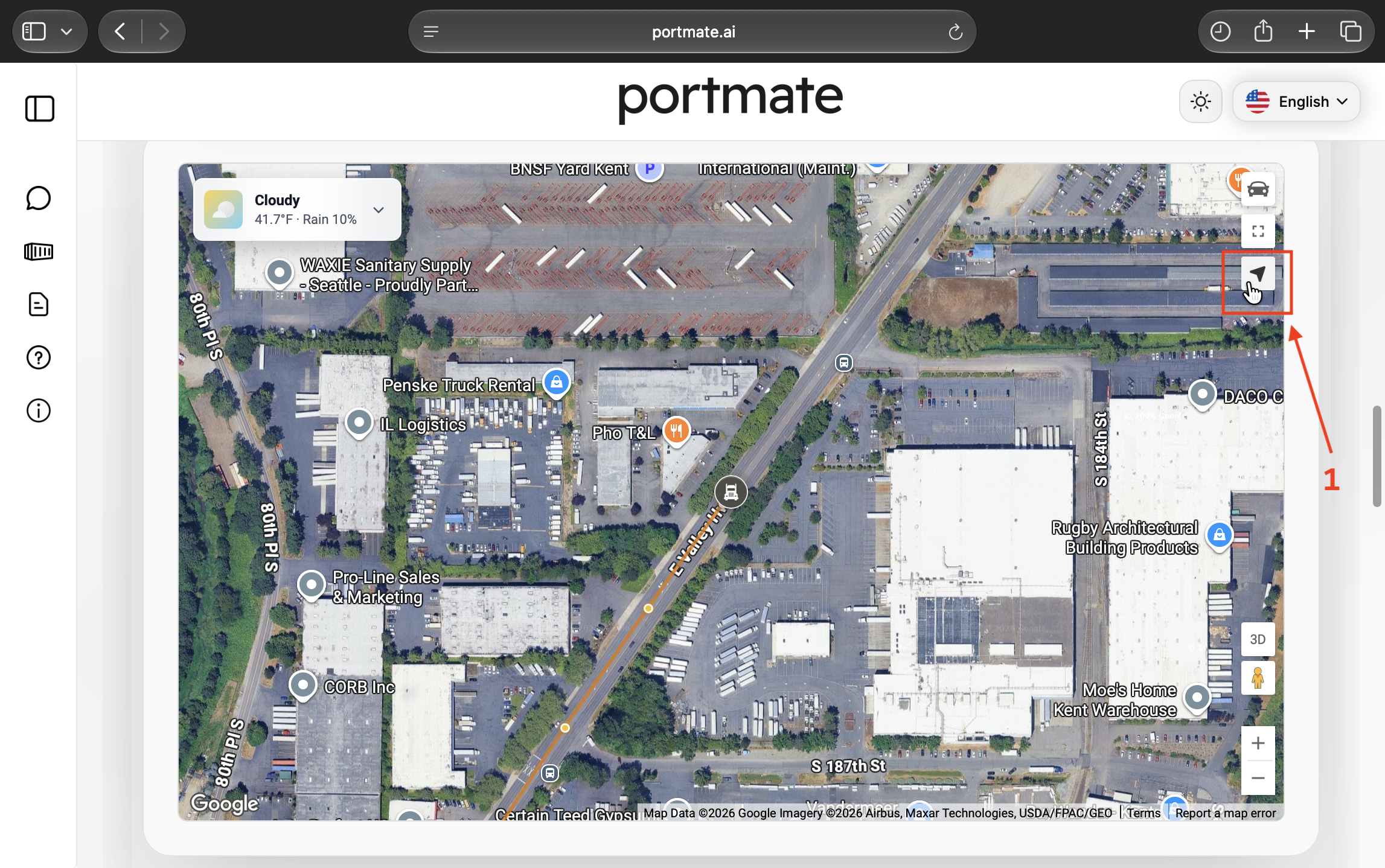
Step 6 — Center the latest position. Select the arrow-shaped Center latest position control on the right. It focuses the map on the truck near Kent in this example. Use it again whenever you have panned or zoomed away from the vehicle.
Step 7 — Select the truck marker. The Driver position popup shows when that location was recorded, including the timezone. Here it reads Aug 25, 2026 at 7:39 AM PDT.
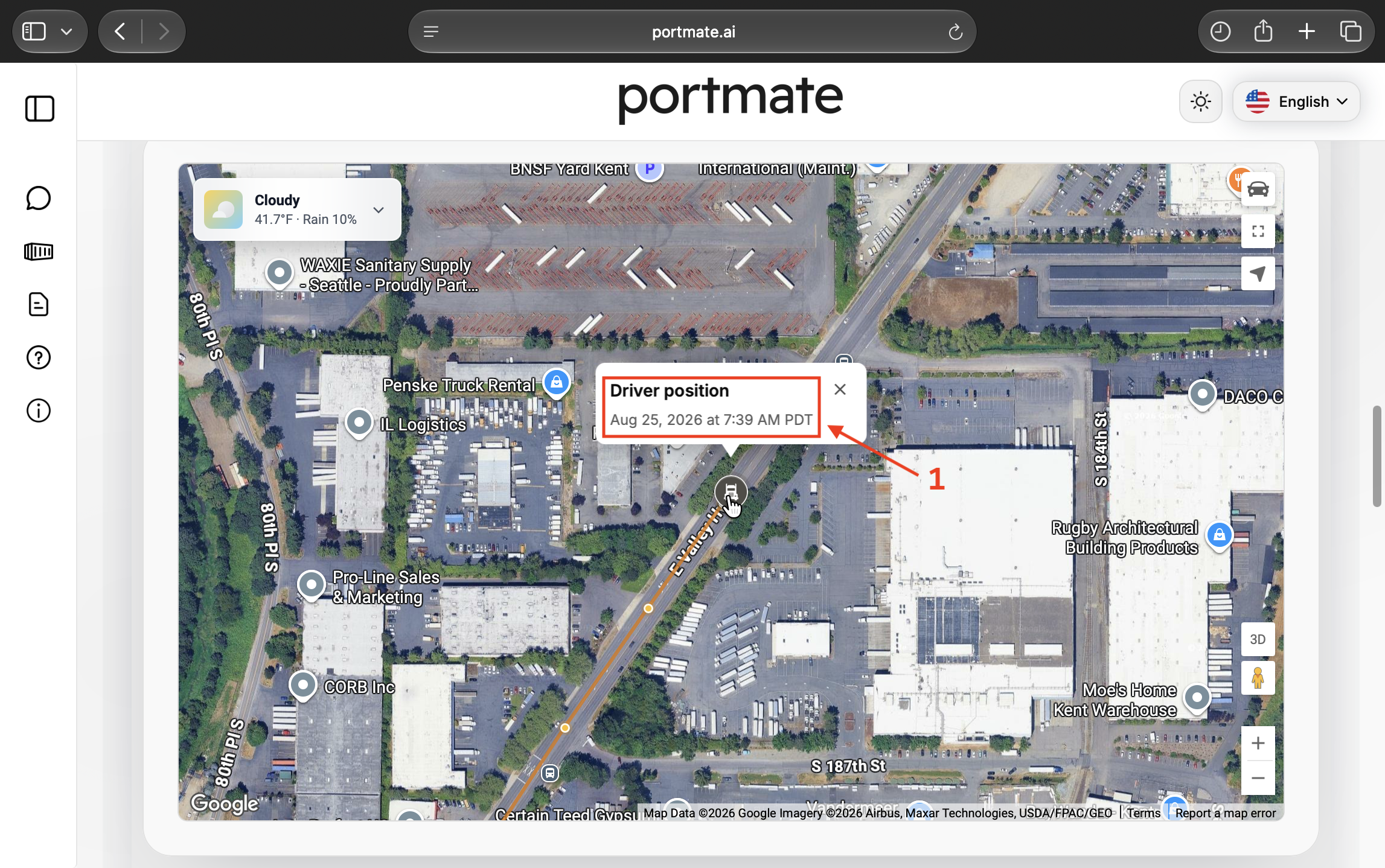
The date belongs to this example's recorded journey. On an active shipment, check both the date and time before using the position in a delivery update.
Turn a location into a useful shipment update
Read the position alongside the shipment's next stop, appointment, and milestones. For the screenshot above, a useful update would be: “The latest reported truck position is near Kent, recorded at 7:39 AM PDT on August 25.” Add the relevant delivery appointment or ETA after checking the shipment record. The position timestamp dates the observation; an ETA estimates arrival.
Use milestones to confirm events such as unloading and empty return. A truck near the destination does not establish that either is complete. Likewise, once a container is dropped and the tractor leaves, the tractor's later positions cannot establish the detached container's location.
The satellite photograph beneath the markers provides geographic context, not a live camera view. For current road conditions, see .
What happens when a lane needs tracking coverage
When a lane lacks coverage because the driver does not yet have a connected ELD, Portmate works to establish the connection:
- Source the ELD needed for the truck.
- Ship the device to the driver.
- Arrange for the driver to install it and establish the data connection.
In Portmate's experience, this usually takes a little more than a few weeks, including sourcing, shipping, and installation. Check the setup status for your lane if you need tracking for an upcoming move. Installation is the initial setup step; subsequent position updates synchronize automatically.
If you cannot find a shipment or a recent position
The result usually points to the next check:
- No matching shipment: Check for typing errors and confirm the reference belongs to the move. Try another reference for the same shipment, such as its booking number, if available.
- Shipment found, but no truck position: Ask Portmate to check the assigned vehicle's ELD connection and coverage.
- An older-than-expected timestamp: Request a connection and sync check before relying on the position for a time-sensitive arrival decision.
- A temporary page error: Follow the displayed message. If the problem continues, contact support.
Use the options in . Include the shipment reference, the timestamp you see, and a short description of the issue so the team can investigate.