

How to see live traffic around terminals
Check live road traffic around a marine terminal or intermodal rail ramp from the interactive map in Portmate's terminal guides. Open Articles, search for your location, select the matching guide, and scroll to its map. Traffic is enabled by default; the car-shaped control in the map's upper-right corner lets you turn the traffic display off or on.
This guide is for shippers, freight forwarders, dispatch teams, and anyone checking the roads around a container pickup or delivery. The six-step walkthrough uses los angeles ports to find the Los Angeles marine-terminal guide. After the walkthrough, learn how to read traffic colors, inspect the roads near your facility, and use the information when planning a move.
Quick start: Visit , select Articles, search for your port or rail ramp, and open the relevant guide. Scroll to the interactive map and confirm traffic is on. Zoom out for the wider approach, then zoom in to inspect roads around the exact terminal.
Find and open the traffic map
Follow these six steps using the screenshots as a guide. Each image's red callout identifies the action or area shown within that screenshot.
Find the right terminal guide
Start with the city, port, terminal, or rail ramp you need. Search results can include regional guides covering several facilities, so check the title and description before choosing one.
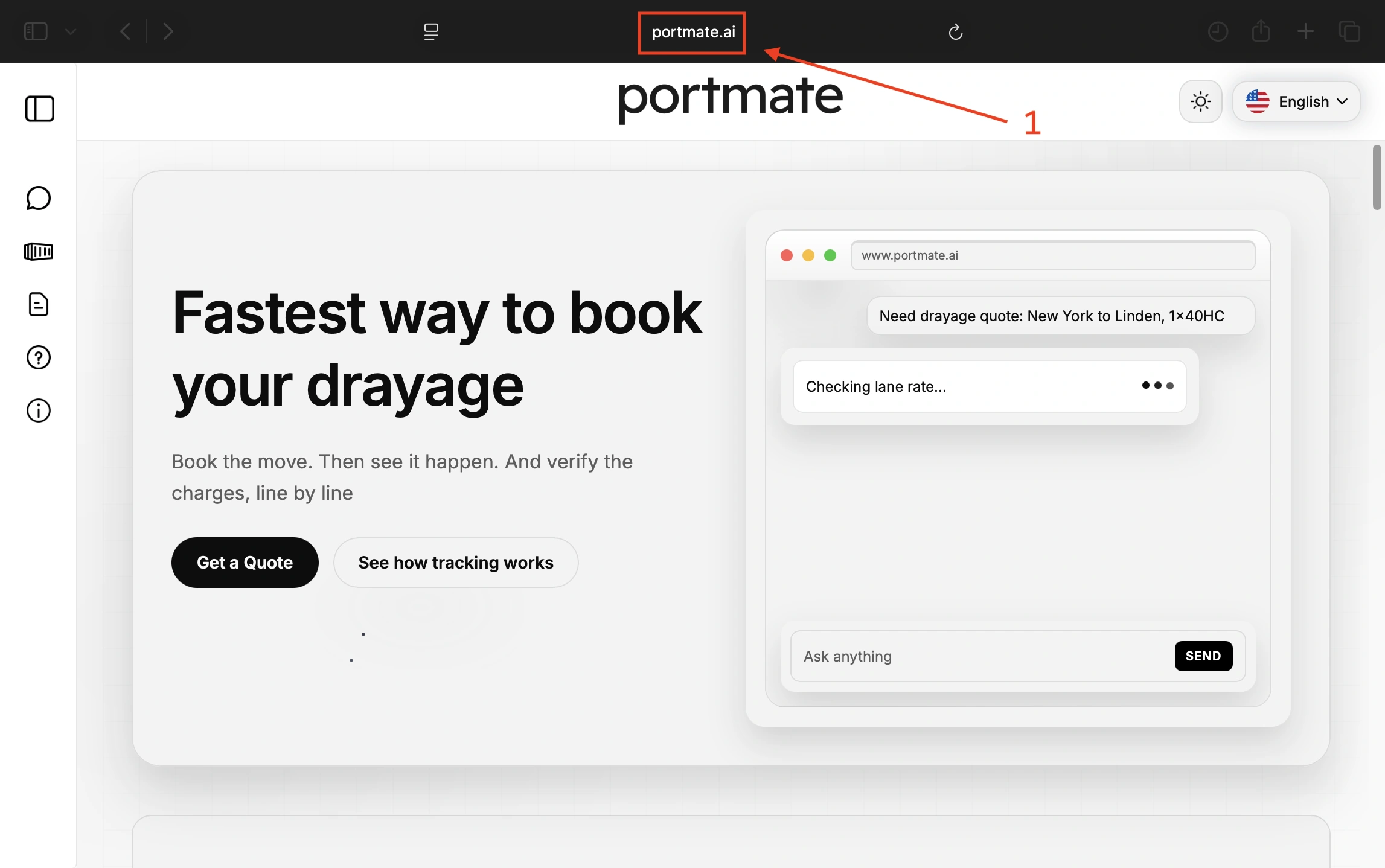
Step 1: Open Portmate.
Go to in your browser.
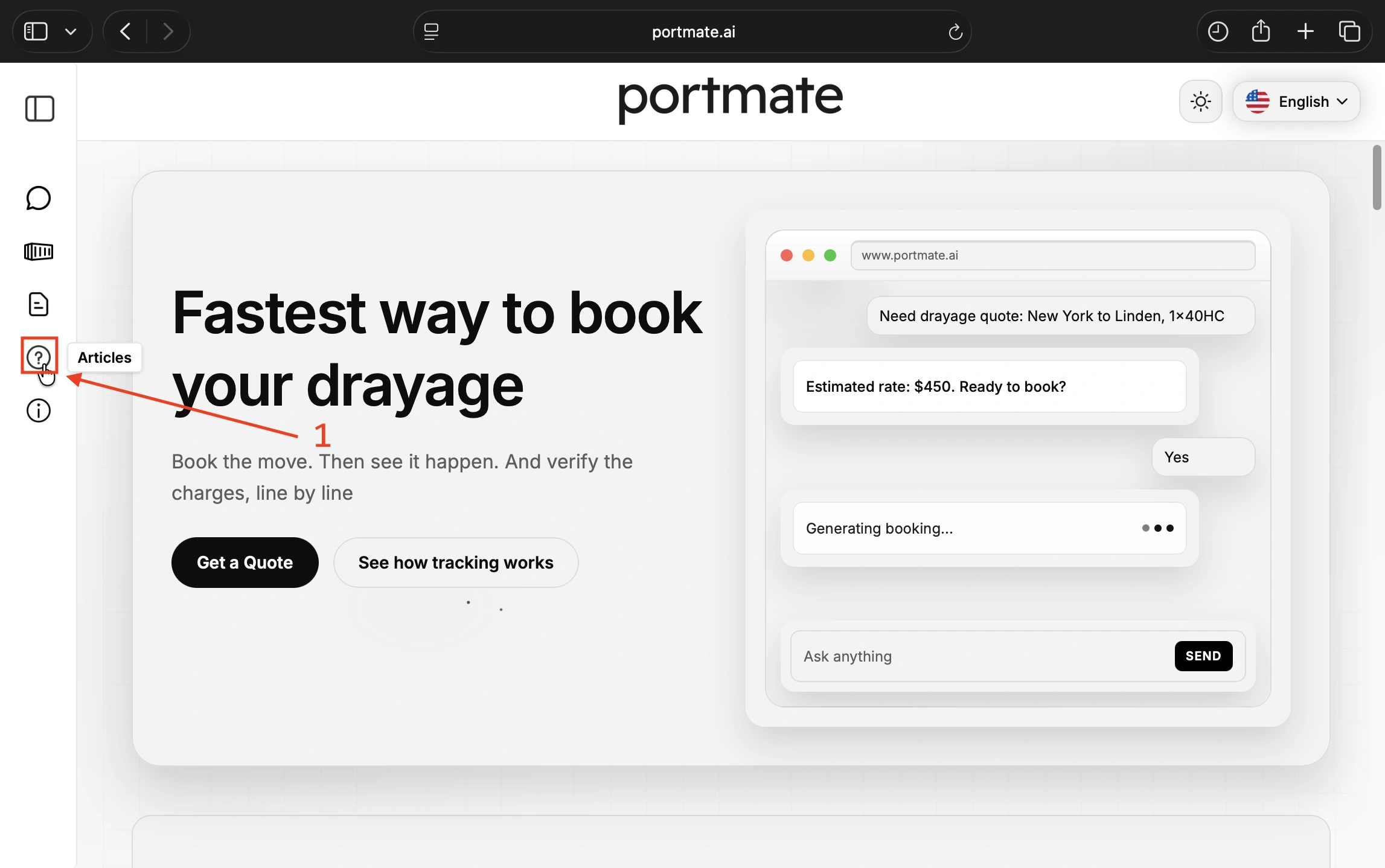
Step 2: Select Articles.
Choose Articles from the left navigation. In the compact sidebar shown here, it is the question-mark icon. Expand the menu if you need to see the navigation labels.
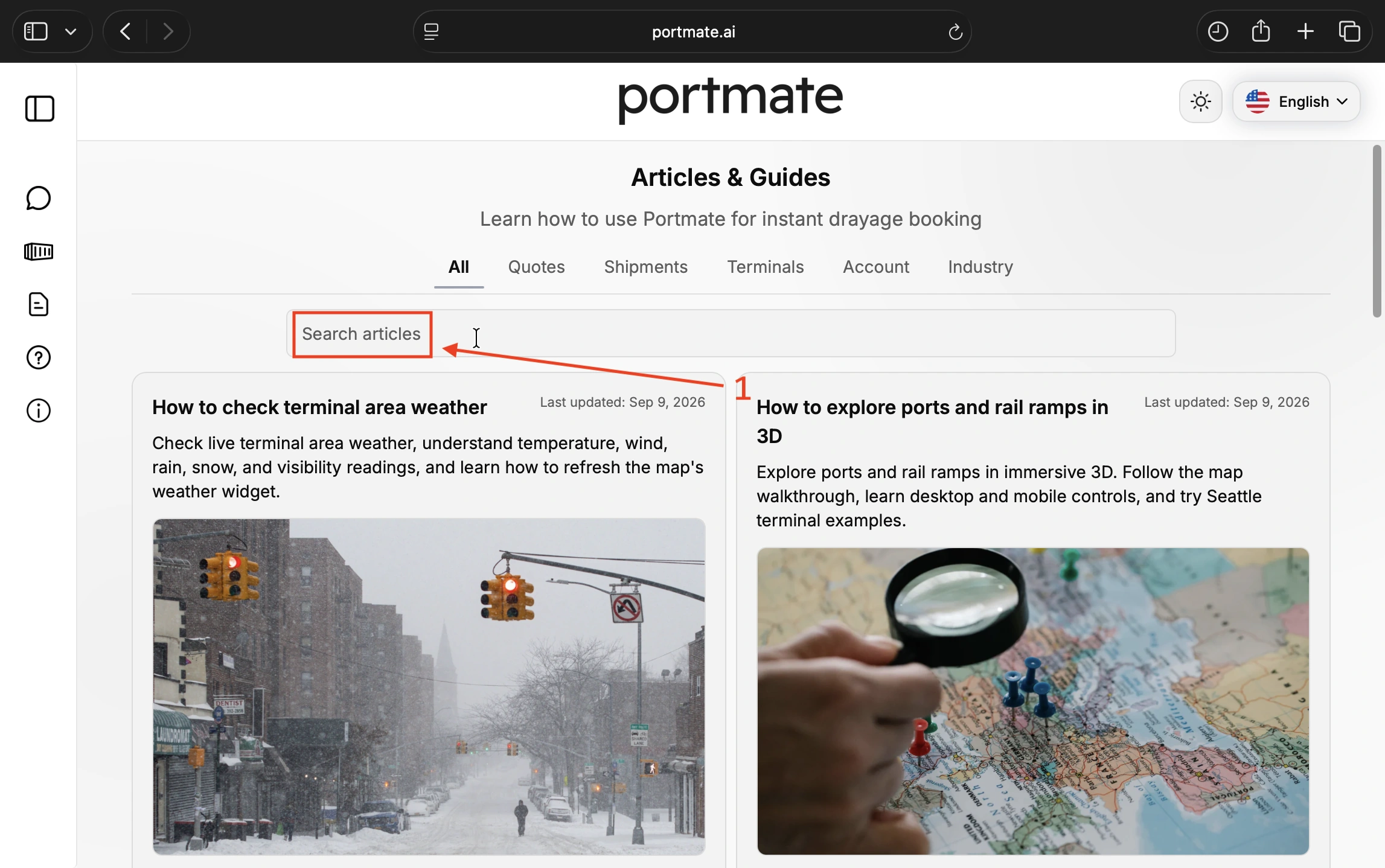
Step 3: Search for your port or rail ramp.
Select the Search articles field and type los angeles ports to follow this example. For another location, enter its city, terminal, or ramp name. Add the city or railroad when a name could refer to several facilities.
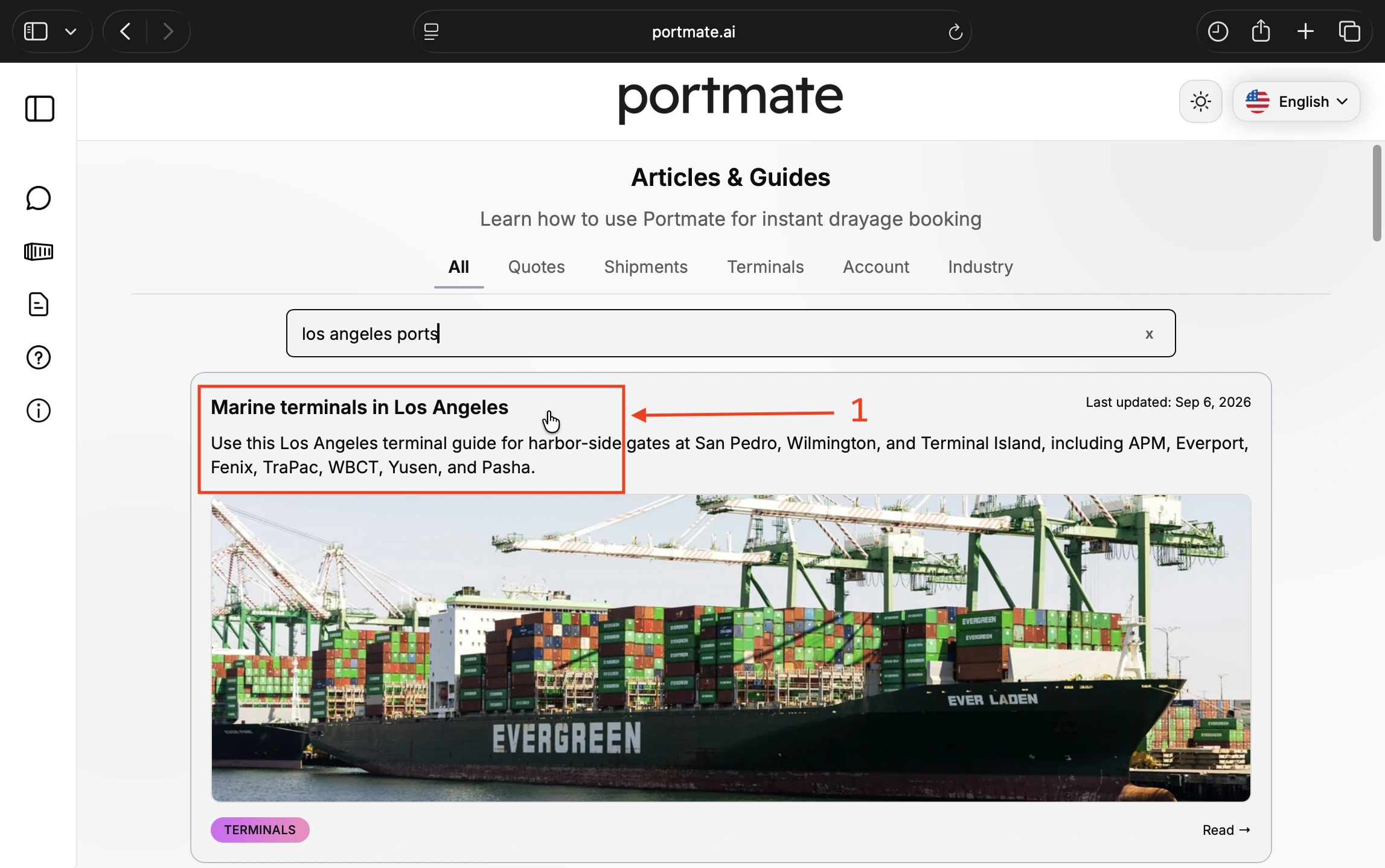
Step 4: Open the relevant result.
For this example, select Marine terminals in Los Angeles. Its description covers Los Angeles harbor locations, including San Pedro, Wilmington, and Terminal Island. Select the result by its title and coverage rather than assuming it will always appear first.
This is a regional guide containing several terminal locations. You can also open directly.
Find the map and check the traffic control
The guide's interactive map combines terminal markers with the surrounding road network. Use the standard map view for traffic; if you have switched to immersive 3D or Street View, return to the standard view first.
Step 5: Scroll down to the map.
Look for the map showing the terminal markers. In the Los Angeles example, the wider view shows the harbor and nearby roads, with colored traffic lines already visible.
At this stage, get your bearings. A regional map can show neighboring cities and roads beyond the guide's listed terminals. Match the facility you need to the terminal name on your booking, release, or dispatch instructions.
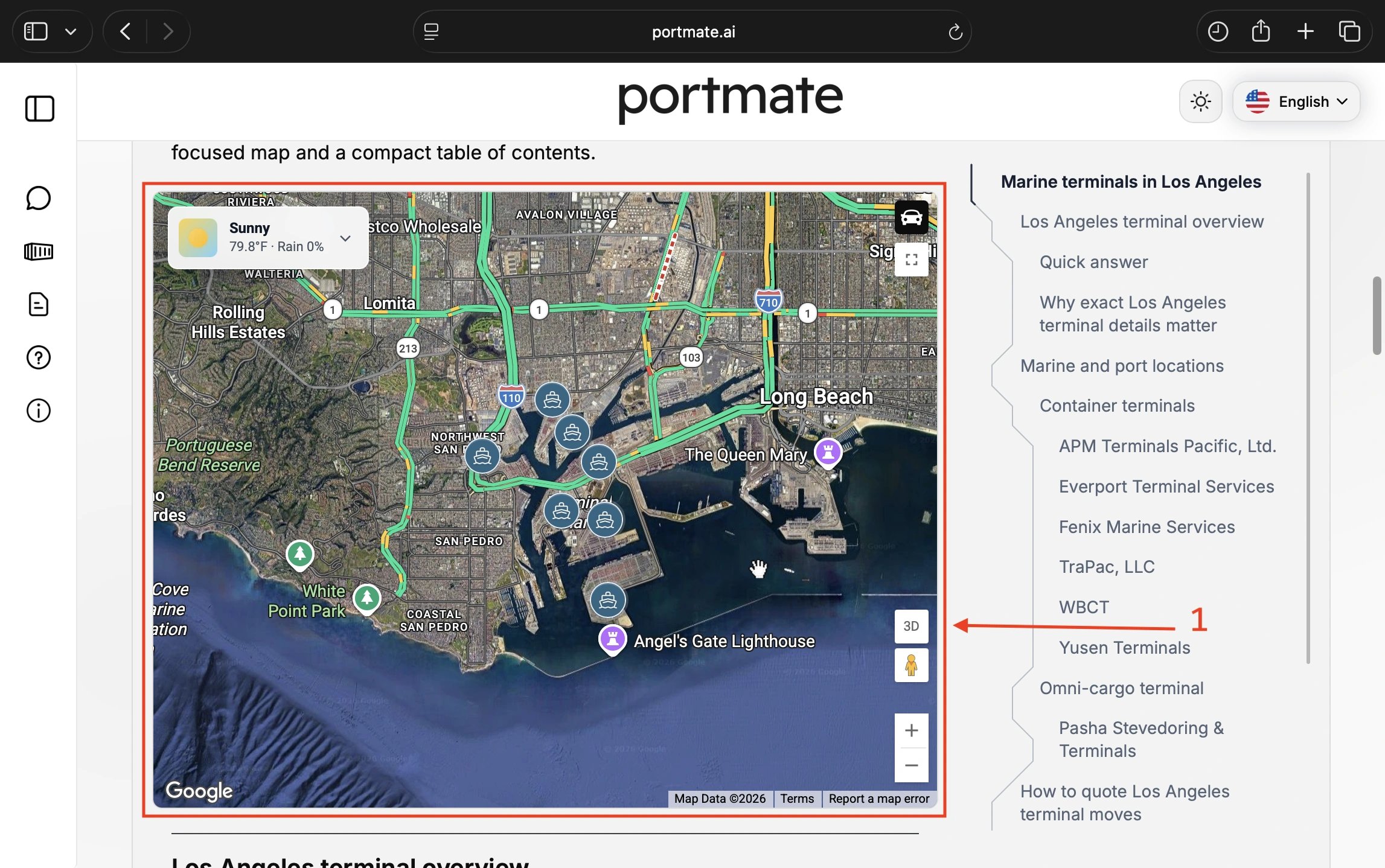
Step 6: Confirm traffic is enabled.
Find the car-shaped traffic control in the map's upper-right corner, above the fullscreen button. Traffic starts on. In the light-theme screenshot below, the active control has a dark background and a white car icon.
If traffic is already enabled, leave it on. Select the control once to enable it if it is off; selecting it while it is on hides the traffic overlay. The control's accessible label is Toggle traffic display.
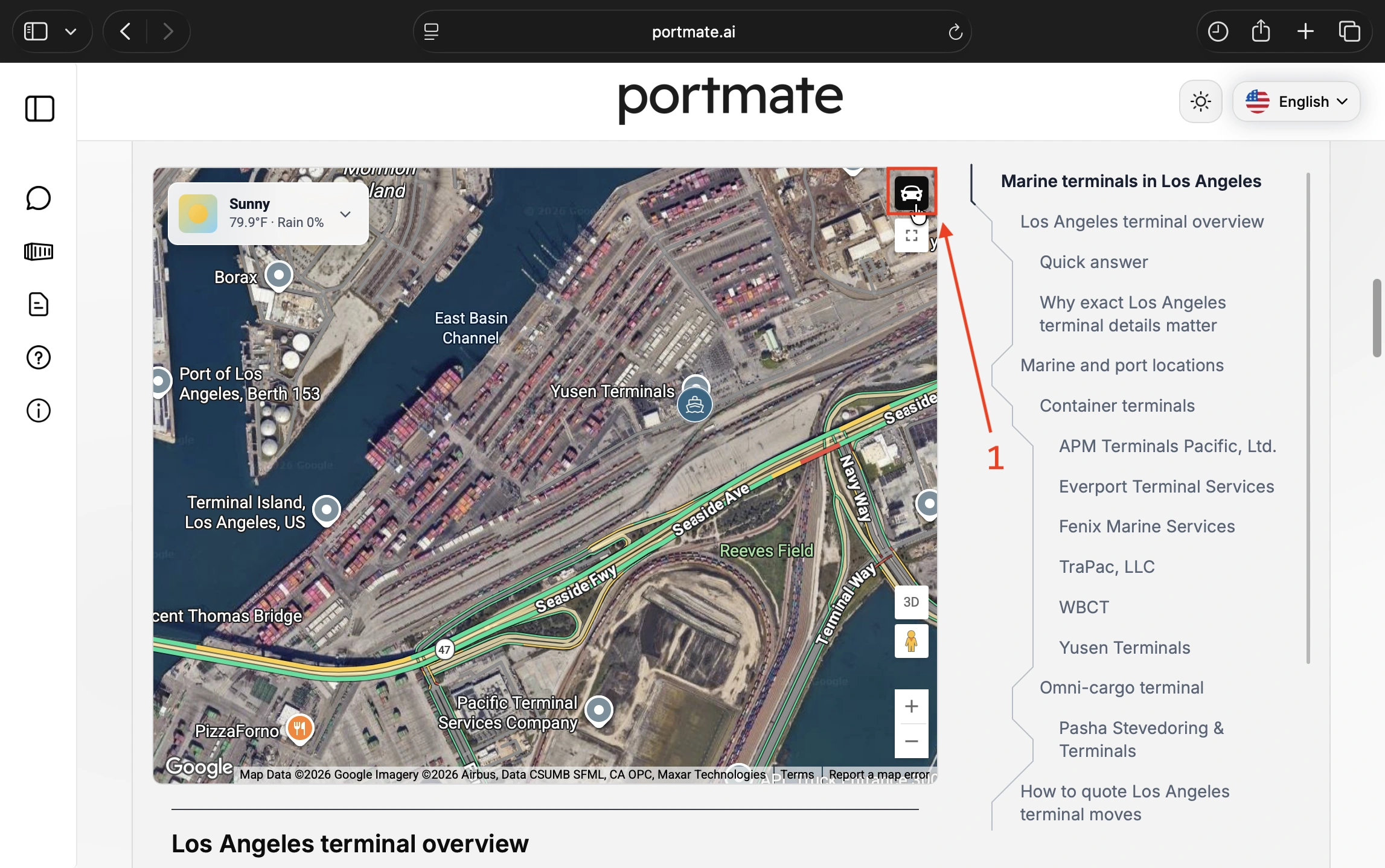
The colored road segments provide the traffic information. Terminal markers identify facilities; their marker colors are not traffic severity indicators.
What the traffic colors mean
Read the colored lines that follow the roads. Google's traffic scale describes traffic flow on individual road segments, so the color can change along the same road.
| Traffic color | How to interpret it |
|---|---|
| Green | Traffic is flowing without reported delays. |
| Orange | Traffic is moderate. |
| Red | Traffic delays are present. |
| Darker red | Traffic is moving more slowly than on lighter red segments. |
These meanings follow . Some segments in the screenshots appear yellow or yellow-orange; Google's written legend calls the middle traffic category orange. Do not treat those visual variations as a separate, precisely measured delay category.
The colors do not give a fixed speed, a number of vehicles, or a delay in minutes. A short red segment and a long red stretch can have different implications for a trip. Check where the slowdown is, how much of your approach it affects, and whether it is on the side of the road you will use. Where the map displays separate lines for opposite directions, read the line for your direction of travel.
If a road has no traffic coloring, zoom in for a closer look. Confirm that traffic is enabled and the map has loaded, then zoom in on the specific terminal approach. Smaller roads and short traffic segments are easier to inspect at a closer scale than in the regional overview.
If the road still has no traffic coloring, do not assume it is clear. Zooming in does not guarantee traffic data for every road; information is available where Google supports it. Google's explains the coverage limitation.
Google also documents dotted red lines for road closures in its traffic legend. If you see a closure marking, treat it separately from a solid red congestion segment and check current road or terminal access notices before planning around it. Do not assume every incident or closure will appear in the embedded map.
Inspect the roads around your actual terminal
A useful check moves from the wider area to the final approach. Looking only at the terminal marker can miss a slowdown farther out; looking only at the regional map can hide a short congested section near the facility.
Los Angeles example: harbor overview to Yusen Terminals
Use the two map screenshots above as an example of changing scale:
- Start with the harbor overview. The step-5 image shows the wider Los Angeles harbor area and surrounding corridors, including I-110 and I-710. Find the roads relevant to the planned move rather than treating every visible freeway as part of your route.
- Zoom toward the terminal you need. The step-6 image focuses on the area around Yusen Terminals. Use the map's zoom buttons and drag the map to inspect nearby roads. Select a terminal marker when you need to confirm its name.
- Trace the surrounding approach roads. Seaside Avenue, Seaside Freeway, and Navy Way are visible in the closer screenshot. Inspect the segments relevant to your actual approach, including connecting turns and the direction of travel where shown. These visible road names are orientation examples, not turn-by-turn gate directions.
- Expand the view if needed. The fullscreen control below the traffic button gives you more room to read the road network. Zoom back out to connect the local view with the wider approach.
The screenshots capture one moment. Their green, yellow-orange, and red segments are examples of how the overlay looks, not a report of current Los Angeles conditions.
For the final gate approach, use the terminal's current access instructions. A terminal marker can identify the facility without pinpointing the correct truck entrance for your transaction.
Rail-ramp example: check the roads around Hobart
For a rail pickup, open . You can find it through Articles by searching los angeles rail and checking the matching result's title.
Scroll to that guide's map, confirm traffic is enabled, and locate the ramp named in the rail notice. For example, if your notice names BNSF Los Angeles / Hobart, select its marker to confirm the facility. In the screenshot below, the popup reads BNSF Railway - Hobart Yard, identifies it as a Rail ramp, and shows 4000 Sheila Street, Commerce, CA 90023.
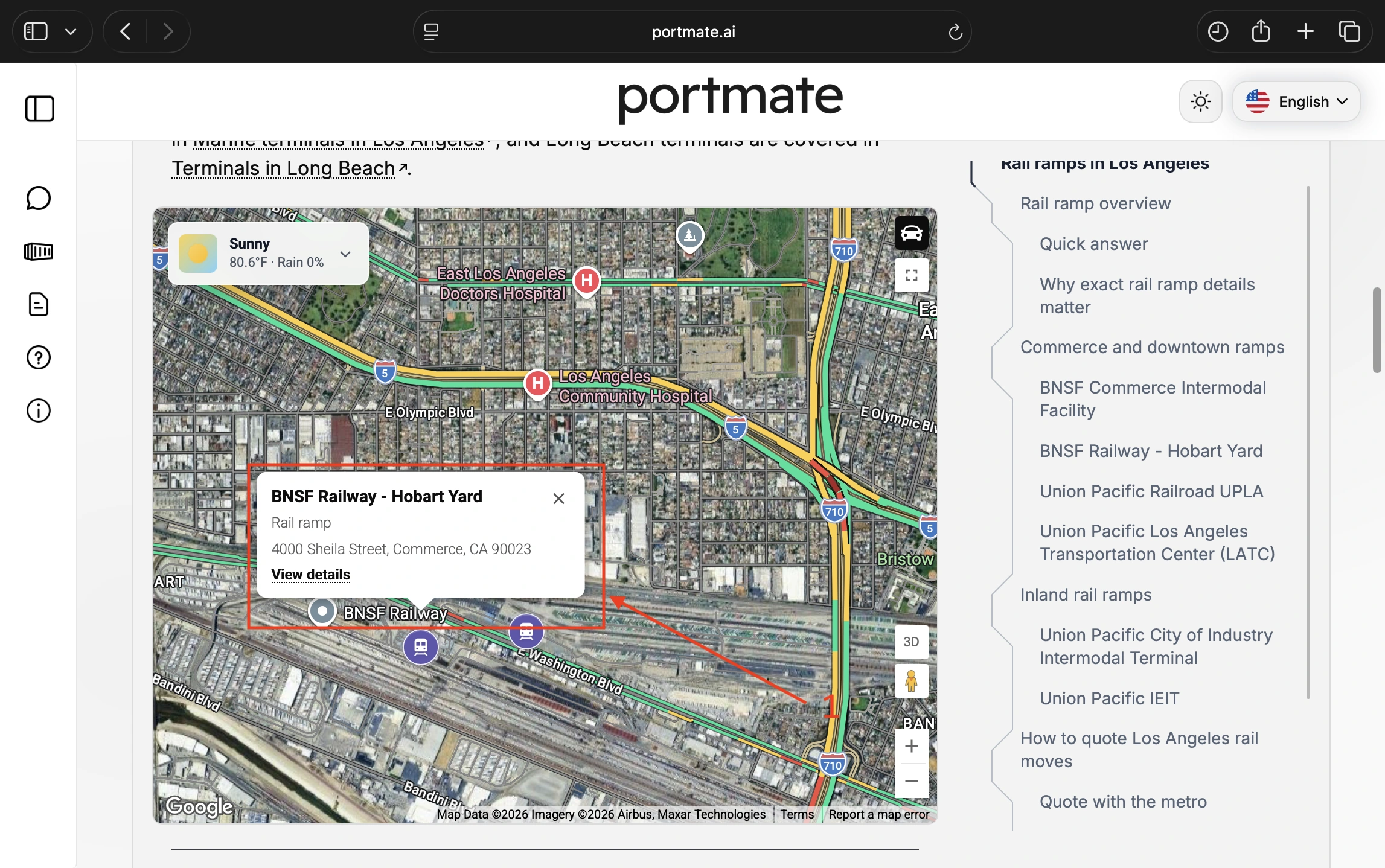
The screenshot shows traffic coloring on I-5, I-710, and East Washington Boulevard near the ramp. Use those labels to orient yourself, then inspect the roads relevant to the planned move. Close the popup with its × control if it covers a road you want to examine. Zoom in to inspect smaller streets and short traffic segments, then widen the view to connect the local approach with the origin or delivery area.
The colors shown are conditions captured in this screenshot, not current traffic or prescribed truck directions. Use the ramp's current access instructions to confirm the correct entrance.
The process is the same for a port or a rail ramp, but the facility and approach roads differ. The traffic overlay describes road vehicles around the ramp; it does not show train movements or rail-yard processing times.
Use traffic information to plan a pickup or delivery
Use the map to spot where the road portion of the move may need attention. Combine that observation with the appointment, gate instructions, and shipment status for the specific terminal.
For example, imagine the wider freeway approach looks green, but a connecting road near the terminal is orange or red. Inspect the affected stretch before assuming the entire trip will be smooth. Share the location of the slowdown with dispatch and reassess the arrival plan against the appointment window. If conditions affect the planned arrival, coordinate the change with the relevant team.
A useful update names the location and the observation: “The map currently shows a red segment on the planned terminal approach; please recheck arrival timing.” A color alone does not support an exact delay estimate such as “the truck will be 20 minutes late.”
Likewise, a nearby green road does not by itself establish a suitable alternative truck route. Confirm the correct gate and the carrier's route requirements before changing the approach. The traffic toggle displays conditions; it does not select a truck route for you.
Keep these separate checks in mind:
- Road congestion: What the traffic layer helps you inspect on the approach.
- Gate queues and terminal turn time: Check terminal information and operational updates; road colors do not measure the complete terminal visit.
- Container readiness and appointments: Confirm release, availability, appointment details, and gate hours through the appropriate shipment and terminal channels.
For more area context, use alongside the traffic check.
How live traffic updates work
The map uses Google's current road-traffic layer, which supports automatic updates. Google says traffic information refreshes frequently, but changes are not instantaneous. Rapid repeated requests for the same area may return the same information. See Google's and .
You do not need to repeatedly switch traffic off and on to keep checking it. Revisit the map near departure or when plans change. If the map appears stuck, reloading the article can help it load again, but it does not guarantee that Google has newer conditions available.
The article's Last updated date describes the article, not the freshness of each traffic segment. The weather widget also has its own data; its timestamp does not date the traffic overlay.
The satellite imagery beneath the traffic lines is not live camera footage. Vehicles, containers, or trains visible in the photograph do not establish current traffic or terminal activity. The changing road overlay is separate from the background imagery.
Troubleshooting and viewing tips
Start with the part of the workflow that is missing. On a small screen, expand the navigation if needed and use fullscreen for more map space; zoom closer when road labels or short traffic segments are difficult to read.
| What you see | What to try |
|---|---|
| No relevant article result | Check spelling, shorten the search to a city or terminal name, or add the railroad or facility type. Switch an active category filter to All if needed. |
| A guide for the wrong facility type | Check the title and facility list. Los Angeles marine terminals and inland rail ramps have separate guides. |
| Traffic lines disappear after selecting the car icon | You may have turned an already-enabled layer off. Select it again to restore traffic. |
| Traffic is enabled but some roads have no colors | Allow the map to load, then zoom in on the specific road, especially smaller streets near the terminal. If it remains uncolored, traffic data may be unavailable; do not assume it is clear. |
| The traffic control is missing | Exit Street View or select 2D to return from immersive 3D to the standard map. |
| The map fails to load | Use Retry if offered, or reload the article and check your connection. Try again later if it remains unavailable. |
| Colors stay the same after another check | Conditions may be unchanged, or the provider may not yet have newer information. Repeated toggling does not guarantee fresher data. |
For a separate look at a facility's layout, see . Return to the standard map when you want to inspect traffic again.
Before you dispatch
Use this short sequence before the road portion of the move:
- Confirm the exact terminal or rail ramp from the shipment instructions.
- Open the correct guide and make sure traffic is enabled.
- Inspect the wider approach and nearby roads, including the relevant direction of travel.
- Check gate access, appointment details, and container readiness separately.
- Recheck traffic near departure and coordinate any arrival changes with dispatch and the receiving team.