

How to check terminal area weather
Check live weather around a port terminal or intermodal rail ramp from the weather widget in Portmate's terminal guides. Open the article for your location, scroll to its interactive map, and expand the weather card to see temperature, wind, precipitation, visibility, and more. Refresh the page whenever you want to request the latest available conditions.
This guide is for shippers, freight forwarders, dispatch teams, and anyone checking the area around a container pickup or delivery. The walkthrough uses new york city rail to find the New York and New Jersey rail ramp guide. The field reference below explains every weather reading displayed by the widget, including less familiar terms such as dew point and QPF.
Quick start: Go to , select Articles in the left navigation, search for your terminal or region, and open the matching guide. Scroll to the map and select the weather card in its upper-left corner. Read the details and check Updated … (local) at the bottom.
Find and open the weather widget
Follow these six steps using the screenshots as a guide. Each screenshot's red callout identifies the action or area shown in that image.
Find the right terminal guide
Start with the city, port, terminal, or rail ramp you need. Article search can lead to a regional guide covering several facilities, so check the title and summary before opening a result.
Step 1: Go to Portmate.
Open in your browser.
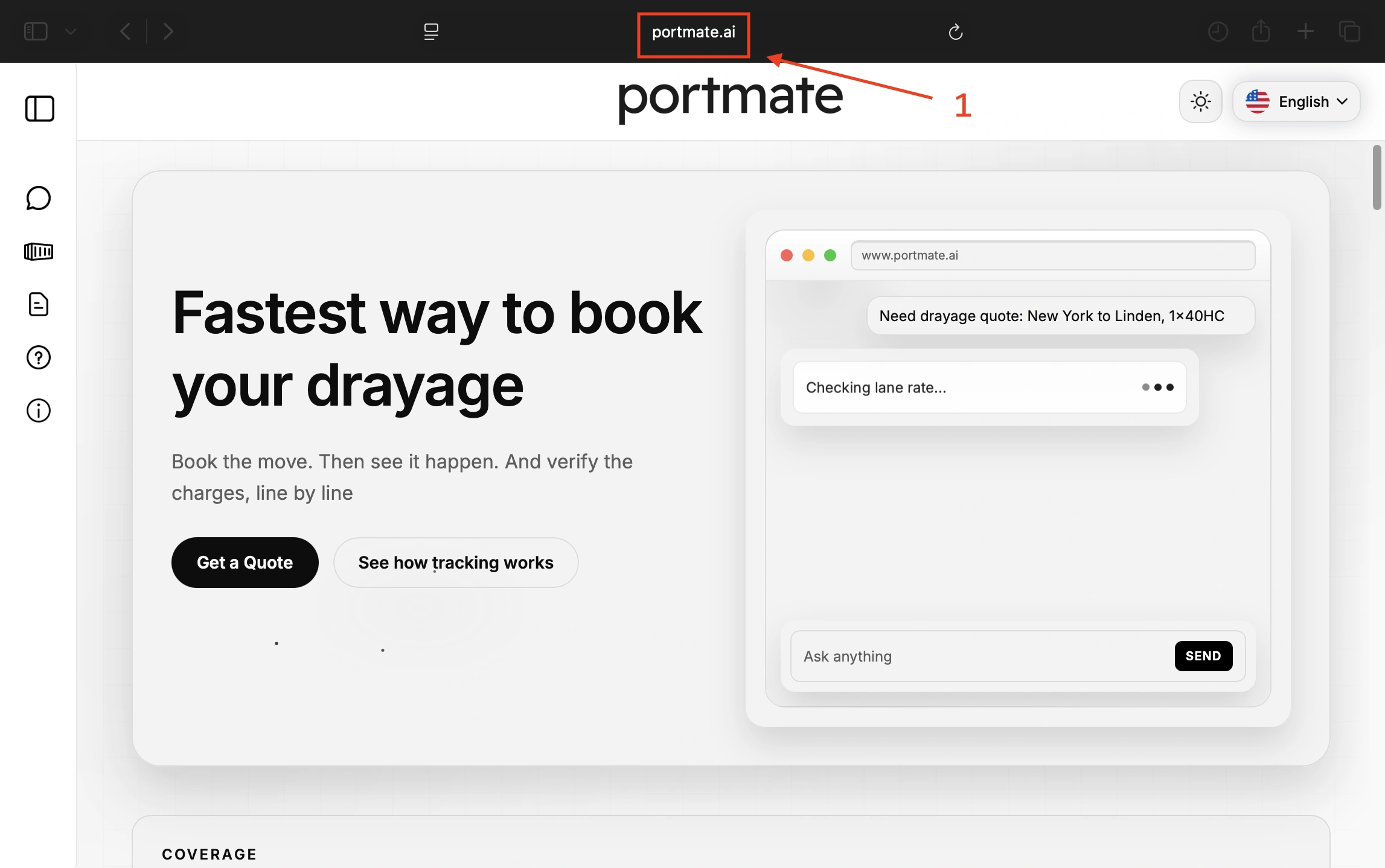
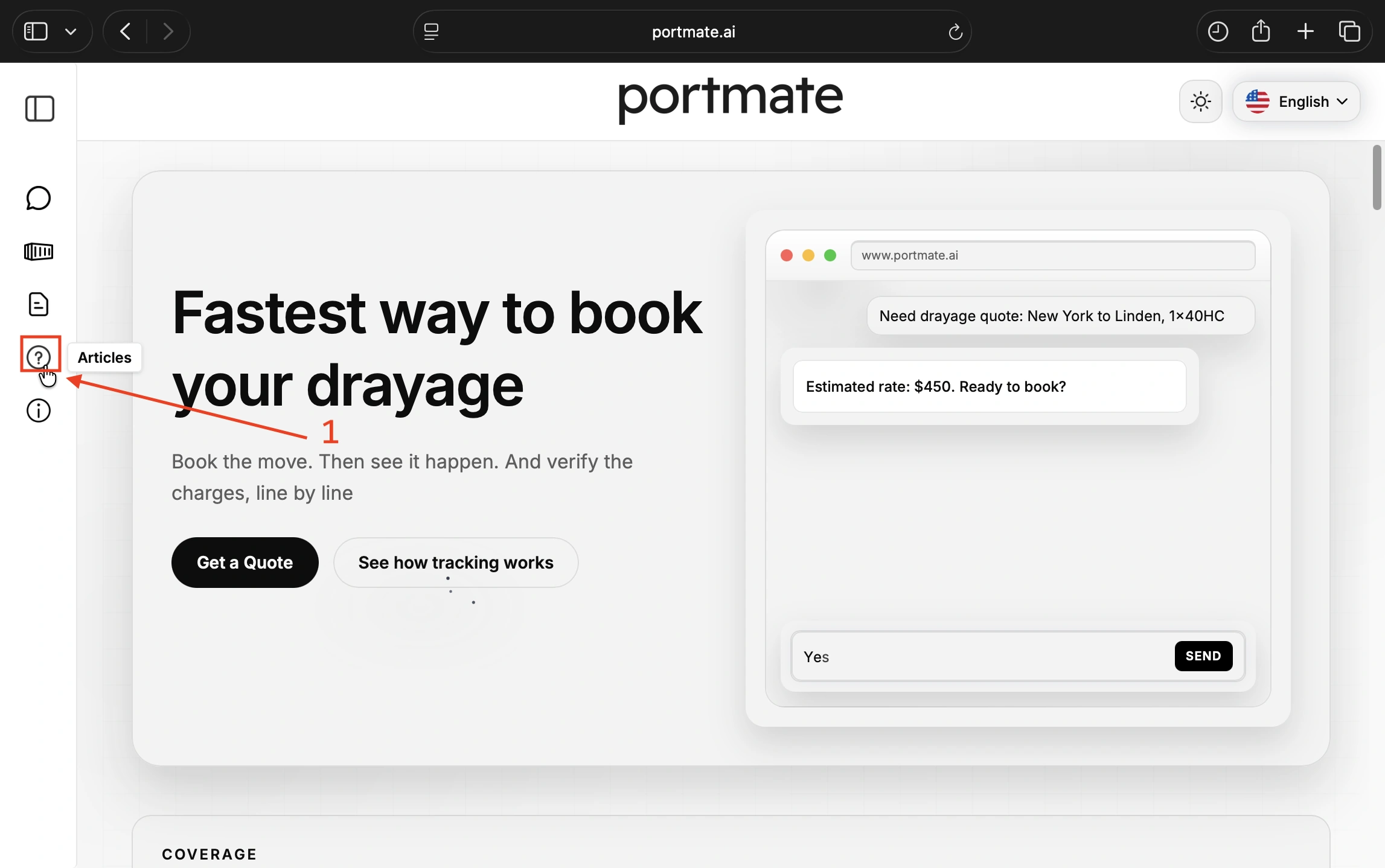
Step 2: Select Articles.
Choose Articles from the left navigation. In the compact sidebar shown below, it is the question-mark icon. Expand the navigation menu if you need to see its labels.
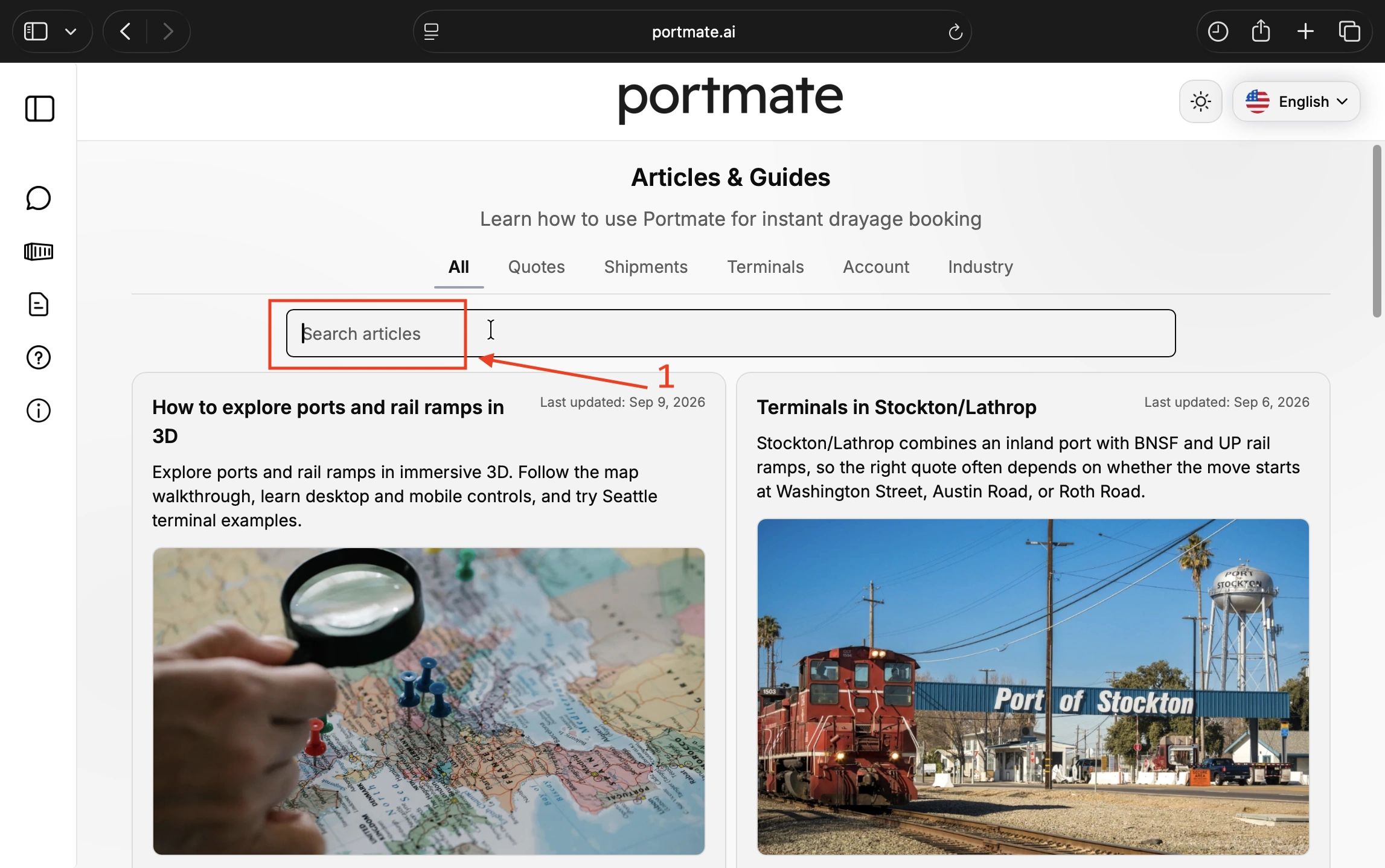
Step 3: Search for your terminal or region.
Select the Search articles field and type new york city rail to follow this example. For another location, use its city or terminal name; adding a railroad or facility name can help make the search more specific.
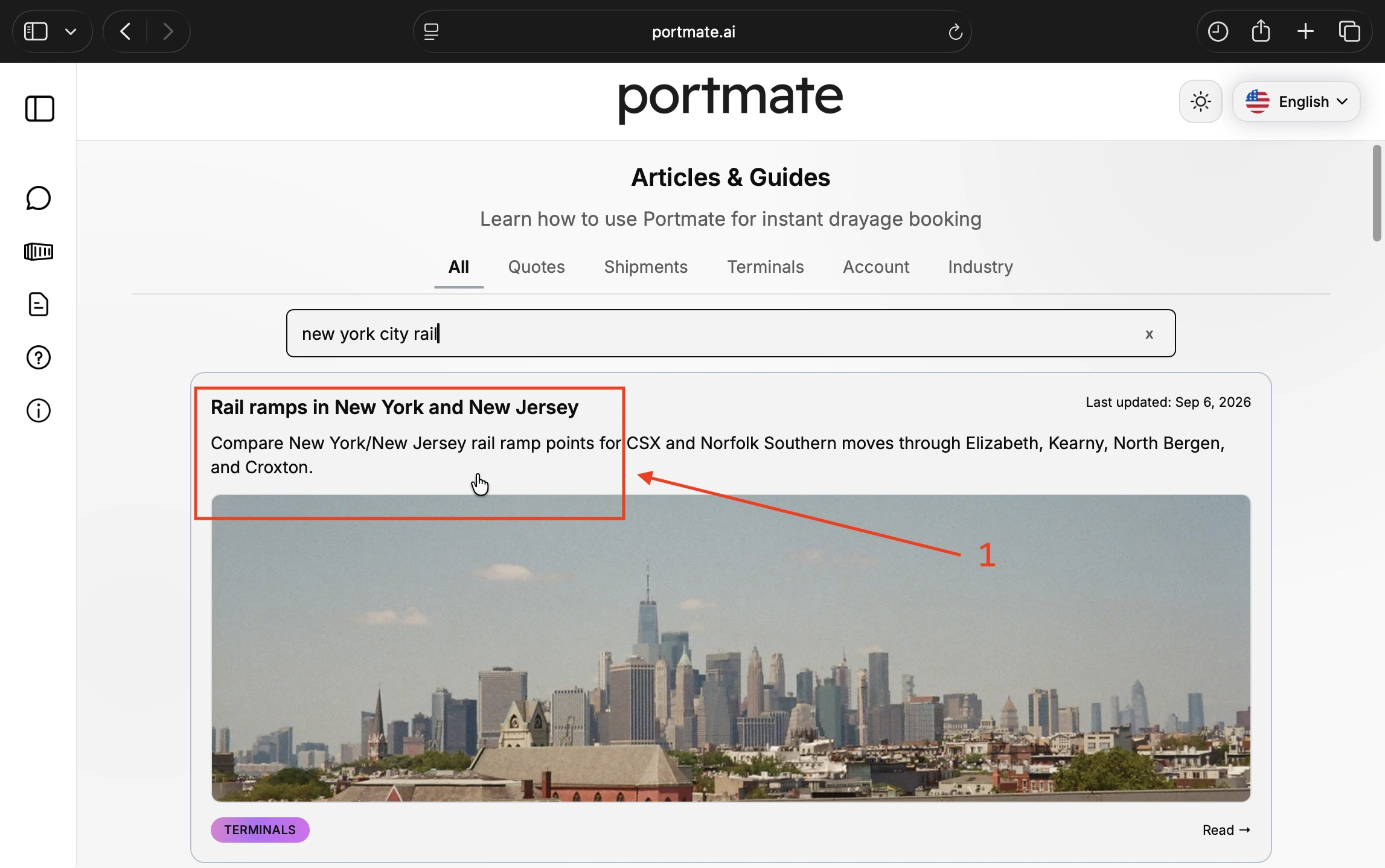
Step 4: Open the matching result.
For this search, select Rail ramps in New York and New Jersey. Check that the result covers the region and facility type you need rather than relying on its position in the list.
The example opens a regional rail guide, not a separate page for a single ramp. You can also go directly to .
Open the map and weather details
The weather widget sits inside the guide's interactive terminal map. Its compact card gives a quick overview; expanding it reveals the additional readings and timestamp.
Step 5: Scroll to the map.
Look for the interactive map showing the terminal or rail ramp markers. In the New York/New Jersey example, the collapsed weather card is at the map's upper left and shows Partly sunny, a temperature, and a rain probability.
Use the standard map view for this step. If you have already switched to 3D or entered Street View, return to the standard map to see the weather widget.
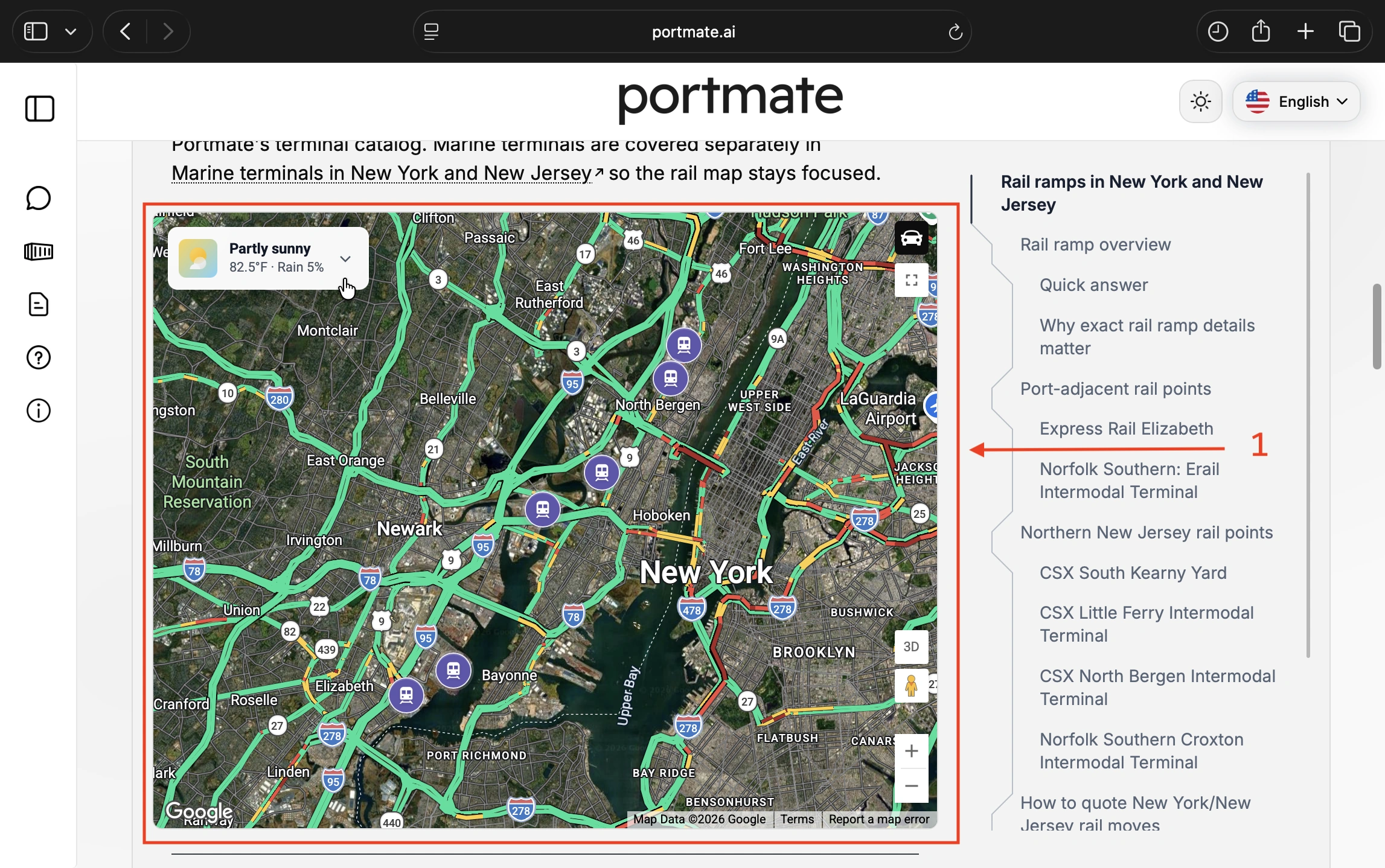
Step 6: Expand the weather widget.
Select the weather card or its downward chevron. The panel opens to show the available weather details. Read the fields you need, then check Updated … (local) at the bottom. Select the card again to collapse it.
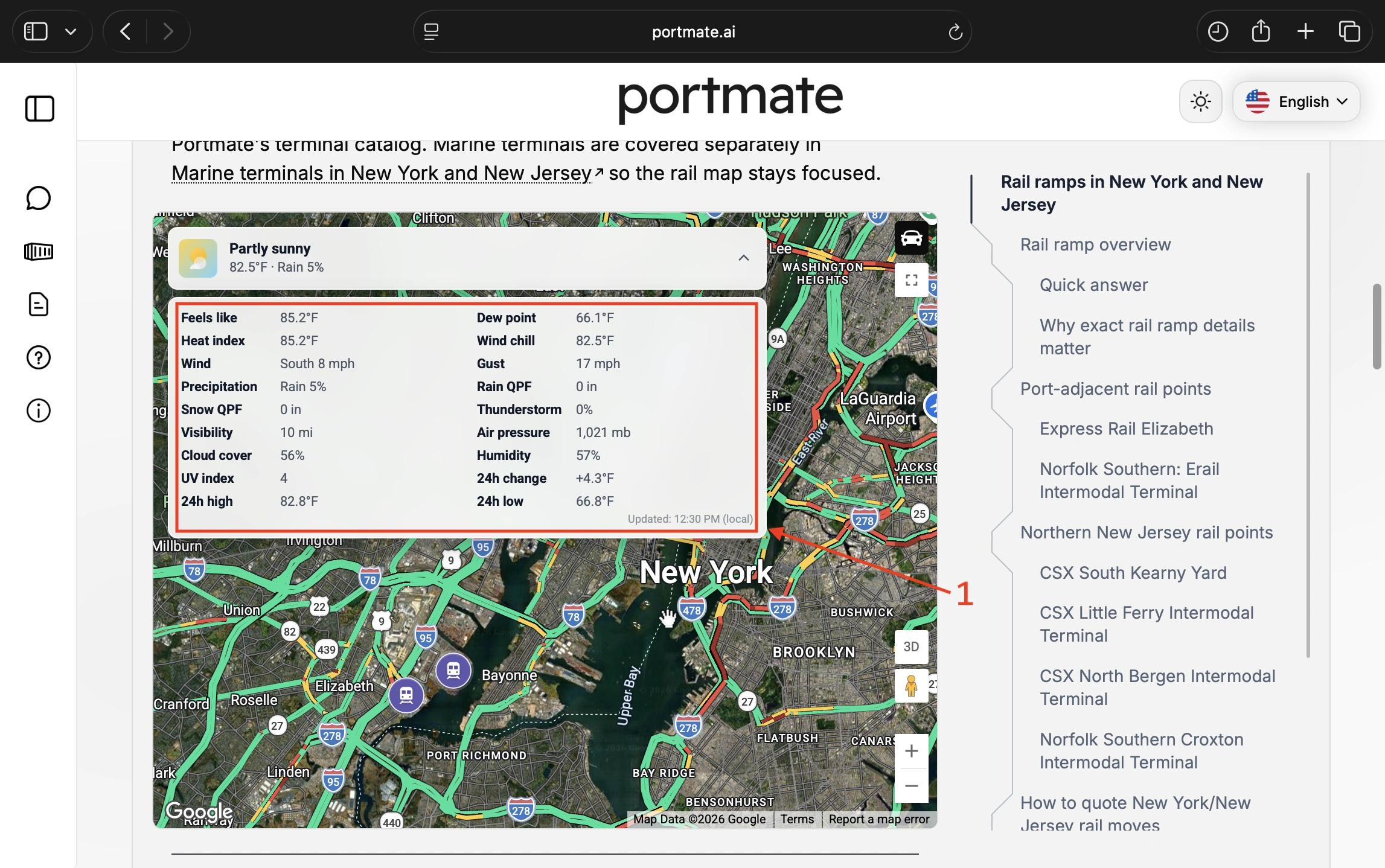
What area does the weather describe?
The widget provides weather for a reference location in the guide's metro area. Nearby terminals and rail ramps often share broadly similar weather, so one area reading gives you a useful overview when checking facilities in the same region. Local conditions can still vary, especially rain, fog, and wind. Selecting a different terminal marker or moving the map keeps the same area weather reading.
For example, the New York/New Jersey rail map contains several ramp markers and a shared weather card for the area. If you are checking a marine terminal instead, open , scroll to its map, and expand the weather card in the same way. Both guides use the same weather reference location because they cover the same metro area.
Use the reading as local weather context alongside the details for your actual pickup or delivery facility. Terminal operating notices establish gate closures, restrictions, and appointment changes; the weather card does not report those decisions.
What the weather readings mean
Start with the overview, then use the sections below to understand the expanded details. Fields appear when the provider supplies a value; a missing field should not be interpreted as zero.
The English version shown in the screenshots uses °F for temperature, mph for wind, mi for visibility, and in for precipitation amounts. Air pressure is displayed in mb. Read the unit beside each value, since other supported language versions can use metric units.
Weather overview and temperature
The compact card combines the condition description, icon, temperature, and precipitation probability. A sun or moon in the icon can also communicate daytime or nighttime. Some weather conditions use the same symbol for both, so every icon will not contain a sun or moon. shows these variations.
| Weather field | What it means |
|---|---|
| Condition and icon | A description such as Partly sunny, accompanied by a visual summary of the weather. |
| Temperature | The air temperature reported for the weather location. |
| Feels like | An apparent temperature describing how warm or cold the conditions feel. It can differ from the air temperature. |
| Heat index | How hot conditions feel when humidity is considered together with air temperature. |
| Wind chill | How cold conditions feel on exposed skin when wind increases heat loss. |
| Dew point | The temperature at which the air would become saturated if cooled. Higher dew points generally indicate more moisture in the air. |
The National Weather Service explains and the difference between . These readings describe different aspects of the same conditions, so they do not need to match.
In the screenshot, the air temperature is 82.5°F and Feels like is 85.2°F. That makes the distinction visible without needing to calculate anything yourself. These are example values from the screenshot, not current conditions for New York/New Jersey.
Wind and gusts
Read direction and speed together, then check the gust value for stronger bursts of wind.
| Weather field | What it means |
|---|---|
| Wind | The direction the wind is coming from, followed by its speed. South 8 mph means wind coming from the south at 8 miles per hour. |
| Gust | The speed of brief increases in wind strength. It can be higher than the main wind speed. |
The screenshot shows South 8 mph and Gust 17 mph. These describe the main wind and stronger bursts, respectively. Google's documents the direction, speed, and gust data used by the widget.
Precipitation and thunderstorms
The widget separates the chance of precipitation from its amount. Read the percentage and the amount as different measurements.
| Weather field | What it means |
|---|---|
| Precipitation | The reported type and probability, such as Rain 5%. The percentage expresses a chance of precipitation, not an amount or intensity. |
| Rain QPF | The provider's rain amount for the preceding hour, expressed as a liquid-water depth in inches or millimeters. |
| Snow QPF | The preceding hour's snow amount expressed as its liquid-water equivalent. This is the amount of water represented by the snow, not the depth of snow on the ground. |
| Thunderstorm | The reported probability of thunderstorms, displayed as a percentage. |
QPF stands for Quantitative Precipitation Forecast, but the period and meaning depend on the data being displayed. In this widget, the precipitation amounts refer to accumulation over the past hour. Google's establishes that period, and its explains the liquid-water measurements.
For example, Rain 5% and Rain QPF 0 in can appear together: one is a probability, while the other is the displayed amount for the preceding hour. Likewise, a Snow QPF value of 0.1 in would represent a tenth of an inch of water equivalent, not a tenth of an inch of snow depth. A zero QPF value does not establish that roads or terminal yards are dry or free of existing snow.
Visibility, humidity, and other atmospheric conditions
These fields add context beyond temperature and precipitation. Use the labels and units to distinguish distance, percentages, pressure, and the UV scale.
| Weather field | What it means |
|---|---|
| Visibility | The reported distance over which objects can be seen, in miles or kilometers. |
| Cloud cover | The percentage of the sky covered by clouds. It is separate from the chance of rain. |
| Humidity | Relative humidity: how close the air is to saturation at its current temperature, expressed as a percentage. |
| Air pressure | Atmospheric pressure adjusted to mean sea level, shown in millibars. |
| UV index | The strength of ultraviolet radiation at the surface. Higher numbers indicate stronger UV exposure; this is an index, not a percentage. |
For moisture, compare Humidity with Dew point: relative humidity depends on temperature, while dew point helps describe the air's moisture content. For visibility, read the reported distance directly rather than trying to judge current weather from the satellite image beneath the widget. The map imagery and the weather readings are different sources of information.
The describes the atmospheric fields. The provides further context for the UV scale.
Temperature over the past 24 hours
The three 24h fields look backward from the current reading. They help you see recent temperature changes without treating them as a forecast for the next day.
| Weather field | What it means |
|---|---|
| 24h change | The current temperature minus the temperature 24 hours earlier. A positive number means it is warmer; a negative number means it is colder. |
| 24h high | The highest temperature during the past 24 hours. |
| 24h low | The lowest temperature during the past 24 hours. |
For example, the screenshot's 24h change +4.3°F means the current reading is 4.3°F warmer than the reading 24 hours earlier. The high and low are not predictions for tomorrow. These definitions follow Google's .
Refresh live weather and read the timestamp
At the bottom of the expanded panel, Updated … (local) displays the time associated with the returned weather data, formatted for the weather location's time zone. For the New York/New Jersey example, read it as the weather location's local time even if you are viewing the article from another time zone. Google's describes the time attached to the data.
To request the latest available weather:
- Refresh the article page using your browser's reload control.
- Return to the map and expand the weather widget again.
- Check the Updated … (local) time along with the readings you need.
Refreshing requests weather again. Simply closing and reopening the card displays the details already loaded; it is not the refresh control. The widget does not continuously refresh itself while you leave the page open, and another request may return unchanged values when the provider's latest conditions are the same.
The article's Last updated date refers to the guide itself. Use the timestamp inside the weather panel when checking the weather information.
Troubleshooting and viewing tips
If you cannot find the guide or the weather panel, start with the part of the workflow that is missing.
| What you see | What to try |
|---|---|
| No relevant search result | Check the spelling, try a shorter city or terminal name, or broaden to the region. If a category filter is active, switch to All before searching again. |
| A regional guide rather than your exact ramp | Check whether its title, summary, and facility list cover the location you need. Regional guides can contain several ramps or terminals. |
| The article is open, but no weather card is visible | Scroll to the interactive map. If you are in 3D or Street View, return to the standard map. |
| The map appears, but weather remains unavailable | Refresh the page and allow it to load. If the provider does not return weather, the card may remain absent; try again later. |
| Some detail fields are missing | The panel shows the values supplied by the provider. An absent reading does not mean zero. |
| The readings stay the same after opening the card again | Refresh the whole page to request weather again, then check the panel's timestamp. |
On a smaller screen, the expanded details can stack vertically. Collapse the card when you want to see more of the map.
For a quick check before a pickup or delivery, read the condition summary, wind and gusts, precipitation, visibility, and timestamp first. Use the other fields when you need more context, and keep the exact terminal's operating instructions alongside the area weather information.