

How to explore ports and rail ramps in 3D
Explore port terminals and intermodal rail ramps in immersive 3D through Portmate's terminal guides. Search for a location, open its article, and switch the interactive map to 3D to see the facility and its surroundings from different angles.
This guide is for shippers, freight forwarders, and dispatch teams getting familiar with a pickup or delivery location. It also works for anyone curious about how container ports and rail yards fit together. The examples show Seattle's Terminal 18 and BNSF Seattle International Gateway (SIG).
Quick start: Visit , open Articles, search for your port or ramp, and select the matching guide. Scroll to its interactive map, select 3D, and open fullscreen for a larger view. Use the map buttons or mouse and keyboard to explore. On mobile, turn your phone sideways for more room.
What a 3D terminal map can show
A 3D view adds perspective to the satellite-based map. You can look across a container yard, rotate around a rail facility, and zoom out to understand how it sits within the surrounding city, waterfront, and industrial area.
These location terms describe different things:
- Port: The broader harbor or port area, which may contain several terminals. A port reference marker does not necessarily identify the facility handling your container.
- Marine terminal: An individual waterfront facility where cargo moves between vessels and land transportation. Use its specific name when identifying a container pickup or delivery.
- Intermodal rail ramp: A facility where containers or trailers transfer between trains and trucks. A rail ramp may be near a port or farther inland.
Use the map to recognize the location, understand its general footprint, and distinguish neighboring facilities. A broad view helps explain where a terminal sits; a closer, tilted view makes its layout easier to visualize.
The imagery is not live. Satellite and 3D imagery can predate changes at the facility. Visible containers, trains, equipment, and buildings do not establish current cargo availability or operating conditions. Use the terminal's current instructions for gate access, appointments, and shipment readiness.
How to open a port or rail ramp in 3D
Follow these seven steps on a desktop or laptop. The same search-and-open workflow works on mobile, with viewing tips in the controls section below. The numbered callouts within each screenshot identify the action shown in that image.
Find the right terminal guide
Start with the location name you have, then check that the result covers the correct city and facility.
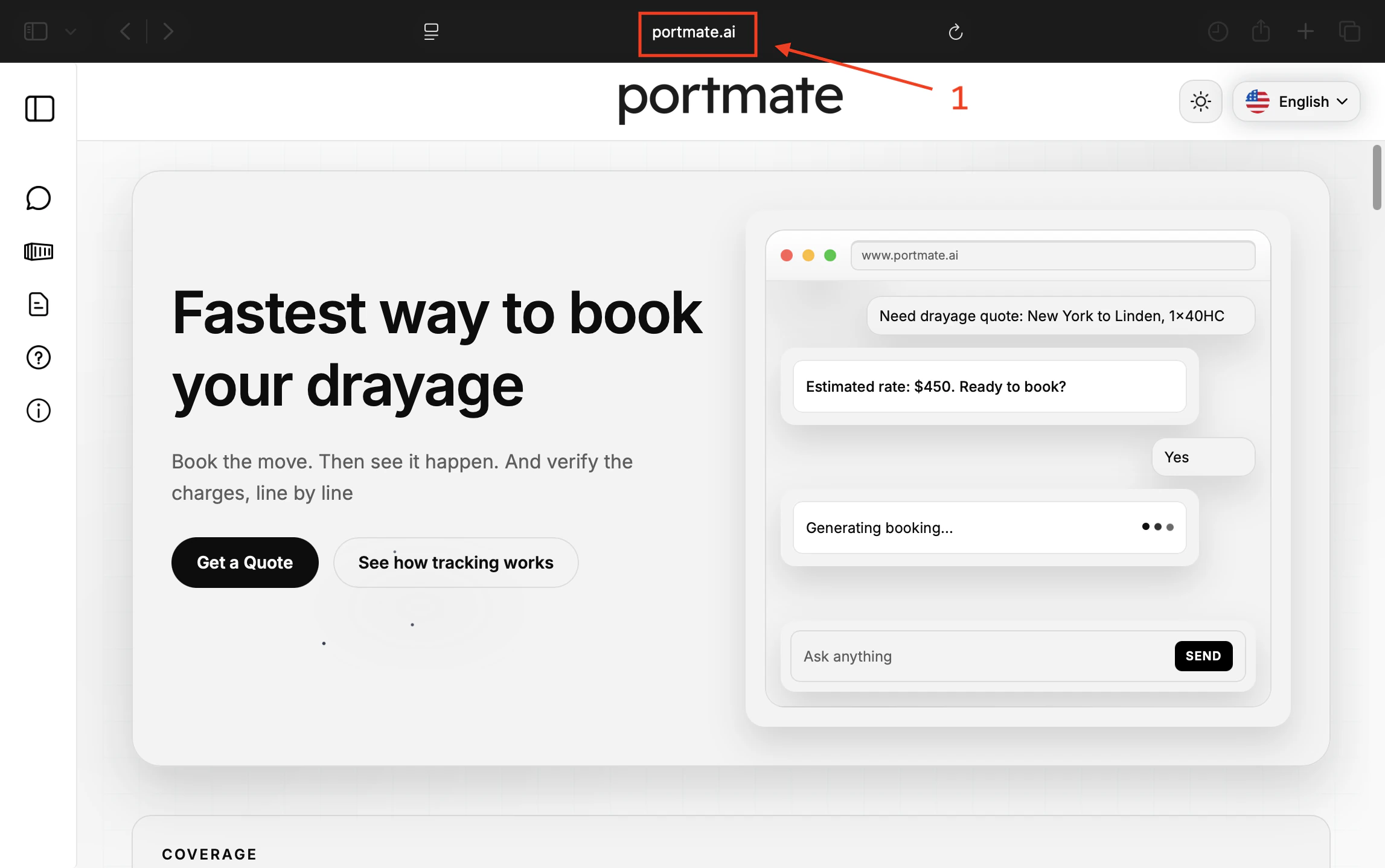
Step 1: Go to Portmate.
Open in your browser.
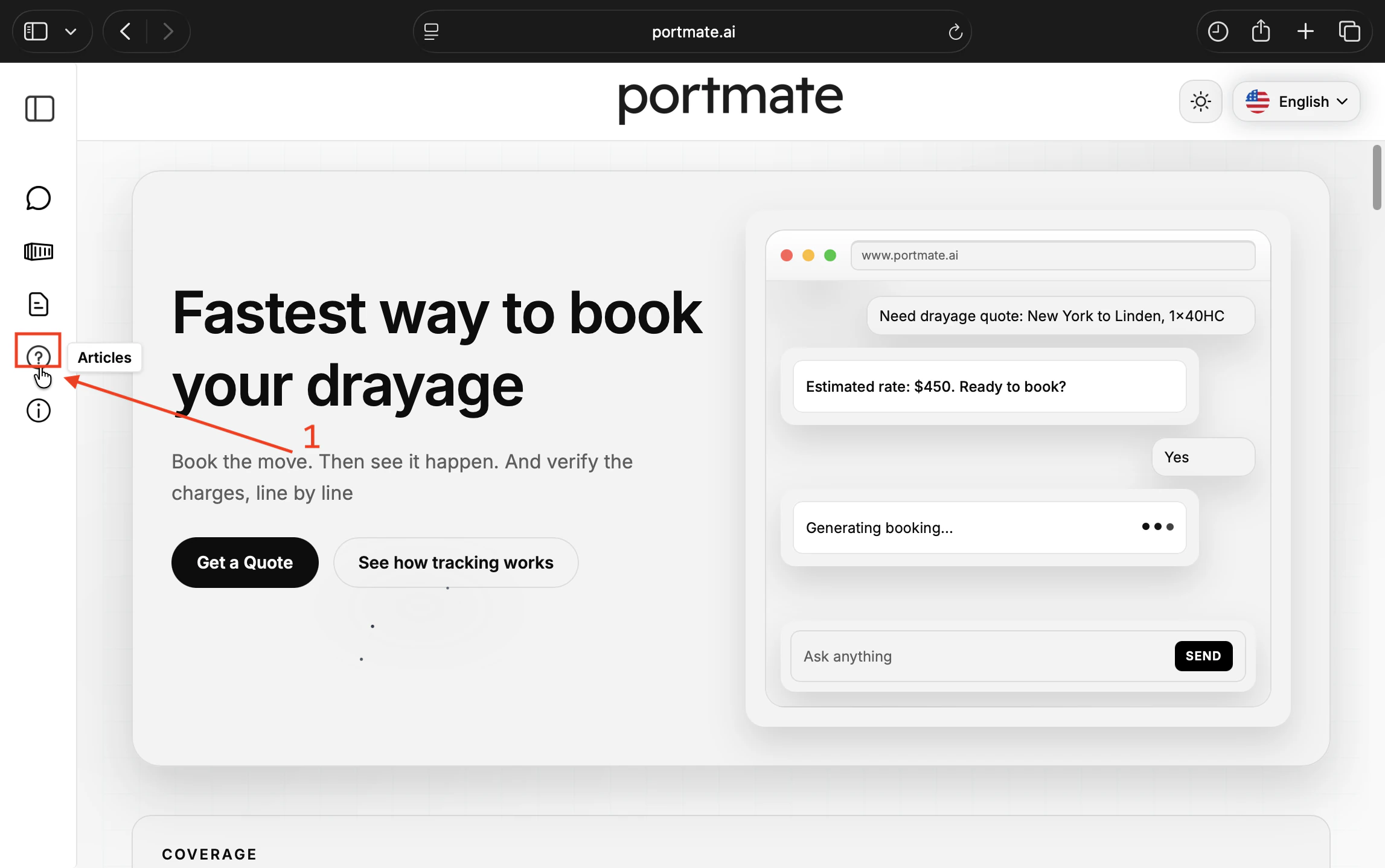
Step 2: Open Articles.
Select Articles from the left navigation. In the compact sidebar shown here, it is the question-mark icon. If the navigation is collapsed on your device, expand the menu to find the label.
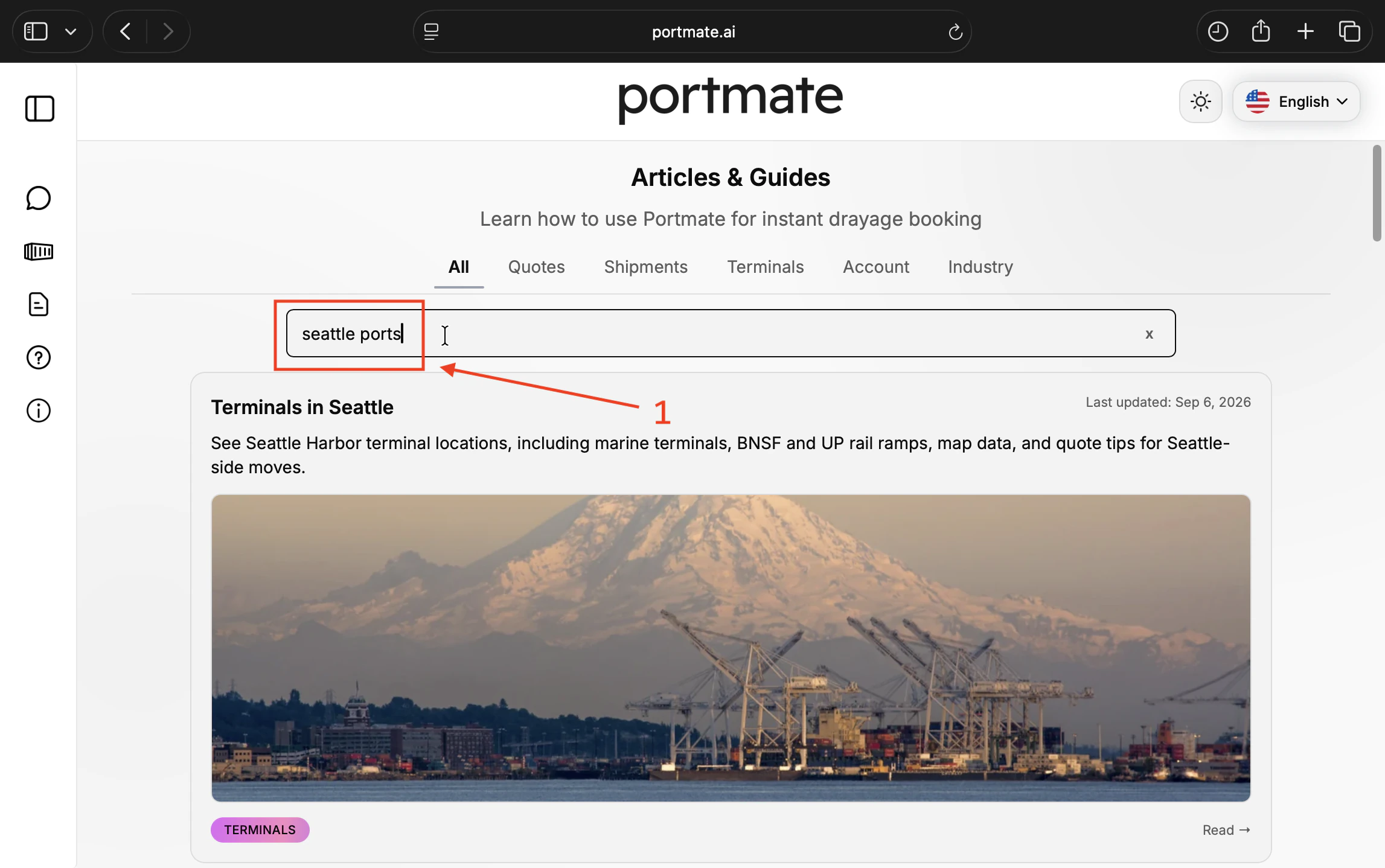
Step 3: Search for a port, terminal, or rail ramp.
Type a location into the article search bar. The example uses seattle ports. You can also search by city, terminal name, or railroad name. Add the city when a railroad serves several locations or a terminal name is ambiguous.
A result may be a city guide covering several facilities rather than a separate article for one ramp. That guide can still contain the location you want.
If you are starting with a shipper or consignee location and do not know which terminals to explore, see , then search for a relevant terminal guide.
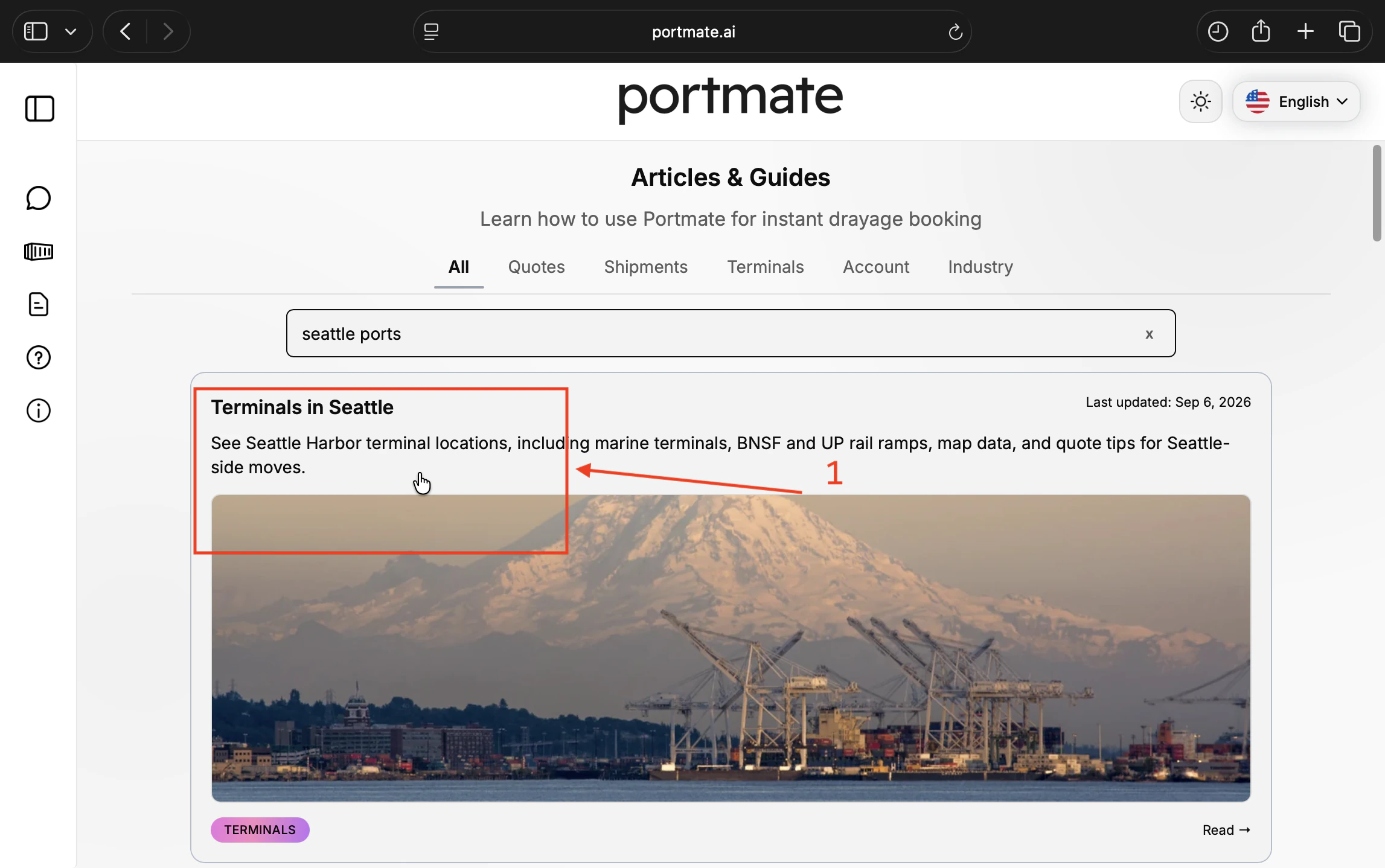
Step 4: Open the matching article.
Check the title and summary, then open the result covering your location. In this example, select Terminals in Seattle. Choose by relevance to your facility rather than assuming the first result is always correct.
Switch the map to 3D and fullscreen
The interactive map is part of the terminal guide. Its location within the page can vary, so look for the map itself rather than a particular heading.
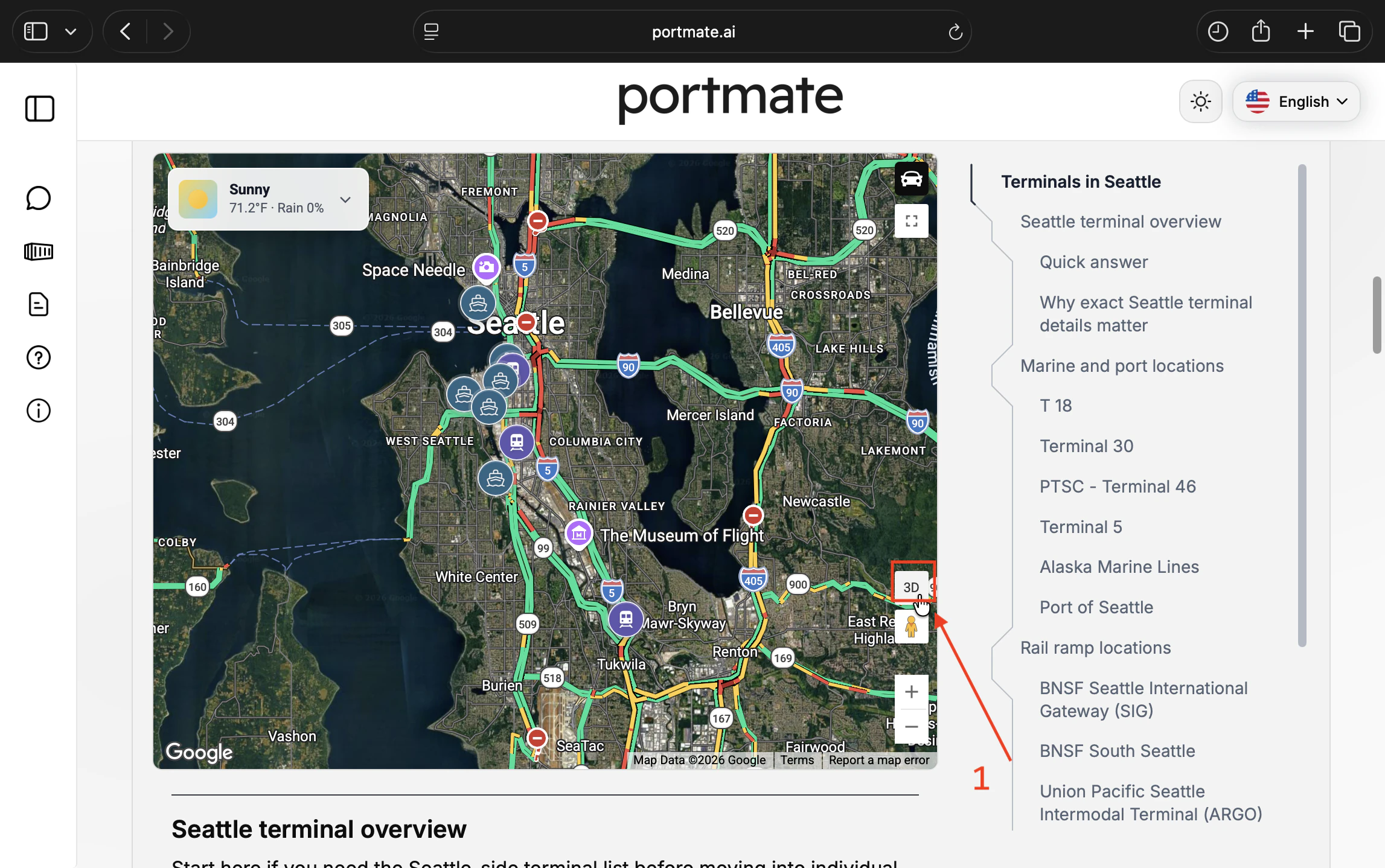
Step 5: Select 3D on the map.
Scroll to the interactive terminal map and select the 3D button on its right side. Allow the view to load. The map changes to an immersive perspective, and the toggle reads 2D so you can return to the standard view.
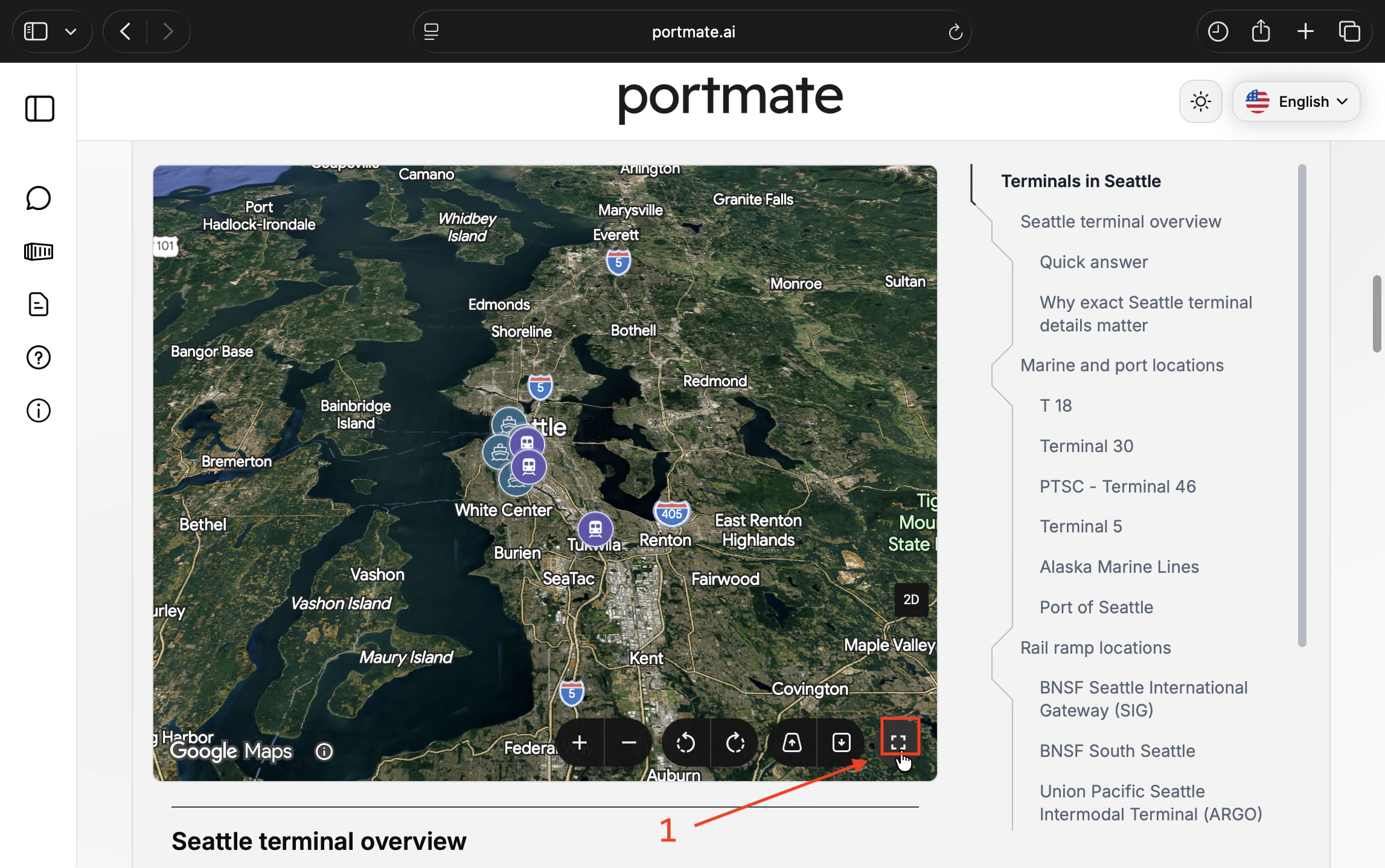
Step 6: Open fullscreen for a larger view.
Select the fullscreen icon at the lower right of the 3D map. Fullscreen gives you more space for the scene and controls, especially when inspecting a large terminal or rail yard. You can also explore while the map remains embedded in the article.
Explore a facility and its details
Once the map is open, move from a broad regional view to the facility you want to inspect.
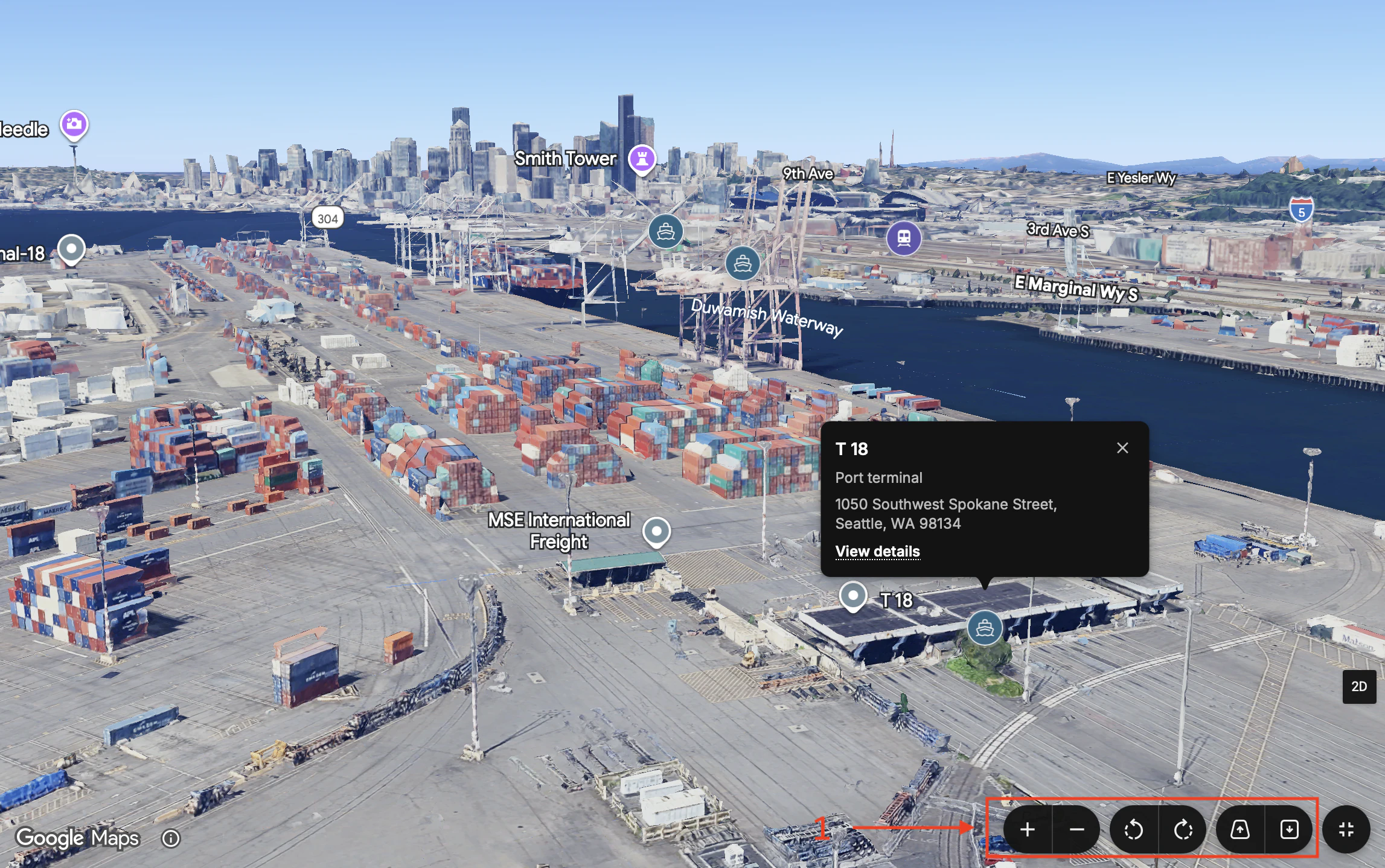
Step 7: Zoom, rotate, tilt, and select a marker.
Use the bottom toolbar to zoom in or out, rotate the scene, and adjust the viewing angle. Select a terminal marker to open its name, facility type, address, and View details link when available. Close the information card when you want an unobstructed view.
The screenshot shows T 18, Seattle's Terminal 18, with its information card open. The identifies it as a container terminal in Seattle Harbor. Look across the visible container yard and waterfront crane line, then zoom out to place the terminal in its surroundings. The following section explains the controls; the rail-ramp example below applies them to a different facility layout.
Map controls on desktop and mobile
Start with the on-screen buttons if you are unfamiliar with 3D navigation. Make small adjustments so you can keep the selected terminal in view.
Mouse, keyboard, and map buttons
Moving changes which area you are looking at. Rotating turns the view around it. Tilting changes the angle from overhead toward the horizon.
Move, zoom, rotate, and tilt
Use these controls to position the view around the facility you want to explore.
| Action | How to do it |
|---|---|
| Move around | Click and drag the map, or focus the map and use the arrow keys. |
| Zoom | Use the + and − buttons, the mouse wheel, or the keyboard's + and − keys. |
| Rotate | Use the curved-arrow buttons. With the mouse, hold Shift and drag left or right. With the keyboard, use Shift + Left/Right arrow. |
| Tilt | Use the tilt buttons beside the curved arrows. With the mouse, hold Shift and drag up or down. With the keyboard, use Shift + Up/Down arrow. |
For mouse gestures, start on an open part of the map rather than a marker, information card, or button. For keyboard navigation, click inside the map first; if the page scrolls instead, move focus into the map before trying again.
You can review the map's own keyboard reference through the information button beside Google Maps, then Keyboard shortcuts. Keep the terminal near the center as you rotate, and zoom out slightly if you lose your bearings.
Open facility details and change viewing modes
Once you have positioned the view, use a marker to identify the facility or change modes to return to the article.
| Action | How to do it |
|---|---|
| Read terminal information | Select a terminal or rail-ramp marker. Use View details to open its corresponding article section when linked. |
| Exit fullscreen | Select the fullscreen icon again. On desktop, you can also use Esc. |
| Return to the standard map | Select 2D. Switching back to 2D also exits the 3D fullscreen view. |
Using a phone or tablet
Portmate's 3D terminal maps also work on mobile. Landscape orientation is recommended: turn the device horizontally to give the map, information cards, and toolbar more room. Portrait mode remains usable, but less of the scene fits beside an open card.
Open the article and select 3D, then use fullscreen when available. Drag the map to move, tap a marker for its details, and use the on-screen zoom, rotate, and tilt buttons. Those buttons make it easy to adjust the view without a keyboard or a precise multi-touch gesture.
If an information card covers the area you want to inspect, close it before moving around. Reopen the marker when you need its name or details again.
What to look for at ports and rail ramps
Explore with a specific question in mind: which facility is this, how is it arranged, and what surrounds it? Build on the Terminal 18 view in step 7 by exploring a nearby rail ramp in the same Seattle guide.
Rail ramp example: BNSF Seattle International Gateway
In , select BNSF Seattle International Gateway (SIG) on the 3D map. The Northwest Seaport Alliance describes as a near-dock railyard operated by BNSF Railway.
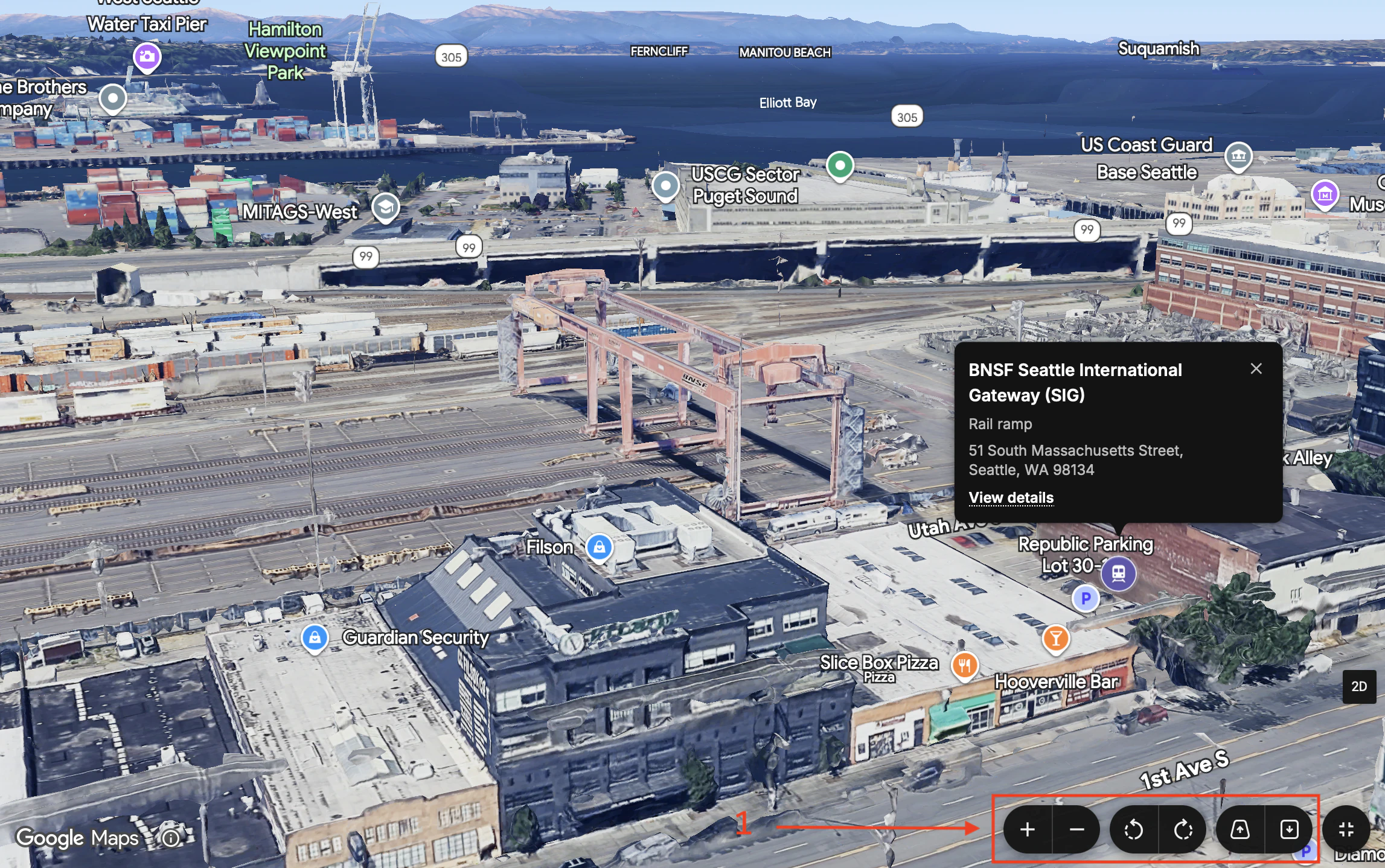
Try this short exploration:
- Confirm the marker. Read the facility name and check that its information card identifies it as a Rail ramp.
- Zoom out for context. Locate the yard relative to the waterfront, surrounding streets, and nearby marine terminals.
- Zoom in gradually. Look along the parallel rail tracks and across the handling area shown in the imagery.
- Rotate and tilt. Compare an overhead view with an angled view along the yard to understand its elongated layout.
- Read the linked details. Use View details to return to the facility description and supporting references.
Compare that view with Terminal 18's waterfront layout. Both are part of the same broader freight environment, but they are separate named locations. A container at a rail ramp needs that ramp identified in the shipment instructions; naming only the port area leaves the facility ambiguous.
Use the view in a work handoff
A forwarding or dispatch team can use this exploration to recognize a named facility and explain its location to a colleague. Roads visible around the yard provide context, but the picture alone does not identify the correct truck gate or an approved approach.
Record the exact facility name from your shipment documents and use the map to familiarize yourself with it. Add the article link as context for colleagues. Confirm the current pickup location and gate instructions with the terminal or railroad before dispatch.
Troubleshooting and common questions
If the experience does not look like the screenshots, start with the situation that best matches what you see.
I cannot find the right article or the 3D button
For search, try the city first, then narrow by terminal or railroad name. Check a matching city guide for the individual facility. Use All or Terminals if an unrelated category filter is limiting the results.
For the map, make sure you are looking at an interactive terminal map rather than an article's cover image. Wait for the map to finish loading and inspect its right edge. If the toggle says 2D, you are already in 3D. If you opened Street View, close that panorama to return to the map controls.
Not every article contains a terminal map. If the expected map still does not appear, reload the article or try another current browser.
The imagery is slow, blurry, or difficult to move
Pause after a zoom or rotation to let the scene load, and try zooming out slightly. If loading remains slow, check your connection and close other demanding browser tabs. Return to 2D if you need a simpler view while troubleshooting.
If ordinary dragging moves the map but does not rotate it, hold Shift while dragging or use the curved-arrow buttons. If keyboard commands affect the page, click into the map first. On mobile, turn the device to landscape and use the toolbar for rotation and tilt.
Some objects in 3D imagery may look simplified or distorted even after loading. More zoom does not always reveal more usable detail. Use the wider view to understand the layout rather than treating the model as a precise measurement of a gate, lane, or structure.
Is 3D the same as Street View or live tracking?
No. The 3D map lets you explore satellite-based scenery from an adjustable viewpoint. Street View is a separate panorama experience. Neither the 3D scene nor the pictured equipment tells you where your shipment is right now.
The imagery also does not provide an image-capture date through the article's Last updated label. That label concerns the article; it does not mean the underlying satellite or 3D imagery was captured that day.
Continue exploring terminal locations
Choose a location guide and try the same workflow at another facility:
- : Revisit the marine-terminal and rail-ramp examples in this guide.
- : Explore another part of the Seattle/Tacoma area.
- : Find the guide's port and rail locations and compare their surroundings.
When you are ready to plan a move, use the exact terminal or ramp named on your shipment documents in your . The map helps you understand the place; the shipment details establish which facility your move actually needs.
If you only know the broader port or metro, read to understand the terminal assumption used for pricing and why confirming the exact location matters.